Table of contents
- How Fast Food Kiosk Ordering Works: The Full Customer Flow
- How to Build a Kiosk Ordering Menu That Drives Higher Checks
- How Kiosk Ordering Integrates with Your Restaurant's Tech Stack
- How to Use Kiosk Ordering to Increase Average Order Value
- How Kiosk Ordering Fits Into Your Multichannel Strategy
- How Otter Kiosk Manages the Full Ordering Flow
- When Your Kiosk Ordering System Works Right, So Does Everything Else
- Frequently Asked Questions About Fast Food Ordering Kiosks
In Tillster's 2025 Phygital Index Report, 76% of self-service kiosk users said they had, at times, bought more than they intended.
For an operator, that’s exactly why ordering kiosks pay off: customers who order on a touchscreen tend to spend more. This isn’t an accident. It’s thanks to an ordering system configured to guide each customer through a clean flow, where the right add-on surfaces at the right moment, and every order reaches the kitchen without errors.
This guide is for fast food operators who already run kiosks, or are setting them up now, and want more out of the system.
You won't find hardware comparisons or a case for buying here. Instead, you'll learn how:
- The ordering process works from approach to kitchen
- To build a kiosk menu that increases check sizes
- To connect kiosks to your POS and kitchen display
- To read your ordering data
- To integrate kiosks alongside your other channels
Let’s dive in.
How Fast Food Kiosk Ordering Works: The Full Customer Flow
From the customer's side, ordering at a kiosk looks simple. Behind the touchscreen, every tap triggers a chain of actions across your POS system, payment processor, and kitchen. If you know what happens at each step, you can configure and troubleshoot the system with confidence.
Here's the full journey.
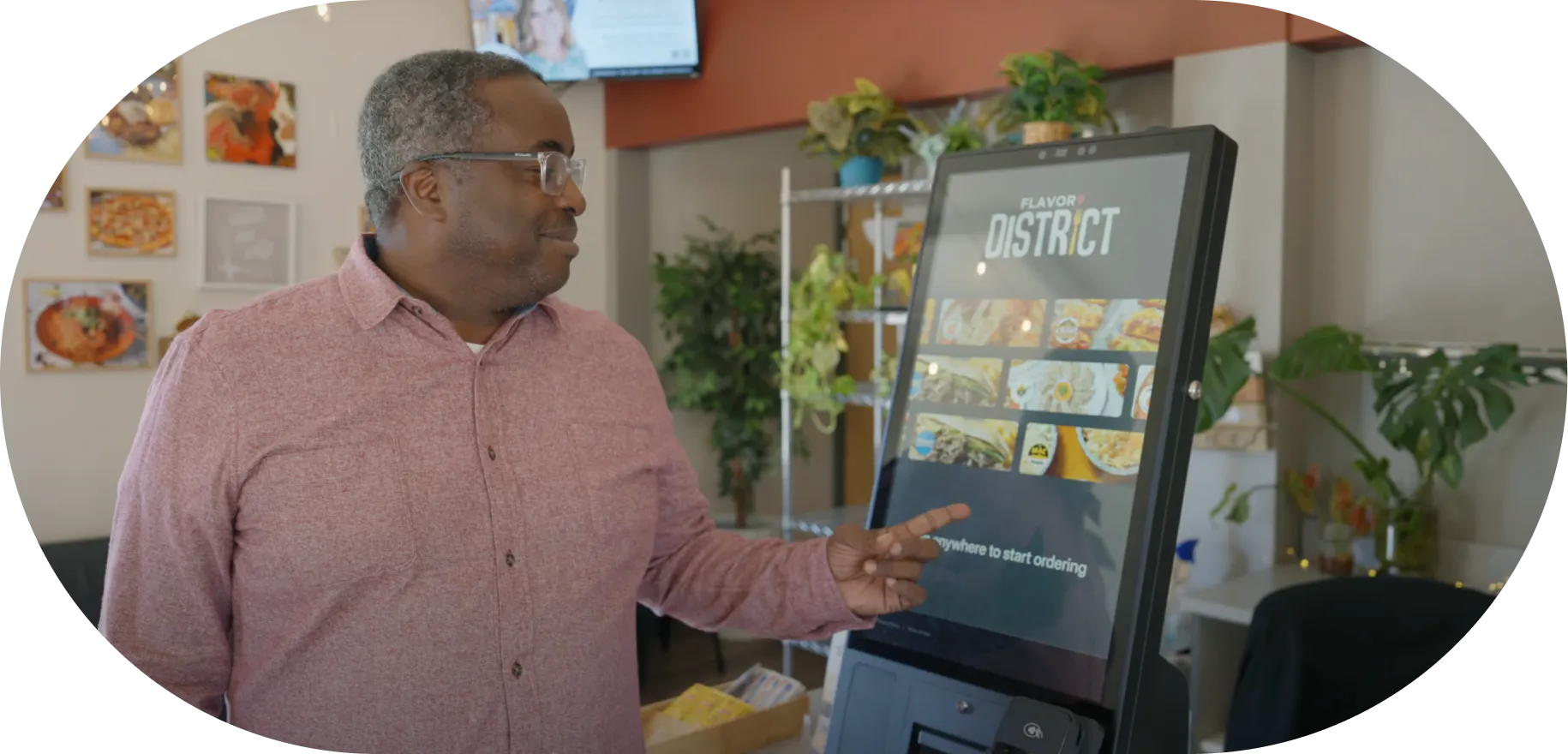
- Approach and start. The customer walks up and taps the touchscreen to begin. A strong home screen leads with your best-sellers and limited-time offers, so the first thing they see points them toward a quick, high-value order.
- Browse and customize. The customer moves through your menu categories, selects an item, and sets modifiers like size, toppings, and sides. Each choice updates the running total on screen.
- Upsell prompts. Once the main item lands in the cart, the system offers a relevant add-on: fries with a burger, a drink with a combo. Because the prompt comes from software rather than a busy cashier, it appears on every order, the same way each time.
- Confirm and pay. The customer reviews the full order, then pays at the terminal by credit card, tap-to-pay, or mobile wallet. They confirm exactly what they want before anything fires, which improves order accuracy and cuts human error..
- Order confirmation. The kiosk issues a receipt and an order number, and the customer steps aside to wait, which keeps the line moving and shortens wait times at the counter.
- Route to the kitchen. The confirmed order syncs to your POS and fires to the kitchen display system. No staff member re-keys it. What the customer approved on screen is what the line cooks see.
That last step depends on how your kiosk connects to the rest of your system. With native POS and KDS integration, the handoff takes seconds.
For example, Otter Kiosk sends confirmed orders straight to Otter POS and the kitchen display, with no middleware or manual entry in between. If an order stalls or an upsell underperforms, you’ll know exactly where it stems from.
For hardware types and the buying decision behind these systems, see our fast food kiosk guide.
How Kiosk Ordering Integrates with Your Restaurant's Tech Stack
A restaurant kiosk is only as good as its connection to the rest of your system. The order a customer places has to reach your kitchen and your reporting cleanly, every time.
POS and Kitchen Display Integration
A kiosk either plugs straight into your POS or it doesn't. The ones that don't run orders through middleware or staff re-entry, and every extra step adds delay and a chance to send the wrong ticket to the line.
With a natively integrated system, the path is direct:
- The kiosk order fires to the kitchen display system in seconds, so cooks start without waiting on staff to re-enter it.
- The same order lands in your POS reporting automatically, so your sales data is complete without anyone keying it twice.
Otter Kiosk connects natively to Otter POS and KDS, with no third-party connector in between. One order, one path, from screen to line to report.
Payment Processing and Contactless Options
Your kiosk should support the payment options your customers already use. At a minimum, include:
- Credit and debit cards (chip)
- NFC tap-to-pay
- Apple Pay and Google Pay
- Gift cards
Contactless options like tap-to-pay and mobile wallets speed up checkout. Most QSRs run their kiosks cashless and keep a staffed counter for cash transactions, so customers have multiple ways to pay.
How to Use Kiosk Ordering to Increase Average Order Value
A well-built self-ordering kiosk doesn't just take the order a customer walked in planning to place. It nudges them toward a bigger one, consistently, without pressure, which is one of the simplest ways to increase sales per visit.
What counts most is: when you prompt, how you connect loyalty, and what you do with the data from each order.
Timed Upsell Prompts
To encourage customers to add to their order, carefully consider:
- Placement. Try the prompt at different points in the flow and compare which one add-ons attach to most.
- Visual design. Lead with food photography, not a line of text. A picture of the upgrade sells harder than its name.
- Relevance. Match the prompt to what's already in the cart, so the suggestion reads as helpful rather than random.
Otter Kiosk's upsell prompts are configurable, so you can set placement and content, then adjust based on what converts.
Loyalty Program Integration
When loyalty connects to the kiosk, customers earn and redeem points right at the terminal, and you capture data on who they are.
To avoid slowing down the order, offer a simple sign-up, like a phone number entry or a QR scan. For redemption, let customers apply points while making their payment. Otter Loyalty lets guests earn and redeem rewards directly through the kiosk as part of the standard checkout.
Data-Driven Menu Optimization
Every kiosk order generates data: item sales, modifier combinations, upsell conversion rates, and peak ordering windows.
- Reposition strong sellers into more prominent slots.
- Adjust pricing and combos based on which pairings customers regularly build.
- Cut unpopular items.
Otter Analytics pulls this together so you can read ordering patterns and act on them.
How Kiosk Ordering Fits Into Your Multichannel Strategy
Your kiosk isn't the only way orders come in. Across the restaurant industry, most fast food restaurants now take orders through counter, drive-thru, kiosk, online ordering, delivery apps, and QR code.
The kiosk performs best when it shares one menu and one order management system with all of those channels.
The problem with separate systems is consistency. When a price change hits your POS but not your kiosk, or an item goes 86 online but still shows on the terminal, customers are disappointed and staff are confused.
Unified menu management fixes that at the source. Update a price, a photo, or an item's availability once, and the change pushes to your kiosks, your online ordering, and your delivery channels in a single step.
The same goes for your data. Pull kiosk orders into one analytics view with your other channels, and you read the whole operation at a glance, no report-stitching. Comparing kiosk AOV to counter AOV shows whether the screen is doing its job and where to push next.
Otter Menu Management runs this from one dashboard, controlling your kiosk menus, online ordering, and delivery at the same time, so what a customer sees is the same wherever they order.
How Otter Kiosk Manages the Full Ordering Flow
Otter Kiosk is an integrated kiosk solution built to handle the full flow for independent operators and franchisees alike.
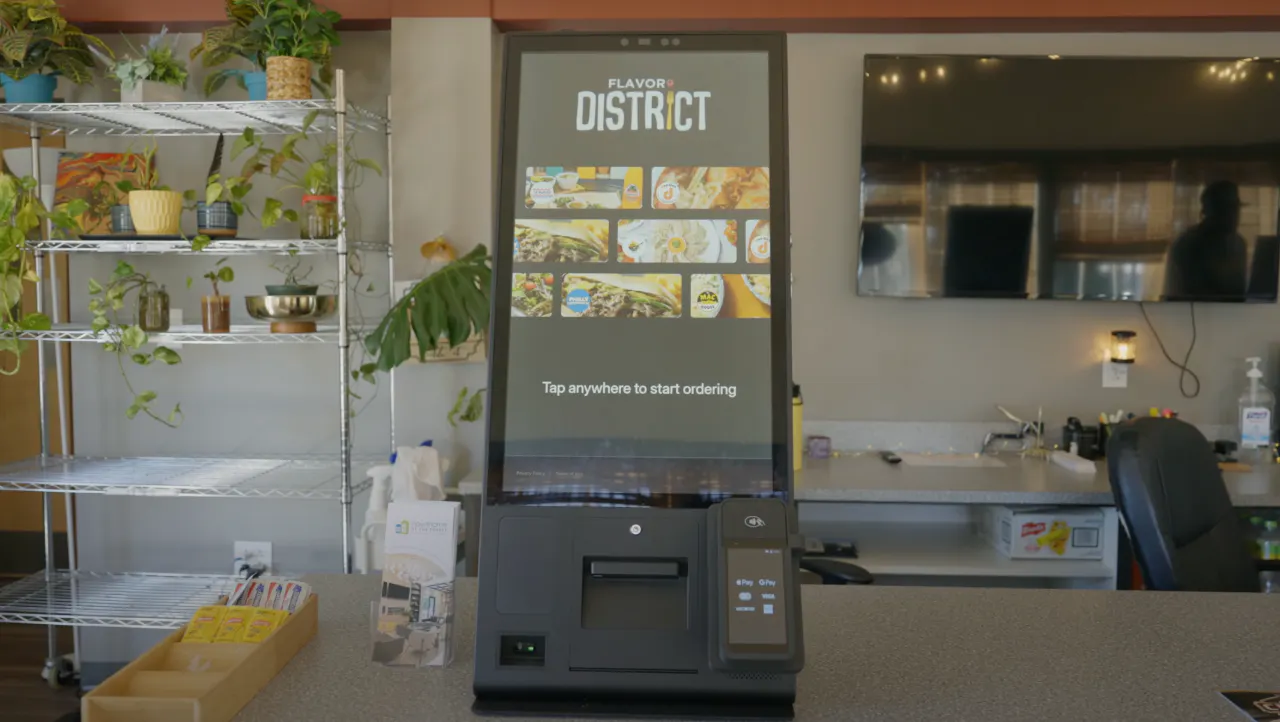
- Hardware that fits your floor. A 21-inch self-service kiosk purpose-built for QSR and fast casual, available countertop or floor-standing, with 27" and 15" options depending on your space.
- Native POS and KDS connection. Orders move straight to Otter POS and the kitchen display, with no middleware and no API errors between the screen and the line.
- Configurable upsells and central menu control. Set your prompts, then manage menus across kiosk, online ordering, and delivery from one dashboard.
- Loyalty and Analytics built in. Customers earn and redeem at the terminal, and every order feeds the same reporting view as your other channels.
- Fast, supported setup. A user-friendly system your team learns quickly, onboarding in seven days or less, 24/7 support, and the choice to buy or lease your hardware.
Reda Iabbakh, owner of IDK Philly, noticed when customers used the kiosk, they kept adding to their orders, and it bumped the sales up. With no one watching, guests build the order they really wanted.
See how Otter Kiosk manages the full ordering flow, from menu configuration to kitchen routing, within your existing setup.
When Your Kiosk Ordering System Works Right, So Does Everything Else
Kiosks sell themselves on labor savings. That's the least of what they do.
The bigger return is in the data attached and the consistency a customer sees whether they order at the screen, online, or at the counter.
An ordering system tied into your POS, KDS, loyalty, and analytics doesn't just take orders or trim labor costs. It gives you a sharper read on your operation and a faster way to act on it, which is what helps you run a better restaurant.
Book a demo to see how Otter's integrated kiosk ordering system can help your restaurant sell more, run smoother, and keep every channel in sync.
Frequently Asked Questions About Fast Food Ordering Kiosks
How do fast food ordering kiosks handle real-time menu changes and 86ing?
When an item sells out or comes off the menu, every kiosk should update instantly from one dashboard, not after a manual sync or a walk to each terminal. With Otter Menu Management, a change pushes automatically to all your kiosks and your other channels in real time, so customers never order something you can't make.
Can customers earn and redeem loyalty points at a kiosk?
Yes, when the kiosk connects to your loyalty program. Customers enter a phone number or scan a loyalty QR code during checkout to earn points automatically, and redemption works the same way. Otter Loyalty lets guests earn and redeem rewards right through the kiosk, as part of the standard checkout flow.
How do ordering kiosks handle complex customizations?
Modern self-serve kiosks are built for high-customization menus. Customers move through modifier screens in a structured tap flow, and the key is keeping those screens clean: show the most common options up front, with an "add more" control for unusual requests.
Well-built modifier screens improve order accuracy, because the customer confirms their exact selections on screen before placing the order.
What order data does a kiosk ordering system provide?
A fully integrated system gives you item-level sales, modifier combinations, average order value per terminal, upsell conversion rates, and transaction volume by time of day. When that data unifies with your POS and other channels through Otter Analytics, you see ordering patterns across the whole operation, not just at the kiosk.
How is kiosk ordering different from QR code ordering?
Kiosk ordering uses a dedicated in-store terminal where guests approach, browse, and pay at the device. QR code ordering lets guests order from their own phone, usually while seated.
Kiosks work better for high-volume quick-service restaurants (QSR) where speed and throughput come first. QR ordering suits table-service or dine-in fast casual. Many operators run both as part of a multichannel setup.

Book a demo to see how Otter’s all-in-one platform can help your restaurant thrive.