Table of contents
- What POS hardware actually is (and what it's not)
- The core components: a plain-English breakdown
- Restaurant-only hardware the retail lists leave out
- Countertop terminal vs. tablet vs. handheld: matching form factor to your service model
- Mapping hardware to your floor plan
- Payment hardware: card readers, contactless, and getting the tip flow right
- Cash drawers and receipt printers: what still makes sense in a modern restaurant
- Bundled kits vs. building your own stack: how to buy without overpaying
- Before you buy: durability, offline mode, and the support questions that actually matter
- Your POS hardware checklist
- Frequently asked questions about point of sale hardware
Most operators spend weeks comparing POS software. Reading reviews, watching demos, debating features. Then, when it's time to actually buy, they take whatever hardware bundle the vendor offers. That's how you end up paying for a barcode scanner you'll never use while missing a kitchen display system that would have saved your line every Friday night.
This guide gives you a plain-English map of every piece of point-of-sale hardware before you spend a dollar: what each component does, where it belongs on your floor plan, and what you can safely skip.
Key takeaways
- Hardware is the layer most operators underplan: they research POS software for weeks and then buy whatever the vendor bundles. Mapping your floor plan first and matching components to stations prevents both coverage gaps and wasted spend.
- A kitchen display system is more operationally critical for most restaurants than a barcode scanner, yet every retail-focused POS hardware guide lists scanners and ignores KDS entirely. That mismatch costs operators who follow retail advice.
- The single most important hardware question to ask before you buy is not "how much does it cost?" It's "what can this system still do when my internet drops at 7 PM on a Saturday night?"
- Tip flow is a hardware decision, not just a software setting. Whether your card reader shows the tip prompt to the customer at the counter or your server adjusts it later from a paper receipt affects staff income, guest experience, and your end-of-night reconciliation. Nail this detail before you finalize your setup.
What POS hardware actually is (and what it's not)
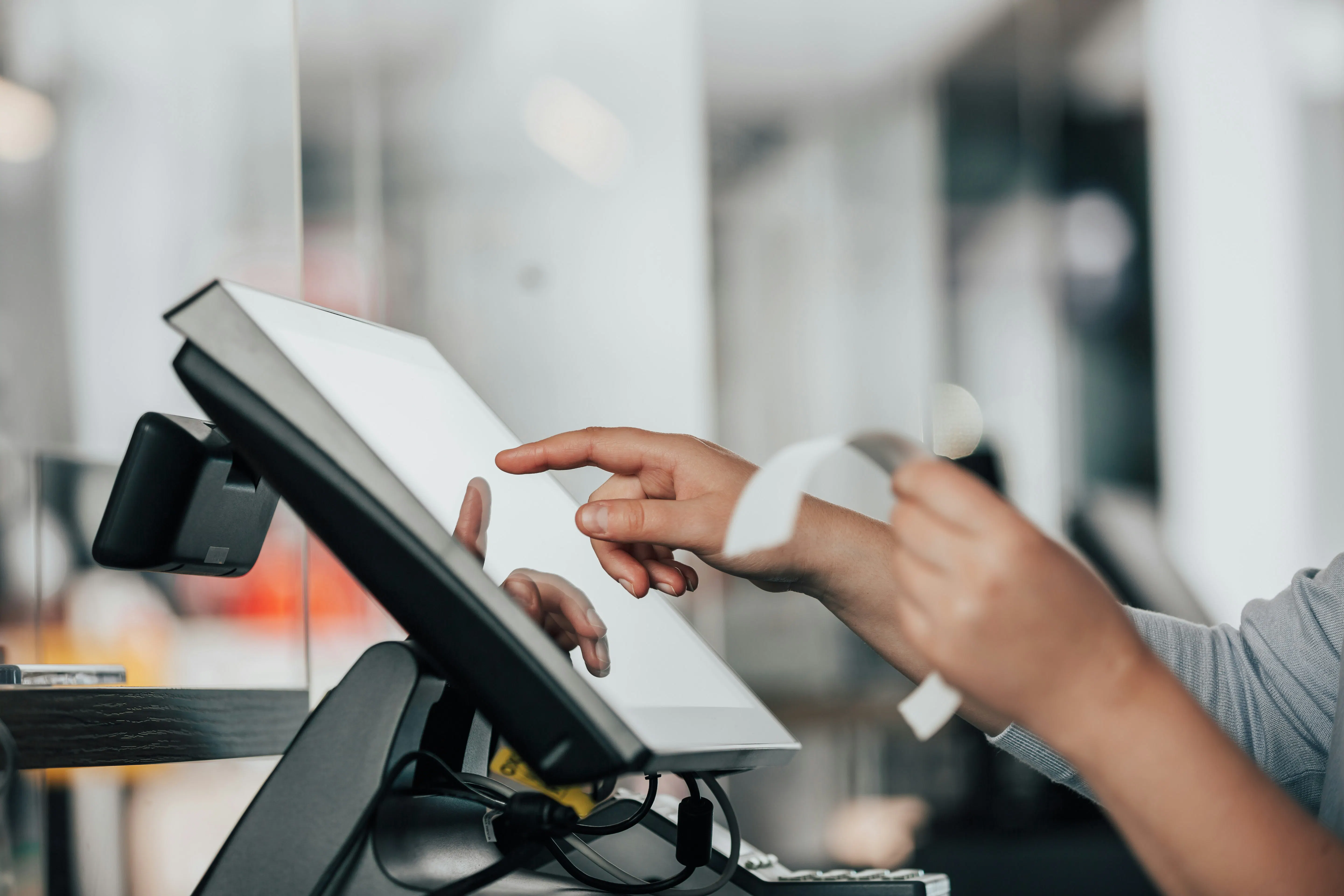
POS hardware is the physical layer of any point-of-sale (POS) system. Every component you can touch: screens, card readers, printers, cash drawers, customer displays. POS software is the application running on top of that point of sale hardware to manage orders, menus, payment processing, and reporting.
Most operators conflate the two when shopping, which leads to bad decisions in both directions. The distinction matters because cloud-based POS systems have decoupled the two purchases entirely, making the point of sale system and hardware essentially separate decisions. You can now run modern POS software on a standard iPad, Android tablet, or even laptops in some configurations, which means you don't have to buy a vendor's proprietary terminal just to access their platform.
That said, "you can run it on a tablet" doesn't mean any tablet will do. Restaurant environments destroy consumer-grade hardware fast. The goal of this guide is to help you match the right physical components to the right stations so you buy what your floor plan actually needs and skip what it doesn't.
The core components: a plain-English breakdown
POS terminal
The primary order-entry and management interface. This is the screen your staff interacts with most. It can be a fixed countertop unit, an iPad in a mount, or a handheld device. Everything else in your hardware stack connects back to it.
Card reader
Processes credit, debit, and contactless payments. Modern card readers handle EMV chip, magnetic stripe, and NFC (Apple Pay, Google Pay, tap-to-pay cards). If your reader is more than three years old, verify it supports NFC. Contactless payment adoption has grown sharply and guests increasingly expect it.
Cash drawer
Stores bills and coins and is triggered to open by the receipt printer or directly by the POS software. A connected cash drawer creates an audit trail and prevents unauthorized opens. A traditional cash register does neither.
Receipt printer
Thermal printers are the restaurant standard: fast, quiet, no ink to replace, low maintenance. They handle customer receipts and, in kitchens without a KDS, paper kitchen tickets.
Barcode scanner
Standard in any retail POS system. Situational in restaurants. Most table-service and QSR operations don't scan at the register. Scanners are useful for back-of-house inventory management (receiving cases, scanning bar bottles), but most independent restaurants don't need one at the order station.
Quick reference
Component | Primary Job | Restaurant Necessity |
POS terminal | Order entry and management | Essential |
Card reader | Payment processing | Essential |
Cash drawer | Cash storage and audit trail | Essential if you take cash |
Receipt printer | Customer receipts, kitchen tickets | Essential |
Barcode scanner | Inventory receiving, self-checkout | Situational |
Restaurant-only hardware the retail lists leave out
Kitchen display system (KDS)
A screen mounted at each cook station that receives order tickets from the POS in real time. It replaces paper tickets, eliminates ticket loss, and lets each station see only its own items. If you're running more than 50 covers a night, a KDS typically pays for itself quickly in reduced errors and faster cook times. Otter offers a KDS integrated with its POS.
Bump bar
A physical controller used alongside a KDS. Cooks bump completed items and recall tickets without touching a screen. In high-volume kitchens where hands are greasy or gloved, this is essential.
Customer-facing display (CFD)
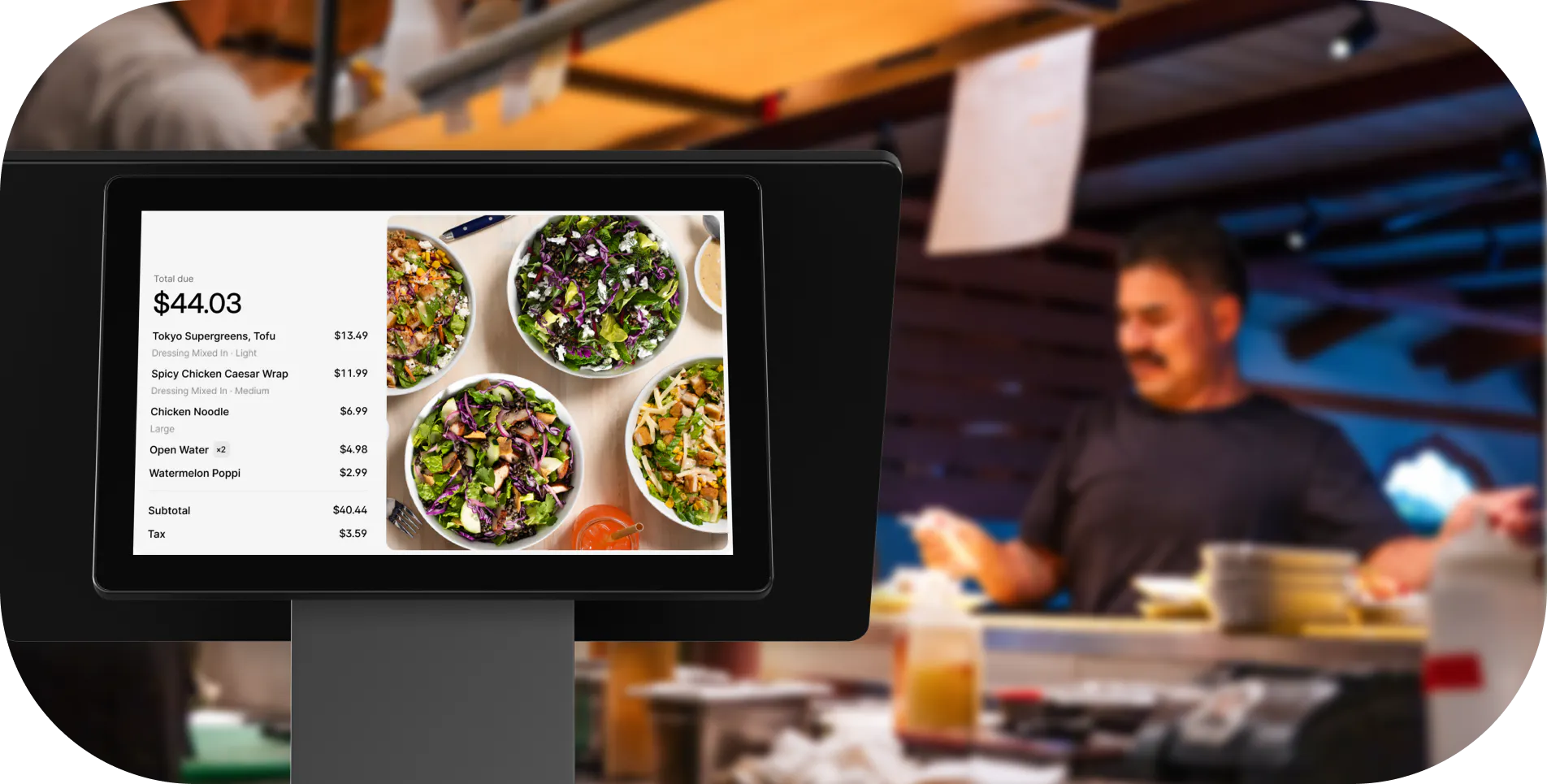
A second screen on the terminal pointed at the guest. It shows the order as it's being rung up and presents the tip prompt directly to the customer at counter-service operations. Restaurants using a CFD for tip prompts consistently see a lift in tip rate. It removes the awkward hand-the-tablet moment entirely.
Handheld ordering device
Server-carried tablets for tableside order entry and pay-at-table. They reduce trips to a fixed terminal and speed up table turns in full-service environments.
Self-service kiosk
A customer-operated ordering screen that reduces front-of-house labor while increasing average check size through upsell prompts. Otter’s data shows kiosk orders run 20–30% higher in average check size compared to counter orders, driven by upsell prompts that fire consistently on every transaction. Otter offers a kiosk integrated with its POS, built specifically for fast-casual and QSR operators.
Worth the investment vs. overkill: a 30-seat neighborhood bistro probably doesn't need bump bars or a kiosk. A 200-cover fast-casual almost certainly benefits from both.
Alex Pineda, owner of Super Pizza Veloz (Huntington Park, CA): "The kiosk is one of the reasons I switched to Otter. A lot of people want to place their orders there, and once they're ready we tap it and it sends a message directly to the customer's phone letting them know they can come pick up their pizza." (See more reviews)
Countertop terminal vs. tablet vs. handheld: matching form factor to your service model
Fixed countertop terminal
Built for durability and high-volume order entry at a single station. Large touchscreen monitors reduce miskeys. Best for QSR front counters, busy bars, and any station where staff stand in one place.
iPad / tablet system
Lower upfront cost, easier staff onboarding, same software flexibility as a fixed unit. Works well for fast-casual and smaller full-service restaurants. Popular setups include Square Stand (iPad mount), Square Register, and Square Terminal for simpler counter configurations. Verify the mounting cradle is sturdy enough for service speed before you commit.
Handheld / mobile device
Gives servers the freedom to take orders tableside, split checks, and process payment at the table. Highest ROI in full-service environments where table turns drive revenue. The tradeoff: mobile flexibility demands charging discipline, and smaller screens can slow order entry for modifier-heavy menus.
By service model
Service Model | Primary Form Factor |
QSR | Fixed countertop terminal |
Fast-casual | Tablet and kiosk |
Full-service dining | Tablet and handheld |
Bar | Fixed terminal with handheld supplement |
Mapping hardware to your floor plan
Draw your floor plan before you place a hardware order. One extra terminal you don't need is expensive. One missing card reader at the bar is a service bottleneck every Friday night.
- Host stand: Terminal for reservations and waitlist. CFD useful for check-in confirmation. Receipt printer optional.
- Front counter: Fast terminal, integrated card reader, cash drawer if you take cash, receipt printer, CFD for tip prompts.
- Bar: Terminal and card reader are non-negotiable. Cash drawer for open tabs. CFD strongly recommended for tip transparency.
- Server stations: Compact terminals or handhelds for order entry. Receipt printer for check presenters in full-service.
- Expo / pass window: A KDS bump station here lets an expeditor confirm order accuracy before food hits the floor. It's often the most overlooked station in hardware planning.
- Kitchen: One KDS screen per cook station (grill, fry, cold) rather than a single shared printer. Each station sees only its items, which reduces chaos and mis-fires.
Payment hardware: card readers, contactless, and getting the tip flow right
EMV chip readers are the baseline for every operator. Non-compliance shifts fraud liability from the card network to you, the merchant. If your reader doesn't support EMV, fix that first.
NFC and contactless is now expected. Tap-to-pay speeds up checkout and reduces contact at the terminal.
Tip flow is a hardware decision. Two approaches:
- Tip-at-time-of-sale: The customer tips on the card reader screen before the transaction closes. Cleaner for counter-service. No reconciliation step.
- Tip adjustment: The server writes a tip on a paper receipt and adjusts the charge later. Traditional for full-service, but creates an end-of-night reconciliation task.
Physical placement of the payment terminal matters too. It must be within arm's reach of the guest without blocking your workflow. Test cable length and mounting position before opening day.
Certified integration between your card reader and POS software is non-negotiable. Mismatched or uncertified hardware creates settlement errors and can affect your PCI compliance standing. Point-to-point encryption (P2PE) at the card reader reduces your compliance burden significantly.
Cash drawers and receipt printers: what still makes sense in a modern restaurant
Cash drawers remain necessary anywhere you accept cash. Diners, breakfast spots, bars, and high-foot-traffic QSRs still see meaningful cash volume. Buy one drawer per register or station that handles cash. Shared drawers create accountability gaps on busy shifts and complicate end-of-day reconciliation.
Kitchen printer vs. KDS: a kitchen printer fires a paper ticket to the cook line. A KDS fires a digital ticket to a screen at each station. KDS wins on speed, accuracy, and ticket-loss prevention for most operations. A kitchen printer is cheaper upfront and works reliably for lower-volume restaurants under 75 covers. A reasonable starting point if budget is tight.
Digital receipts (SMS, email, QR code) reduce paper costs and give you a guest data touchpoint for loyalty enrollment. Otter's POS supports in-store loyalty enrollment via the POS and via QR code. Enable it even if you keep a thermal printer for guests who prefer paper.
Ghost kitchens and delivery-first operations running cashless may not need a cash drawer or a front-of-house receipt printer at all. Be honest about your actual guest mix before you buy.
Bundled kits vs. building your own stack: how to buy without overpaying
Bundled hardware kits are convenient and vendor-tested for compatibility. They're often the right call for a first-time operator who wants a single point of contact. The risk: you may pay for components you don't need.
If you’re still deciding which POS system to build your hardware stack around, this guide to the best POS systems for restaurants by use case is worth reading before you finalize your hardware list.
Building your own POS equipment stack lets you match components precisely to your floor plan. It requires more compatibility due diligence but typically produces a tighter, cheaper setup.
Hardware lease vs. buy: leasing reduces upfront cash outlay but increases total cost of ownership and often locks you into a bundled payment processor at a rate you can't negotiate. Independent operators consistently flag this as one of their biggest POS regrets. Read the lease terms carefully before signing.
Proprietary hardware lock-in is the other trap. Some POS vendors sell hardware that only runs their software. Changing your software later means replacing all your hardware. Ask directly: does this terminal run standard iOS or Android, or a locked OS?
Key compatibility questions to ask any vendor:
- Does this card reader work if I change POS software?
- What is the hardware warranty period?
- What is the replacement SLA if a unit fails mid-service?
Bring your existing hardware list to a demo call and confirm compatibility before you buy anything new.
Before you buy: durability, offline mode, and the support questions that actually matter
Restaurant environments are hard on hardware. Spills, grease, heat, drops, and constant vibration will destroy consumer-grade equipment fast. Look for IP-rated or restaurant-grade hardware ratings. A standard iPad in an open kitchen won't last a season without a purpose-built protective case at minimum.
Offline mode is the single most important reliability question most operators forget to ask. What specifically can the system do if your Wi-Fi drops at 7 PM on a Saturday? Can it process card payments via offline transaction queuing? Can it still send tickets to the kitchen? Can it open the cash drawer? Get the answers in writing.
Operators on Reddit's r/restaurateur consistently name server outages and mid-service crashes as their top POS fears. One cited "server issues every one to two weeks." Another described losing service entirely during dinner rush. Ask vendors for uptime SLAs and incident response data, not just marketing language about reliability.
Hardware replacement SLA: if your card reader fails on a Friday night, what is the actual resolution path? Same-day loaner? Next-day replacement? On-site technician? A vendor with a real answer here is materially different from one that gives you an 800 number.
Pre-purchase checklist: 7 questions to get answered in writing
- What can the system do with no internet connection?
- Does offline mode support card payment queuing?
- What is the hardware warranty and replacement SLA?
- Is the terminal running standard iOS/Android or a locked OS?
- Is the card reader certified for your POS software?
- What is your uptime SLA and how are incidents communicated?
- What happens to my hardware if I switch POS software?
Your POS hardware checklist
Get the hardware layer right and everything else runs smoother: faster checkout, cleaner kitchen communication, fewer errors, and a tip flow that actually works for your staff and your guests. Get it wrong and you're either paying for equipment you don't use or scrambling for a card reader at the bar on a busy Saturday.
Map your floor plan first. Match components to stations. Ask every vendor the offline mode question before you sign. And when you're evaluating a new POS system, bring your hardware list to the conversation, not the other way around.
Otter POS is an all-in-one point-of-sale solution that consolidates your orders, payments, KDS, kiosk, loyalty, and online ordering into one system, with 24/7 support and a free 7-day onboarding to get your team up to speed fast.
Mapping out hardware for a new location or replacing an aging setup? See how Otter POS fits your floor plan. Book a free demo and bring your layout and hardware questions.
Frequently asked questions about point of sale hardware
What POS hardware do I actually need to open a restaurant?
At minimum: a POS terminal, an integrated card reader, and either a receipt printer or digital receipt option. Add a cash drawer if you accept cash. For the kitchen, choose between a kitchen printer (lower upfront cost) or a kitchen display system (better accuracy and speed). Everything else depends on your service model and volume.
What is the difference between POS hardware and POS software?
POS hardware is every physical component: the screen, card reader, cash drawer, receipt printer, and kitchen display. POS software is the application that runs on that hardware to manage orders, menus, payments, and reporting. Modern cloud-based POS software can run on standard tablets, which means hardware and software purchasing decisions are now largely separable.
Do I need a barcode scanner for my restaurant POS?
Probably not at the register. Barcode scanners are standard in retail but rarely needed for front-of-house restaurant operations. They're useful for back-of-house inventory management (scanning cases and bottles as deliveries arrive), but most independent restaurants manage without them at the order station.
What is a kitchen display system and do I need one?
A KDS is a screen mounted in the kitchen that receives order tickets from the POS in real time. It replaces paper kitchen tickets, eliminates ticket loss, and lets each cook station see only its own items. If you're running more than 50 to 75 covers a night, a KDS typically pays for itself quickly in reduced ticket errors and faster cook times.
What happens to my POS if the internet goes down?
It depends entirely on the system. Many cloud-based POS platforms include an offline mode that queues orders and card transactions locally and syncs when connectivity returns. Before you commit to any system, ask your vendor: can it process card payments offline? Can it still send tickets to the kitchen? Can it open the cash drawer? Get the answers in writing.
Should I lease or buy my POS hardware?
Buying typically gives you a lower total cost of ownership and the flexibility to change POS software later without replacing all your hardware. Leasing reduces upfront cash outlay but often bundles you into a specific payment processor at a rate you can't negotiate. If a vendor is pushing a long-term hardware lease, ask explicitly what happens to the hardware if you want to switch software.
What is a customer-facing display and why do restaurants use one?
A customer-facing display (CFD) is a second screen on the POS terminal that faces the guest. It shows the order as it's being rung up and, in counter-service settings, presents the tip prompt directly to the customer. Restaurants using a CFD for tip prompts often see a measurable lift in tip rate because it removes the awkward moment of handing a screen across the counter.
How do I know if POS hardware is compatible with the software I want?
Ask the software vendor directly: which hardware models are certified for their platform? If they only support proprietary hardware, understand what that means for your flexibility down the road. If they support standard iOS or Android devices, confirm which OS versions are fully tested. Always run your actual menu (with your specific modifiers and kitchen routing) on the real hardware before you sign anything.

Book a demo to see how Otter’s all-in-one platform can help your restaurant thrive.