
Table of contents
In a recent National Restaurant Association’s technology survey, 62% of full-service customers said they would use contactless or mobile payment to pay their check if offered by a table-service restaurant. That is one part of contactless dining. To make the full experience easier, you need to choose how guests browse, order, and pay without leaving your team to untangle the handoffs.
Contactless dining gives your guests a way to browse, order, or pay through a phone, kiosk, or tap-to-pay terminal. You can start with one step of that journey. The best setup depends on your service style, your team, and whether the tools work together when the rush begins.
Key insights
- A QR menu displays dishes; QR ordering also takes the order and sends it into your workflow.
- Kiosks can give counter-service guests another way to order, but they need space, a stable connection, and a staffed fallback.
- Tap-to-pay changes checkout, while mobile order-ahead changes when and where the guest places an order.
- Test the full journey, from a sold-out item to a kitchen ticket and refund, before rolling it out.
What is Contactless Dining?
Contactless dining is a restaurant service flow in which guests use digital tools to view a menu, place an order, or pay with less handling of shared menus, cash, or payment devices. It can still include staff greeting guests, answering questions, preparing food, and resolving problems. “Contactless” describes the transaction, not the removal of hospitality.
The three parts are separate: a digital menu lets guests browse; contactless ordering lets them submit a meal; contactless payment lets them settle the bill. A QR code can open any one of these, so check what happens after a guest scans it rather than assuming every QR menu accepts orders or payment.
Which contactless dining option fits your restaurant?
A small cafe, a busy counter, and a full-service dining room do not need the same flow. Choose the point where guests or staff wait most often, then decide whether a digital option can remove that delay without creating another one.
QR menus: Let guests browse on their phones
A QR menu opens a mobile menu, usually from a table card or counter sign. It is a light starting point if reprinting menus is a burden, but a menu-only code still leaves ordering and payment with your staff. Keep a readable alternative for guests whose phones are unavailable or who prefer to order with a person. For the setup details, see Otter’s guide to QR code menus for restaurants.
QR ordering: Let guests place an order at the table
With QR ordering, the guest scans, chooses items and modifiers, and submits an order on their phone. Check how the system identifies the table, handles open tabs and tips, shows sold-out items, and routes new orders to the kitchen. Otter’s Digital Dine-In supports QR ordering and payment and syncs dine-in orders with the POS and kitchen. It suits a dining room where guests may want another round without waiting to flag down a server.
Self-service kiosks: Add an ordering point at the counter
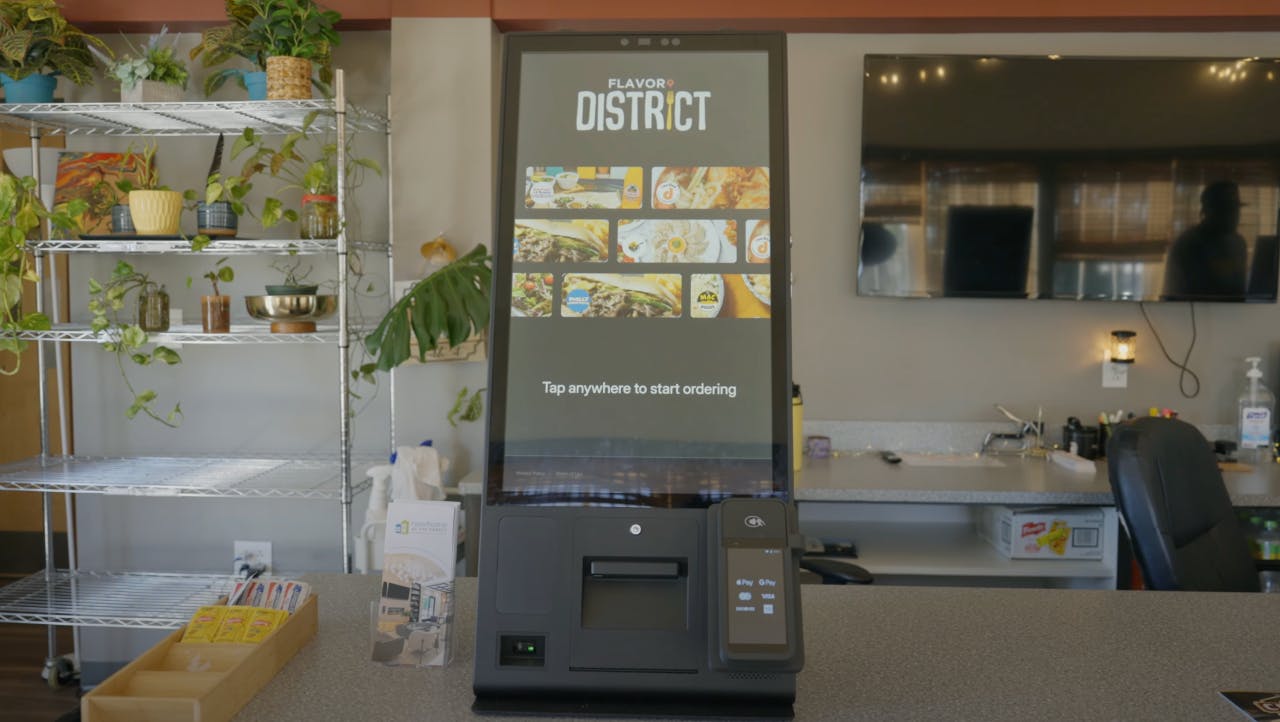
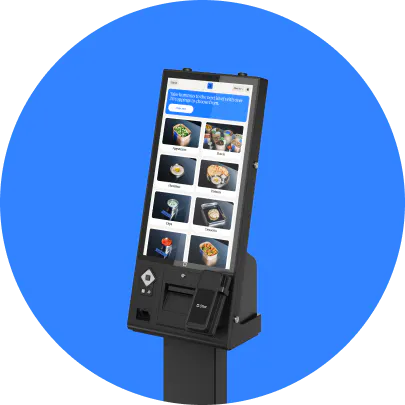
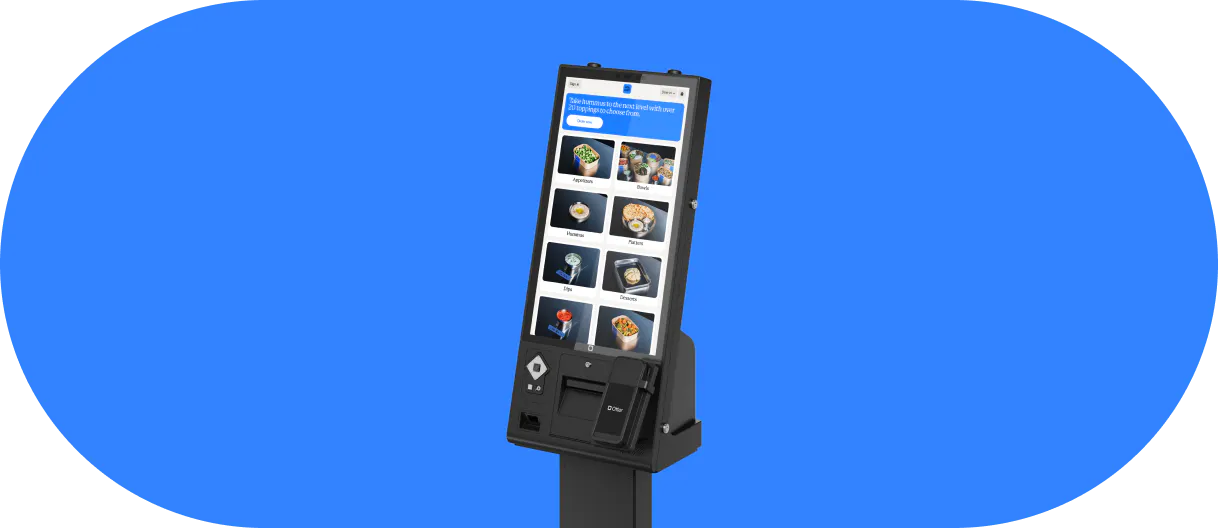
A kiosk lets guests browse, customize, and pay on an in-store screen. It can relieve a queue at a quick-service counter, especially when the menu has many modifiers, but it takes floor space and needs a clear pickup flow. Otter Kiosk needs a stable connection; if the connection drops, direct guests to the staffed counter rather than promising that kiosk orders will continue offline.
Mobile order-ahead: Move the order before the visit
An app or mobile web page lets guests order for pickup before arriving. The hard part is the handoff: prep timing, pickup labeling, and keeping the digital menu aligned with what the kitchen can make. If you are comparing in-store, direct online, and third-party flows, Otter’s restaurant ordering systems comparison explains where each channel fits.
Contactless payment: Make checkout easier
Tap-to-pay cards and mobile wallets let guests pay without handing over a card. Pay-at-table links or QR codes can also let guests settle a check on their own phone, if the ordering and payment tools support it. Confirm how tips, split checks, receipts, refunds, and cash alternatives work before calling the checkout flow complete.

What are the benefits and tradeoffs?
The benefit comes from a specific bottleneck, not from adding screens for their own sake. A second ordering point may reduce the line at the register. Table ordering may let guests reorder on their schedule. Digital menus may make item updates easier. None of those outcomes is automatic if orders require manual re-entry or staff cannot see what happened.
Guest choice matters as much as speed. A code that fails to load, a kiosk that is hard to navigate, or a payment screen with unclear fees can slow service down. Keep staff available to explain the menu and take an order another way. Track guest complaints alongside order times and sales so you can see whether the new flow actually helps.
At A’dor Kitchen & Cocktails in Houston, General Manager Ralph Breda describes the QR experience this way: “Otter’s QR code ordering is very much efficient for my restaurant. I’m really satisfied with it.”
How to set up contactless dining without disrupting service
1. Choose one guest journey to improve
Watch where the wait happens: browsing, placing an order, paying, or collecting food. Start with the step that causes the most friction and choose a measure, such as time in line, order corrections, or time to close a table.
Tip: Try one shift or one location first so you can compare it with your usual process.
2. Connect the menu and order flow
Check that modifiers, prices, taxes, table numbers, and sold-out items display correctly. Submit a test order and follow it through the point-of-sale (POS) system to the kitchen. If you operate across channels, confirm how menu changes reach each one.
Tip: Test an item marked sold out during service, not only a standard order before opening.
3. Test payment and exceptions
Place orders with a card and a mobile wallet, then test tips, a refund, a split check, and an incomplete payment. Check where staff see the payment status before they release an order.
Tip: Write down who resolves a failed payment so a guest is not sent between the counter and the table.
4. Train staff on the fallback
Show your team how to help a guest without a phone, restart an order, and take orders at the counter when a kiosk or connection is unavailable. Put a short instruction beside each QR code and make it clear where guests can ask for help.
Tip: Let a new team member try the guest flow without coaching. Their questions will expose unclear steps.
5. Review results and adjust
Compare order accuracy, wait times, completion rates, and guest feedback with your baseline. If one channel creates duplicate tickets or delays pickup, fix that handoff before rolling the system out further. Otter’s guide to using a restaurant kiosk machine offers a closer look at the counter flow.
Tip: Review the first week’s exceptions with the staff who handled them, not only the dashboard totals.
Make contactless service work for your guests and team
Contactless dining works when guests can order in a way that suits them and your team can fulfill it without extra steps. Start with the bottleneck, keep a human option available, and make sure the order, menu, and payment information agree across the journey.
Otter POS can connect in-store orders with the rest of your restaurant workflow. If you are weighing QR ordering or kiosks for your service style, book a demo with Otter to see how the pieces fit together.
Frequently asked questions about contactless dining
Does contactless dining require a restaurant app?
No. A QR code can open a mobile web page without requiring guests to download an app, and a kiosk lets guests order without using their own phone. Ask your provider to show the exact guest flow before choosing a system.
Is a QR menu the same as contactless ordering?
No. A QR menu lets guests read the menu on a phone, while QR ordering lets them submit the order digitally. Some systems also take payment, but you should verify that feature and how the order reaches your kitchen.
Can guests still order from a person?
Yes, if you keep a staffed counter or table-service option. That fallback helps guests who do not want to use a phone, have accessibility needs, or cannot load the digital menu. Train staff to switch between the flows without losing the order.
What happens if a kiosk loses its connection?
A kiosk that relies on a live connection may stop taking orders. Otter Kiosk does not have offline mode, so your team should route guests through the counter until service returns. Test that fallback before a busy shift.

Explore contactless ordering with Otter