How to Use a POS System in a Restaurant: 2026 Guide

Last updated

Written by

Autumn Dube

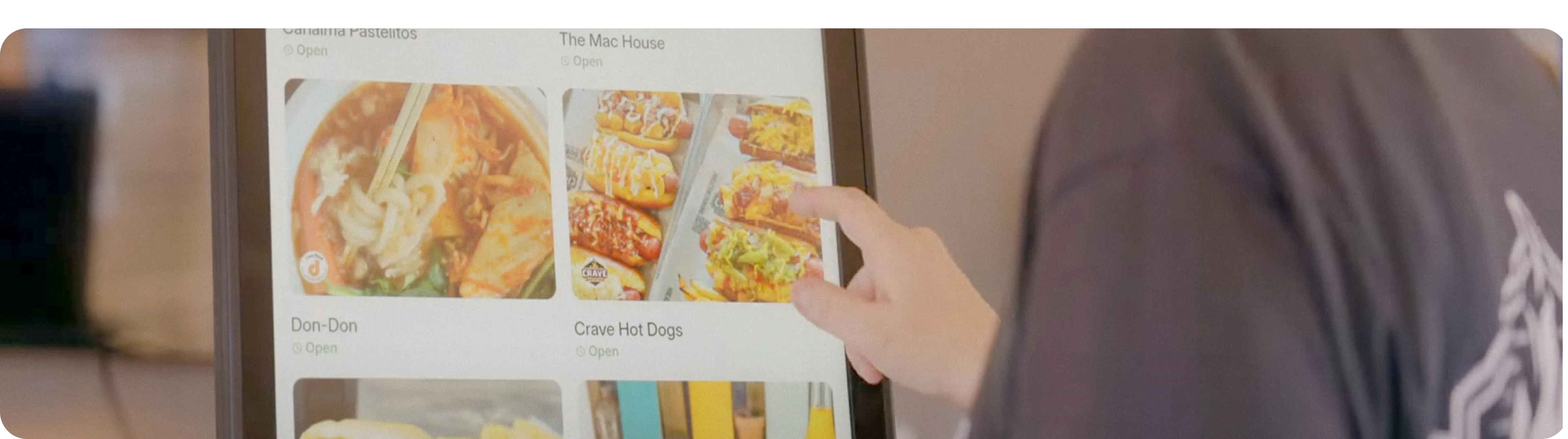
kiosk system for restaurants by otter

Table of contents

It’s Friday night at 7 p.m. The line at the counter is three deep, the kitchen is firing six tickets at once, and a delivery order just came in through a third-party app. For restaurants running on a modern restaurant POS system, that chaos is manageable. Orders route to appropriate stations as payments process in the matter of seconds. Every transaction feeds into a report you can review before you leave for the night. For restaurants relying on older tools, orders can slip and end-of-day counts can be slow and erroneous.

That gap is one reason why, according to industry research based on the National Restaurant Association's State of the Restaurant Industry 2025 report, 52% of restaurants planned to dedicate resources toward upgrading or implementing POS systems. POS upgrades were one of that year's top restaurant tech priorities.

This 2026 guide explains how to use a POS system in a restaurant, covering setup, daily operations, staff training, troubleshooting, and optimization. Whether you're opening your first location or looking to get more out of a system you've had for years, you'll find practical, step-by-step guidance here, along with tips on where modern platforms like Otter can help simplify the process.

What Is a Restaurant POS System?

At its most basic, a point-of-sale (POS) system is the hardware and software that handles orders, payments, and key restaurant operations. In a restaurant, it's the operational hub that connects front-of-house staff with the kitchen and back-office reporting, compiling that information into a single, coordinated workflow.

Early restaurant POS systems were little more than electronic cash registers, recording sales and opening the drawer. Over time, they evolved to handle order entry and kitchen communication. Also known as legacy or "on-premise", these systems now store data locally on a server at your location. They can be reliable in low-connectivity environments, but they're harder to update and typically can't integrate with the range of third-party tools restaurants rely on today. 

Cloud-based POS systems store data remotely and sync across devices automatically, allowing you to check your sales from your phone, push a menu update across all your locations, and access new features without waiting for a technician.

Legacy systems were built to process transactions. Modern systems are built to run restaurants.

Key Components of a Modern Restaurant POS

What's inside a POS system? Most modern POS systems are built around five core components:

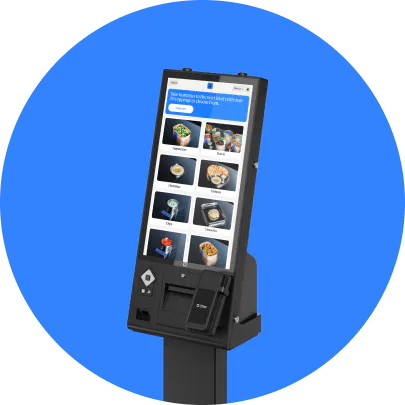
Order entry and management. Staff use this interface to take orders — whether at a counter terminal, a handheld tablet, or a self-service kiosk. Good order entry is fast, logical, and easy to navigate even during a rush.

Payment processing. Modern POS systems accept credit cards, debit cards, contactless payments, mobile payments, and cash. Totals calculate automatically and transactions post without a separate step.

Inventory tracking. As orders are placed, a POS system deducts ingredients from your inventory in real time, giving you a running picture of stock levels and flagging items that are running low.

Reporting and analytics. Every transaction becomes sales data — broken down by item, revenue by hour, average order value, staff performance. A good POS makes that data accessible and readable, so you can act on it rather than just archive it.

Integrations. A POS that connects to your delivery platforms, accounting software, loyalty program, and marketing tools eliminates the manual work of reconciling data across separate systems. Platforms like Otter are designed with this kind of connectivity at the center, pulling together in-store and off-premises order channels so everything runs through one place.

How Does a POS System Work in a Restaurant?

A POS system is easier to use when you understand what happens behind the scenes. Every order a customer places sets off a chain of events — and a well-configured POS system manages that chain automatically, with minimal manual intervention from your staff.

Here's how it works from start to finish.

Order entry. A staff member (or the customer, via a kiosk or QR code) enters an order into the POS. The system captures every detail: the items selected, any modifiers or special requests, the table or order number, and the time the order was placed. For online ordering and delivery, the same order entry and order management workflow applies.

Kitchen communication. The moment an order is submitted, the POS routes it to the right station. In kitchens using a kitchen display system (KDS), tickets appear on a screen rather than printing on paper, resulting in less clutter and faster acknowledgement. The kitchen team can mark items as in progress or complete directly from the display.

Payment processing. When the customer is set to pay — at the time of ordering in quick-service settings, or after the meal in others — the POS calculates the total, including taxes, any applied discounts, and tip if applicable. The customer pays by card, contactless, mobile wallet, or cash, and the transaction is recorded instantly.

Reporting. Every completed transaction feeds into the system's back end. Sales figures update in real time, inventory levels adjust, and the data becomes available for reporting — by item, by hour, by staff member, or by channel. Managers see this data in dashboards, while staff see only what they need on their terminals.

How Workflow Differs by Restaurant Type

The core flow is the same across restaurant formats, but the details shift depending on how your operation runs.

In a quick-service or fast-casual setting, speed is the priority. Orders are typically placed at a counter or kiosk, paid for upfront, and fulfilled in a short window. The POS needs to handle high transaction volume quickly, often with multiple staff members working the same terminal during peak hours.

In table-service settings, servers start and manage tabs at the table, then send orders and process payments through the same POS flow — just across a longer service window and often with more complex check management.

In a delivery-focused operation, the POS has to manage orders coming in from multiple channels simultaneously — your own online ordering system, third-party delivery apps, and in-store orders all at once. Doing it manually often leads to errors and missed tickets. Platforms like Otter's Order Management consolidate those incoming channels into a single stream, so your kitchen sees one organized queue rather than several competing ones.

The through-line in all of these formats is data. Every interaction — whether it's a counter order or a delivery request from a third-party app — generates information your POS captures and stores. By the end of a shift, you have a detailed record of everything that happened, without anyone having to compile it manually.

How to Use a POS System in a Restaurant: Step-by-Step

Must-have features of self-ordering kiosks

Here’s a step-by-step guide on how to use a POS system in a restaurant — from initial setup through daily operations.

Step 1: Choosing the Right POS System

Start by identifying the right system for your operation. Consider your restaurant format and the order channels you run — dine-in, takeout, delivery, kiosk — and make sure any system you evaluate can handle all of them without requiring separate tools for each. Then factor in the full cost picture: hardware, software subscriptions, payment processing fees, and ongoing support.

For most modern restaurant operations, cloud-based is the more practical choice. Updates are automatic, data is accessible remotely, and integration with third-party platforms is generally straightforward. Systems like Otter POS are designed specifically for modern restaurant workflows — built to handle multiple order channels, sync with delivery platforms, and give operators visibility across their business from a single dashboard.

Step 2: Hardware Setup and Installation

Now it’s time to get your hardware in place. A typical restaurant POS setup includes some combination of the following:

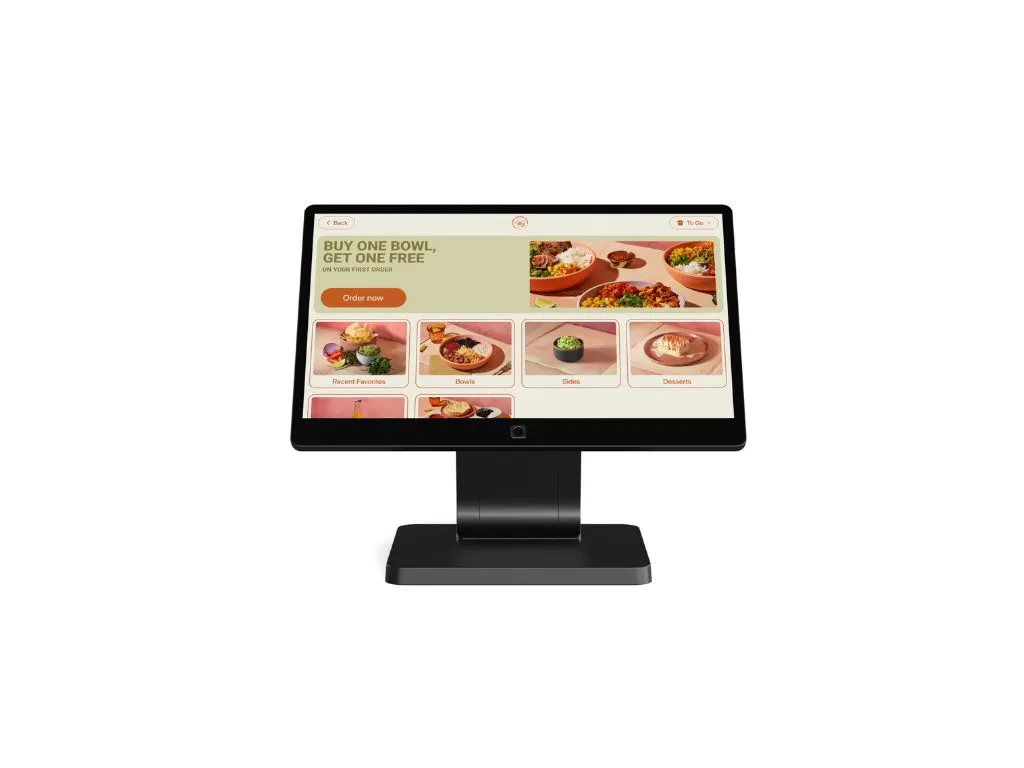
  • Terminals or tablets for order entry at the counter or service stations
  • Card readers for payment processing
  • Receipt printers for customer-facing receipts (if applicable)
  • A kitchen display system (KDS) or kitchen printers for order communication to the back of house
  • Cash drawers, if your operation accepts cash

Placement is equally as important as the hardware itself. Terminals should be positioned where staff can access them quickly without blocking customer flow. Kitchen displays should be visible from all prep stations. If you're running a high-volume counter operation, consider multiple terminals to avoid bottlenecks during peak hours.

Network reliability is non-negotiable. Use a dedicated router for your cloud-based POS network and maintain a stable internet connection. Ask your provider about offline mode functionality — most cloud-based systems can continue processing orders locally if the connection drops, then sync when it's restored.

Step 3: Software Configuration and Menu Setup

With hardware squared away, it’s time to configure your POS software before your first service.

User accounts and permissions. Set up individual accounts for each staff member with permission levels that match their role. A cashier doesn't need access to sales reports; a manager does.

Menu build. Enter every menu item you sell, organized into logical categories. Add modifiers — size options, add-ons, substitutions — so staff can capture exactly what a customer orders. Confirm that modifiers affecting price are configured correctly.

Tax rates and payment options. Configure your local tax rates and make sure every payment method you accept is enabled and tested before you go live.

Printer routing. If your kitchen has multiple stations, set up routing rules so items display at the right place. Getting this right before service starts saves significant confusion later.

Step 4: Logging In and Daily Startup Procedures

A consistent opening routine catches issues before service begins. Here's what a standard daily startup looks like:

  • Log in using individual credentials — shared logins make it harder to track staff activity and create accountability gaps.
  • Run a system check. Confirm terminals are responsive, printers are loaded, and your KDS is displaying correctly.
  • Verify your menu. Update specials, limited-time items, or anything 86'd from the previous night before the first order comes in.
  • Set up your cash drawer. Count your starting float, record the amount in the system, and confirm the drawer is functioning.
  • Check integrations. Confirm delivery platforms are active and orders are flowing through — a disconnected integration is much easier to fix before service than during it.

Step 5: Taking and Managing Orders

Entering an order. Staff select items from the menu screen, add modifiers, and assign the order to a table, counter position, or order name. The order is sent to the kitchen with a single tap.

Handling special requests. Most POS systems have a notes or modifier field for custom requests. Train staff to use these fields consistently rather than relying on verbal communication with the kitchen.

Modifying or voiding an order. A well-configured POS lets managers void items or modify orders with a clear record of what changed and who made the change. Set void and modifier permissions carefully — not every staff member should be able to remove items from a ticket without manager approval.

Managing tabs. For operations that run open tabs, the POS should allow staff to add items to an existing order, split bills, and close a tab cleanly when the customer is ready to pay.

Step 6: Processing Payments

Payment types. Make sure your system is configured to accept everything your customers use: chip cards, contactless payments, mobile payments, and cash. Gaps here slow down service and create friction at checkout.

Split payments. Customers often want to divide a check between cards or pay part in cash and part by card. Your POS should handle split bills without a workaround.

Discounts and promotions. Apply discounts at the item or order level depending on how your promotions are structured. Staff should be able to apply pre-approved promotions, but manager approval should be required for anything outside the standard set.

Tips and gratuity. Configure tip prompts to reflect your operation and review them periodically to make sure they match customer expectations.

Receipts. Offer digital receipts where possible — they're faster, reduce paper costs, and can capture customer contact information for loyalty purposes.

Step 7: End-of-Day Procedures

Shift closeout. Each staff member closes their individual session before leaving, locking in their sales activity and preventing post-shift changes to their record.

Cash reconciliation. Count the cash drawer and compare the total against what the POS recorded in cash transactions. Discrepancies should be noted and investigated.

End-of-day reports. Run your daily sales summary before closing. Review total revenue, transaction count, average order value, and any voids or refunds. Catching anomalies at the end of the day is far easier than reconstructing them a week later.

System prep for the next day. Reset any 86'd items, update specials if needed, and confirm that overnight integrations are set to run correctly.

Step 8: Accessing Reports and Analytics

The reporting side of a POS system is where operators often leave the most value on the table. Most modern systems give you access to several key report types:

Sales reports break down revenue by item, category, time of day, and order channel — helping you identify best-performing menu items, slow periods, and which channels are driving the most volume.

Labor reports track hours worked against sales generated, so you can evaluate whether staffing levels are aligned with demand.

Inventory reports show what's been used, what's running low, and where discrepancies between expected and actual usage are appearing.

Customer data — where your system captures it — gives you visibility into ordering patterns, repeat visit frequency, and the performance of loyalty programs.

Otter's Analytics dashboard surfaces this kind of data in real time, so operators can make decisions during a shift rather than waiting until the following morning. If a particular item is outselling everything else on a Friday night, you want to know that while you can still act on it.

How to Train Restaurant Staff on POS Systems

Even the best POS system underperforms if your staff isn't confident using it. Thorough training is what closes the gap between a system's capabilities and what’s really happening during service — and it's worth investing in before your first shift, not after your first week of errors.

Modern POS systems are designed to be intuitive, and choosing user-friendly POS software from the start makes a meaningful difference in how quickly your team ramps up. That said, intuitive design doesn't replace structured training — it just makes the training faster and less painful.

Building a Training Program

Effective POS training isn't a single session. It's a sequence: initial onboarding, role-specific instruction, hands-on practice, and ongoing reinforcement as your team grows and your system evolves.

Start with a test environment. Most modern POS systems allow you to create a training mode where staff can practice entering orders, processing payments, and running voids without affecting live data. Letting staff make mistakes in a consequence-free environment builds confidence and surfaces confusion before it costs you.

Train by role. Counter and front-of-house staff need speed and accuracy — focus their training on order entry, modifier use, payment processing, and handling exceptions like voids and split checks. Kitchen staff using a KDS need to understand how tickets display, how to prioritize them, and how to communicate back when items are delayed. Managers need the broadest training: everything front-of-house staff learn, plus reporting, permissions management, end-of-day procedures, and basic POS troubleshooting. If a terminal goes down mid-service, the manager on duty needs to know the first steps without calling customer support.

Create quick-reference guides. A one-page cheat sheet at each terminal — covering the most common tasks, modifier shortcuts, and who to call if something goes wrong — reduces hesitation and keeps service moving.

Address resistance directly. Some staff, particularly those who have worked with older systems for years, may push back on learning something new. Acknowledge the adjustment and involve skeptical staff members early — asking them to help test the system or flag anything unclear tends to reduce resistance to the outcome.

Training Timeline and Milestones

Before opening or go-live (1–2 weeks out). Core staff complete initial onboarding in the test environment. Managers run through end-of-day procedures and reporting. All hardware is tested and confirmed working.

First week of service. Keep training support available during shifts — either a manager who knows the system well or a representative from your POS provider. Expect a higher rate of questions and minor errors; this is normal and not a sign that the training failed.

Ongoing. Schedule periodic refreshers when you add new menu items, update workflows, or onboard new hires. Treat POS proficiency as part of your standard onboarding checklist rather than a one-time event.

To measure whether training is working, track error rates — voids, comps, and order modifications are good indicators of where confusion is showing up. If the same error keeps appearing across multiple staff members, that's a signal to revisit that part of the training rather than simply coach the individual.

Key Benefits of Using a Restaurant POS System

A POS system is an important investment, and it's worth being clear about what you're getting in return. The benefits below show up in day-to-day operations, in your end-of-month numbers, and in how your customers experience your restaurant.

Improved Operational Efficiency

The most immediate impact of a well-used POS system is speed — shorter wait times, faster order entry, and more streamlined restaurant operations. For quick-service and fast-casual operations where throughput directly affects revenue, that speed compounds across hundreds of weekly transactions.

Beyond speed, automation handles tasks that used to require manual effort: calculating totals, routing orders to the right kitchen stations, updating inventory as items sell. That frees your staff to focus on human relations.

Enhanced Accuracy and Reduced Errors

Handwritten orders get misread. Verbal instructions get forgotten. A digital order entered into a POS and routed directly to the kitchen removes several of the most common failure points in that chain. Modifiers and special requests travel with the order, taxes and tips calculate automatically, and split checks don't require mental math under pressure.

Fewer errors reduce food waste and frustrated customers — both of which affect your bottom line in ways that add up over time.

Better Inventory Management

A POS system that tracks inventory in real time gives you a running picture of stock levels without requiring manual counts throughout the day. As items sell, the system deducts the corresponding ingredients, flags items that are running low, and helps you identify usage patterns that inform your ordering decisions. For operators managing food costs carefully, that visibility is practical and actionable.

Data-Driven Decision Making

Every transaction your POS processes is a data point. Taken together, that sales data tells you which menu items are driving revenue, which dayparts are underperforming, how your labor costs track against sales, and where your busiest channels are. Operators who use this data regularly make better decisions about staffing, menu design, promotions, and purchasing. Those who don't risk running their restaurant largely on intuition.

Improved Customer Experience

Faster service and more accurate orders are the most direct ways a POS system improves customer satisfaction. But modern systems go further — digital receipts, loyalty program integration, and personalized promotions based on customer data all create touchpoints that make customers feel recognized rather than anonymous, building stronger customer relationships and repeat visits.

Otter's Loyalty platform integrates directly with POS data, so the rewards and promotions your customers see are based on what they order, rather than generic offers that don't reflect their preferences.

Multi-Channel Order Management

For restaurants running more than one order channel — dine-in, takeout, online ordering, third-party delivery — a POS system is what keeps those channels from becoming a logistical headache. Without a centralized system, managing multiple tablets, separate order queues, and inconsistent ticket formats is a constant source of errors and staff frustration.

Otter's Order Management consolidates all incoming orders into a single dashboard, regardless of where they originate. Your kitchen sees one organized queue, your staff works from one interface, and your reporting reflects the full picture of your operation.

Common POS System Mistakes and How to Avoid Them

Even operators who've chosen a solid POS system can undercut its value through how they use it — or don't. These are the mistakes that show up most often, and what to do instead.

Inadequate Staff Training

The most common POS mistake isn't technical — it's operational. When staff aren't fully trained, errors accumulate: wrong modifiers, missed special requests, fumbled payment processing, voids that require manager intervention at the worst possible moment. In most cases, the issue isn't the system itself so much as limited preparation. Invest in structured training before go-live, use your system's test environment, and treat onboarding as an ongoing process. When error rates spike, go back to training before assuming the system is at fault.

Not Using Reporting Features

Most POS systems generate far more useful data than operators ever look at — sales trends, labor efficiency, inventory usage, menu performance — and it's often overlooked in favor of day-to-day intuition. Set aside time each week to review your key reports. Start with sales by item and labor cost as a percentage of revenue, and build from there.

Poor Menu Organization

A cluttered or illogically organized menu slows down order entry, increases the chance of staff selecting the wrong item, and creates confusion during high-volume periods. Audit your POS menu periodically — group items in a way that matches how your staff thinks about them, move best-sellers to prominent positions, and archive items you no longer serve.

Ignoring System Updates and Maintenance

Outdated POS software can create security vulnerabilities, compatibility issues with integrated platforms, and bugs your provider has already fixed. Schedule software updates during off-hours and treat them as routine maintenance. Most cloud-based systems push updates automatically, but confirm with your provider how updates are handled and whether any action is required on your end.

Not Backing Up Data

Cloud-based POS systems handle most data backup automatically, but know where your data lives, how frequently it's backed up, and what the recovery process looks like. For operators still running legacy systems with local data storage, regular manual backups aren't optional — they're the difference between a recoverable incident and a significant loss of transaction history and reporting records.

Choosing a System Without Proper Research

Switching POS systems is disruptive and expensive. Before committing, run a demo with the actual staff who will use the system daily — not just the owner or manager. Check that it integrates with the delivery platforms, accounting tools, and loyalty programs you already rely on. Ask about support availability and what the onboarding process looks like. The time spent evaluating upfront is far less costly than a mid-service switch later.

Advanced Tips for Maximizing Your POS System

Once your POS system is set up and your team is comfortable using it, the next step is getting more out of it. Many operators use a fraction of what their system can do. These tips are for the ones who want to close that gap.

Customize Workflows for Your Operation

Out-of-the-box POS configurations are built for the average restaurant. Every restaurant has its own order patterns, staffing rhythms, and service quirks — take the time to configure your system around how your operation runs. That might mean setting up custom order types, adjusting your menu layout based on which items your staff reaches for most during a rush, or configuring your KDS to prioritize tickets by prep time rather than order sequence.

Leverage Integrations Fully

A POS system that doesn't talk to your other tools is doing half the job. Each integration you activate reduces a manual process somewhere in your operation — orders from third-party delivery apps flow directly into your kitchen queue, inventory adjustments happen automatically as items sell, and the cumulative effect is fewer errors and less administrative work.

Use Customer Data for Personalization

Your POS captures data on what customers order, how often they visit, and which promotions they respond to. Otter's Marketing and Loyalty tools connect directly to POS data, so the campaigns and rewards your customers see are grounded in what they've ordered. A customer who orders the same bowl every week has different needs than one who rotates through the menu — and your outreach can reflect that without requiring manual segmentation.

Optimize Your Menu Layout for Speed

Items that sell frequently should be reachable in as few taps as possible, modifiers should be grouped logically, and categories should reflect the mental model your staff already uses. Revisit your menu layout every few months, especially after introducing new items or retiring old ones — a menu that made sense at launch may have drifted into something cluttered and slow.

Set Up Automated Reports and Alerts

Most modern POS systems let you schedule reports to deliver automatically — daily sales summaries, weekly labor cost breakdowns, monthly revenue comparisons. Alerts are equally useful: if voids exceed a certain threshold or sales drop sharply below a projected range, an automated alert surfaces the issue before it compounds. Otter's Live Alerts feature works on this principle — flagging operational issues in real time so operators can respond quickly.

Use Mobile POS for Flexibility

Tablets and mobile POS terminals give your staff the ability to take orders and process payments without being tied to a fixed terminal. For counter-service operations managing long lines, a staff member with a handheld device can take orders from customers waiting in the queue, reducing the bottleneck at the terminal and keeping service moving during peak periods.

Troubleshooting Your Restaurant POS System

Even well-maintained POS systems run into issues. Knowing how to handle the most common problems quickly — and when to call for help — keeps a minor technical hiccup from turning into a service disruption.

Common Issues and Quick Fixes

Connectivity problems. Many common POS issues trace back to the internet connection. If your system is running slowly or orders aren't syncing, check that your router is functioning, confirm other devices on the network are connected, and restart your router if needed. A dedicated router for your POS network — separate from your guest Wi-Fi — reduces the chance of connectivity issues during busy periods.

Printer issues. If a printer stops responding, check the paper feed first, then the cable connections, then whether the printer appears as connected in your POS settings. Most printer issues are mechanical and can be resolved without a support call. Keep spare paper rolls and a backup printer cable on hand.

Payment processing errors. If a card payment fails, ask the customer to try again — many errors are one-time communication failures. If errors persist, check that your card reader is properly connected and your POS software is up to date. Persistent failures should escalate to your POS provider's customer support line, since they affect your ability to complete transactions.

System slowdowns. A simple restart often resolves sluggish terminals. If slowdowns are recurring, check whether your system is running an update in the background or whether your network is congested. Cloud-based systems can also slow down if the provider is experiencing server issues — check their status page, if available, for known outages.

User access problems. Confirm the staff member's credentials are correct and their account is active in your system. Locked accounts after failed login attempts can usually be resolved by a manager in the system settings. If access issues are widespread, it may indicate a system-wide authentication problem that requires support.

When to Self-Troubleshoot vs. When to Call Support

If the issue affects a single terminal or printer and a restart doesn't resolve it, try one more step before calling. If the issue affects your ability to take payments, impacts multiple stations simultaneously, or you can't identify the cause within a few minutes, call your provider's customer support line immediately. During a Friday dinner rush, minutes spent troubleshooting are minutes not serving guests.

Keep your POS provider's support number posted at each terminal. Don't make staff search for it when something goes wrong.

Have a Backup Plan

Every restaurant should have a basic offline procedure for when the POS system goes down. At minimum, keep a notepad for manual order taking, know how to process a manual card transaction if your provider supports it, and train at least one manager per shift on the offline procedure. A POS outage during service is stressful, but operators who have rehearsed their backup procedure handle it calmly.

Preventive Maintenance Tips

  • Restart terminals at the end of each day rather than leaving them running continuously.
  • Keep hardware clean and free of debris, particularly around card readers and printer feeds.
  • Apply software updates promptly during off-hours.
  • Review your system's health dashboard or logs periodically, and test your backup procedure at least once so staff know what to do before they need to do it.

Frequently Asked Questions About Restaurant POS Systems

How long does it take to learn a POS system?

Most staff can handle basic functions — order entry, payment processing, common modifiers — within a couple of shifts of hands-on practice. More advanced tasks like running reports and handling end-of-day procedures typically feel comfortable within the first few weeks. Structured training and a test environment speed up the process considerably.

Is a POS system hard to use?

Most modern systems are designed to be straightforward to use. The interfaces are built for fast-paced environments where staff need to move quickly. That said, complexity varies by system — when evaluating a POS, ask for a live demo and have the staff who will use it weigh in. If it feels cumbersome in a demo, it will feel more cumbersome during a dinner rush.

Can I use a POS system for the first time without experience?

Yes. Most operators and staff come to a POS system without prior experience on that specific platform, and modern systems are built with that in mind. The key is giving yourself enough time before go-live to complete training, practice in a test environment, and work through setup questions with your provider.

What happens if my POS system goes down during service?

Have a backup plan in place before this happens. Keep a notepad for manual order taking, know how to process a manual card transaction if your provider supports it, and make sure at least one manager per shift knows the offline procedure. Most cloud-based systems have an offline mode that allows them to continue processing orders locally when connectivity drops, syncing data once it's restored. Check with your provider to understand exactly how their offline functionality works.

Do I need an internet connection for my POS system?

For cloud-based systems, a stable internet connection is required for full functionality. Many offer some form of offline mode for basic functions, but the specifics vary by provider. Legacy systems with local data storage can operate without internet, though they sacrifice the real-time syncing and remote access that make cloud systems valuable.

How do I switch from my old POS to a new system?

Start by exporting as much data as you can from your current system — sales history, menu items, customer records — and confirm your new provider can import it. Build your new menu and configure settings before go-live, and schedule the switch during your slowest period. Train staff on the new system before the transition, not after. Most POS providers offer onboarding support; use it.

What's the difference between cloud-based and traditional POS?

A traditional (or legacy) POS stores data locally on a server at your location. It can operate without internet but requires on-site maintenance, is harder to update, and typically doesn't integrate easily with modern third-party platforms. A cloud-based POS stores data remotely and syncs across devices in real time, giving you remote access, automatic software updates, and broader integration options — and for most restaurant operations today, it's often the more practical and scalable choice.

Can my POS system integrate with delivery apps?

Yes — most modern POS systems support integrations with major third-party delivery platforms, though the depth of integration varies. When evaluating a POS, confirm which delivery platforms it integrates with natively and how orders are routed. Otter's Order Management is built specifically for this — consolidating orders from multiple delivery channels into a single dashboard, so your kitchen works from one queue regardless of where the order originated.

How secure is payment processing through a POS system?

Modern POS systems use encryption and tokenization to protect payment data, meaning card information is never stored in a readable format. Reputable providers are PCI DSS compliant — the payment card industry's data security standard. To keep your system secure, apply software updates promptly, use strong passwords for all staff accounts, and restrict access to payment settings to managers only.

How much does a restaurant POS system cost?

POS costs vary widely depending on the system, the hardware required, and the features you need. For a detailed breakdown of typical price ranges and cost factors, see our guide: How Much Does a Restaurant POS System Cost in 2026: Price Guide.

Book a demo to see how Otter's POS system simplifies restaurant operations.