Table of contents
- What a touch screen POS system actually is
- How the three main touch screen technologies work
- What to check on a POS touch screen monitor spec sheet
- The full hardware stack: it's more than just the screen
- What the software does, and why it matters more than the screen
- What to look for when evaluating a system
- Self-service kiosks: when they make sense for QSR and fast-casual
- What a touch screen POS system actually costs
- How to match a touch screen POS to your restaurant type
- The software and support are where your restaurant actually runs
- Frequently asked questions about touch screen POS systems
A slow, glitchy point of sale during a Friday lunch rush doesn't just frustrate your staff. It creates slow-moving lines, erodes guest trust, and costs you real revenue. 76% of restaurant operators say technology gives them a clear competitive edge, according to the National Restaurant Association's Technology Landscape Report. Yet many independent operators are still running outdated hardware that crashes mid-service or can't process a debit card without three swipes.
If you're evaluating a touch screen POS system, here's the honest framework: what it actually is, how the technology inside it works, what the full hardware stack looks like, and how to model the true cost before you sign anything.
Key insights
- The touch screen is just the input device. The software and payment processing stack behind it determines whether your restaurant runs smoothly or grinds to a halt during a lunch rush
- Infrared touch technology handles grease, moisture, and food-service gloves better than capacitive screens; for high-volume QSR and fast-casual, the touch technology inside a terminal is worth asking about before you buy
- Self-service kiosks consistently drive 20–30% higher average check sizes because guests self-select upsells without feeling rushed. That's a structural revenue advantage, not just a labor reduction play
- Total cost of ownership is three numbers: hardware unit, software subscription, and payment processing rate. The cheapest screen often comes attached to the most expensive processing, making sticker-price comparisons misleading
What a touch screen POS system actually is
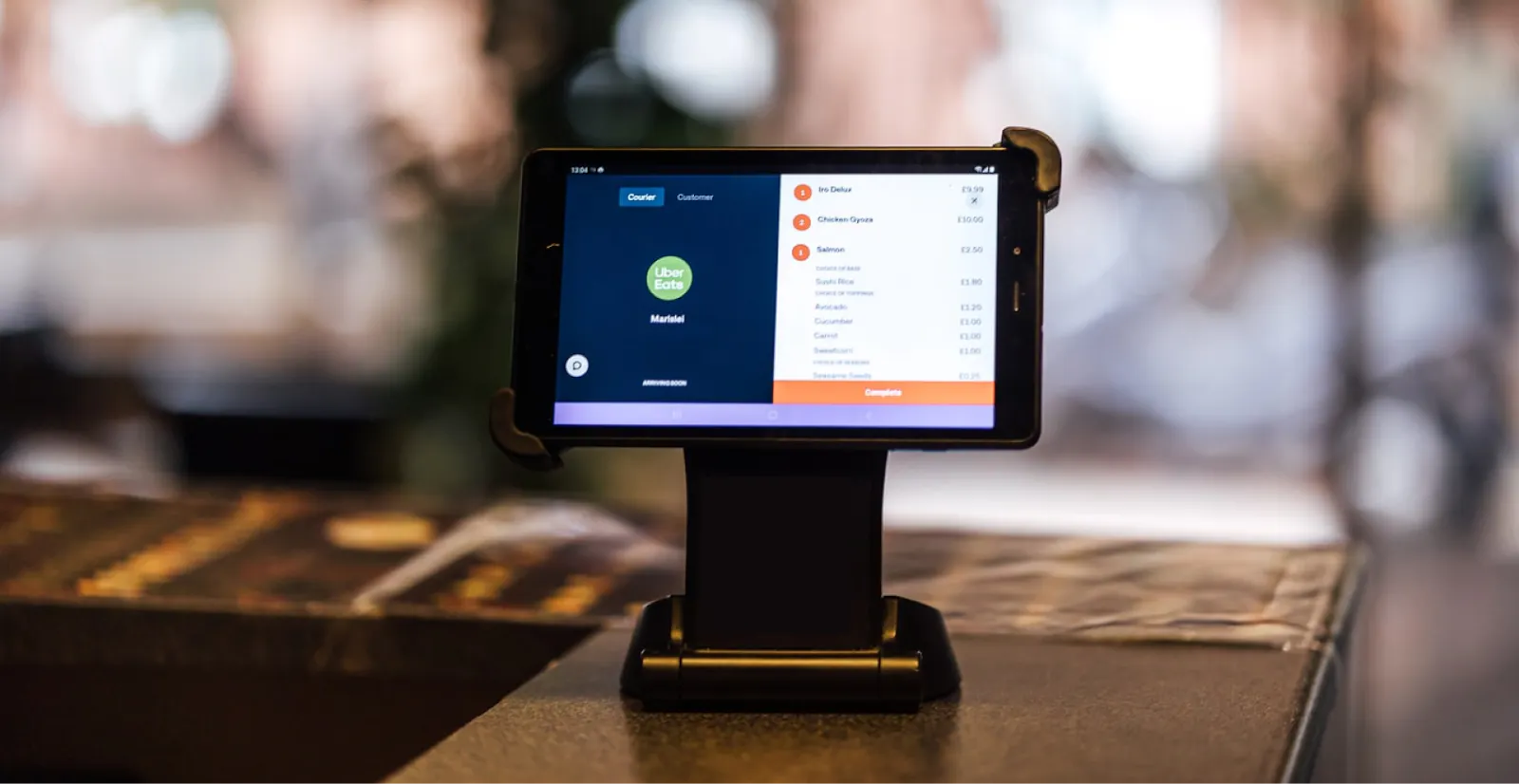
A touch screen POS system combines touchscreen monitors with point-of-sale software. The screen is the input device. The software is what actually runs your restaurant: managing orders, routing tickets to the kitchen, processing payments, and generating reports.
That's a meaningful distinction. The glass panel you tap is the least consequential part of the decision.
Before touch screen systems became standard, counter-service restaurants ran on physical keyboard registers, handwritten tickets, and separate cash drawers. Errors were common. A ticket misread by a line cook, a price entered wrong, a cash drawer that didn't log its opens: all of it slowed service and created disputes.
Two main form factors exist:
- Countertop terminal: a fixed, commercial-grade unit, from brands like Elo or Touch Dynamic, built for the moisture, grease, and continuous use of a restaurant environment
- Tablet POS: an iPad or Android tablet mounted in a stand, lower upfront cost but less durable in a kitchen-adjacent environment
Both are touch screen POS systems. They differ in durability, replacement cost, and how they hold up after 18 months of heavy daily use.
You may also see the term touch screen cash register. That's an entry-level version of the same concept. It handles basic transactions and stores cash, but without full POS software it can't route orders to a kitchen display, manage modifiers, or generate useful reports. For any restaurant beyond a simple food stall, the operational gap is significant.
QSR, fast-casual, ghost kitchens, and multi-location independents all use touch screen POS systems at the counter, drive-through, and kiosk positions. The form factor may vary. The software requirements don't.
How the three main touch screen technologies work
The touch technology inside your terminal affects how it performs in a real kitchen environment. Here's what you need to know.
Resistive
Two conductive layers register input from pressure. Works with gloves, a stylus, or a knuckle. Lower cost, but lower precision, and the flexible top layer wears down under heavy repeated taps. Still a solid choice for back-of-house and kitchen displays where grease and gloves rule out capacitive, but not the best fit for a high-tap-volume front counter.
Capacitive
Reads the electrical charge from a bare finger, the same technology as your smartphone. Very precise and fast. But it fails with latex gloves, wet hands, or grease-coated fingertips. Capacitive screens can also develop dead spots after 12–18 months of heavy use. Ask the vendor about warranty coverage and hardware replacement cost before you commit.
Infrared
An optical grid at the screen's edges registers any interruption. Works with any object regardless of material: gloved hands, a stylus, even a knuckle. There's no flexible surface layer to wear out from tapping, though the optical sensors at the bezel can lose accuracy if grease or dust builds up, so regular cleaning still matters. This is a common choice for high-volume front-counter terminals in QSR and fast-casual settings.
Why does this matter for your restaurant? Grease, moisture, and food-service gloves are daily realities. A capacitive screen that stops responding mid-service isn't a minor inconvenience. It's an operational failure. Ask any vendor what touch technology is inside the terminal and how it performs with gloved or damp hands.
What to check on a POS touch screen monitor spec sheet
Vendor spec sheets for a POS touch screen monitor often read like gaming monitor ads: full HD resolution, low response time, HDMI ports, a bigger display size. Some of that matters for a restaurant counter. Some doesn't. Here's what to check across touchscreen POS systems before you buy.
Display size: 15–15.6 inches is standard for a countertop terminal; kiosks typically run 21–27 inches so the menu stays legible from a few feet away.
Resolution: full HD (1920x1080) is the practical baseline. Anything lower makes a modifier-heavy menu hard to read under bright kitchen lighting.
Response time: measured in milliseconds, the same spec gaming monitors are sold on. It matters less for order entry than for gaming, but a sluggish panel still slows down a fast-moving line.
HDMI output: lets one terminal drive a second customer-facing display or kitchen monitor without buying separate video hardware.
Build quality: touchscreen computers built for hospitality environments use fanless, sealed designs that survive spills, grease, and dust. A consumer or gaming monitor generally isn't rated for that.
The full hardware stack: it's more than just the screen
Buying touchscreen monitors is not the same as buying a complete point of sale (POS) system. You need the full stack of POS peripherals to run a restaurant. Here's what a complete setup includes:
- POS terminal or display: the screen itself, countertop-mounted, tablet-based, or in a kiosk enclosure, typically running Android, Windows, or a locked-down Linux build depending on the vendor
- Card reader: must support EMV chip, magnetic stripe (MSR), and contactless/NFC for Apple Pay and Google Pay; missing NFC slows your line and frustrates younger guests
- Receipt printer: thermal receipt printers are standard for small business counters; wireless models reduce cable clutter at a busy counter
- Kitchen display system (KDS): orders route directly from the POS to a screen at each kitchen station, eliminating paper tickets and reducing miscommunication between front and back of house
- Cash drawer: still standard in most QSR and fast-casual environments; connects to the receipt printer or terminal and logs opens tied to transactions. Multi-terminal counters need separate cash drawers per till, not one shared drawer
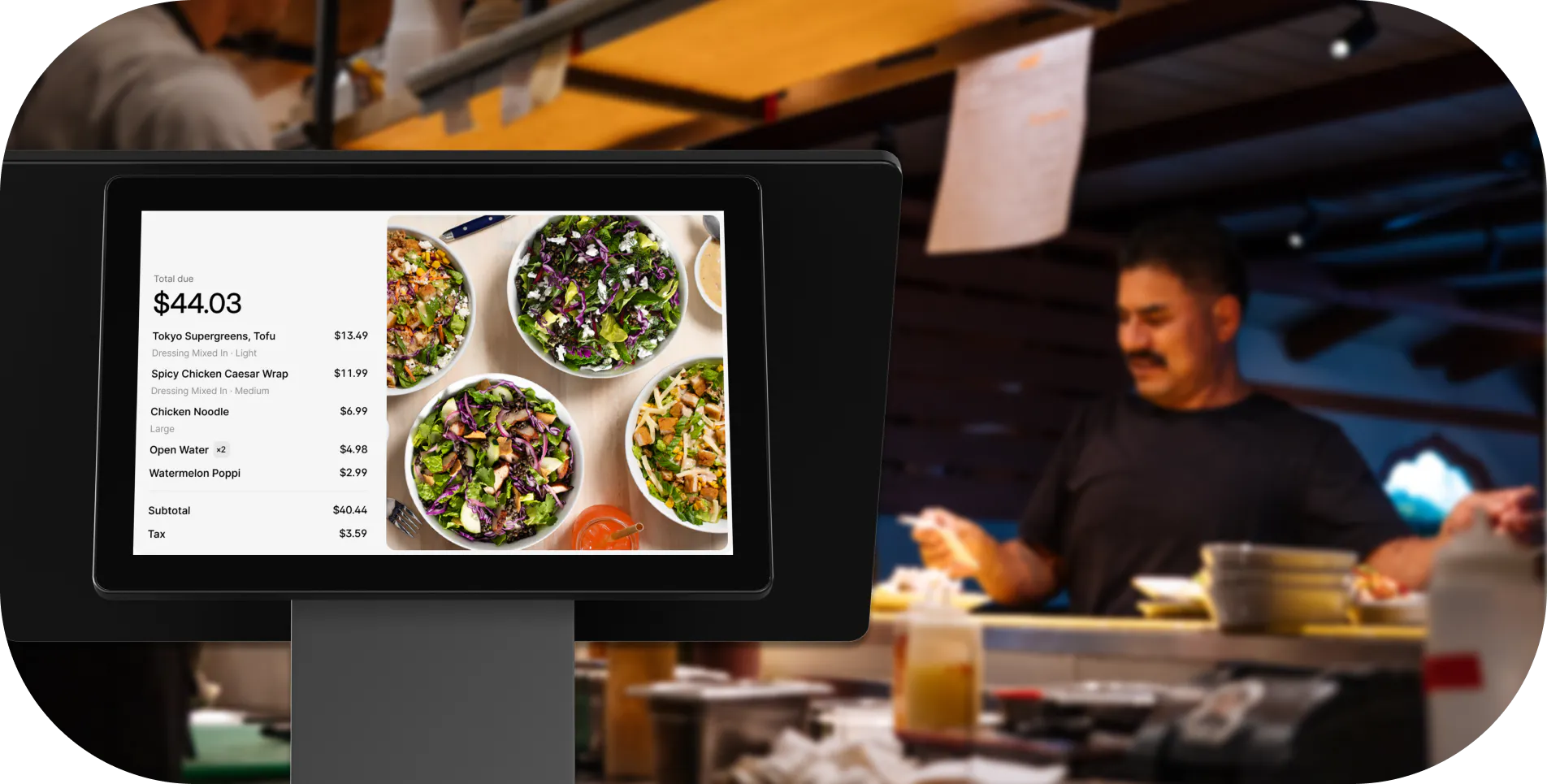
- Customer-facing display: shows the running order and total to the guest during checkout, reduces disputes, and signals professionalism
- Barcode scanner: not standard at a restaurant counter. Barcode scanners are useful for retail-adjacent concepts like grab-and-go coolers or packaged goods, and for back-of-house inventory management when receiving deliveries.
If you're running multiple stations (a ghost kitchen or multi-location QSR, for example), you may have several terminals all feeding one central KDS. The hardware stack scales with your concept.
What the software does, and why it matters more than the screen
The screen is just the input device. The POS software is where your restaurant runs or stalls.
Menu management: build items, modifiers, combos, and pricing tiers; push a price change or remove a sold-out item in under a minute from any device.
Order routing: the software sends each item to the correct kitchen station via the KDS; without this, line cooks are reading handwritten tickets and making mistakes.
Payment processing: built-in processing vs. a bolted-on third-party integration determines your rates, reliability, and who you call when a debit card is repeatedly declined.
Reporting: sales by item, hour, and daypart. This is the data behind decisions about staffing, menu pricing, and which items to cut.
Inventory management: some POS platforms flag low stock or let you 86 an item across every channel the moment you run out, so front-of-house never sells something the kitchen can't make. Full ingredient-level tools to manage inventory across multiple stations usually still require a dedicated add-on.
Loyalty and CRM: enroll guests at the counter or via a QR code; reward every in-store purchase automatically without a separate app.
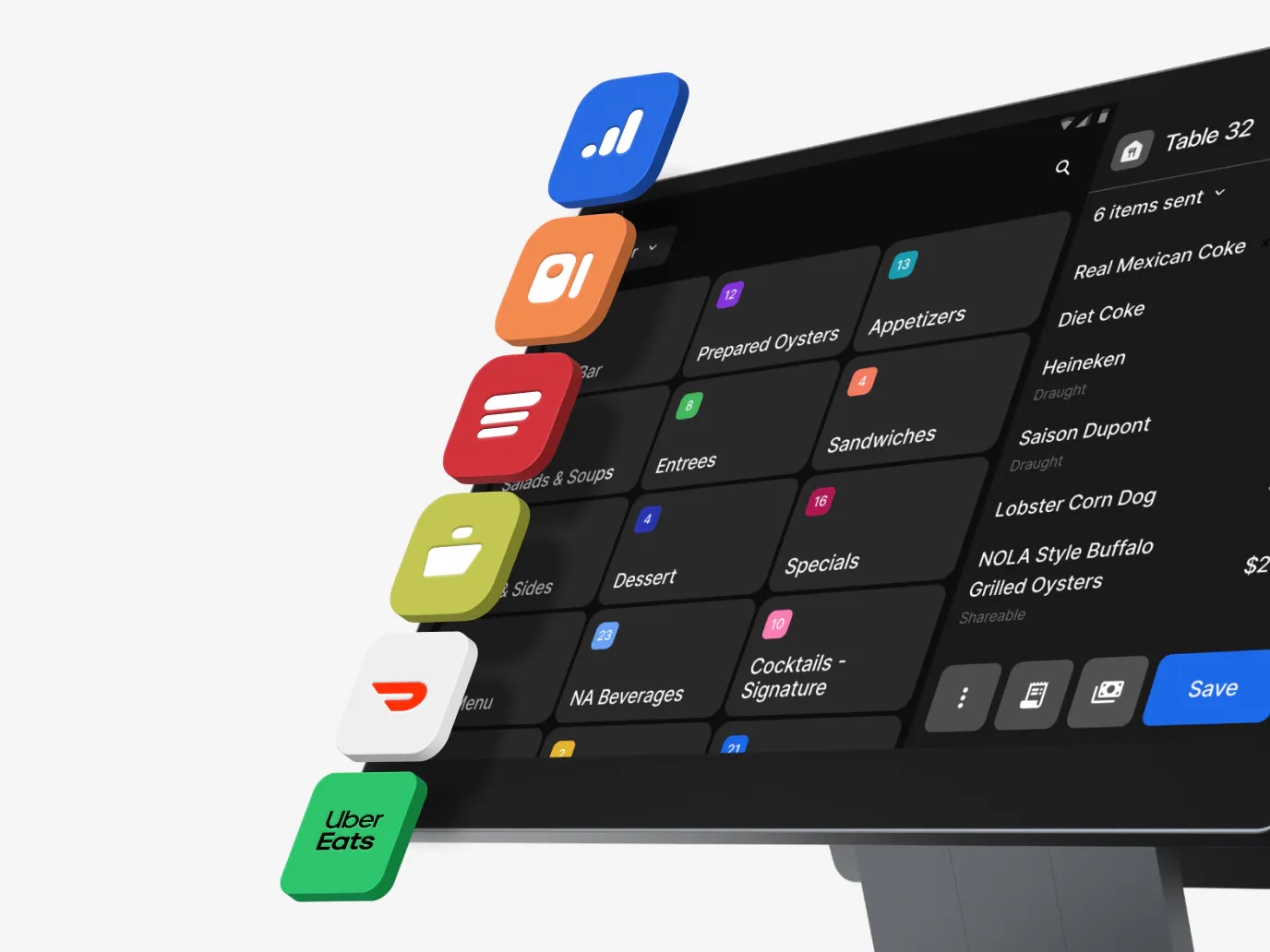
Many operators describe running five separate, disconnected tools: POS, online ordering, loyalty, payments, and back-office reporting. None of them talk to each other. Good POS software collapses that into one platform.
Otter is a full point of sale system built for counter service, QSR, fast-casual, and multi-location independents. It includes menu management, direct KDS integration, built-in loyalty, and order routing: one platform instead of five disconnected tools.
See how Otter's touch screen POS handles orders, payments, loyalty, and kitchen routing in one platform.
What to look for when evaluating a system
Hardware-vendor pages focus on screen specifications for a point of sale POS system. Here's what actually matters in your daily operation.
Order entry speed: can a new cashier ring up a burger with 12 modifiers in under 30 seconds? Ask vendors to show you this live during a demo.
Durability: look for commercial-grade housing, IP-rated moisture resistance, and confirmation that the touch technology works with gloved or damp hands.
KDS integration: does the POS talk directly to the kitchen display, or does it require a middleware workaround? Direct integration means fewer failure points.
Payment processing reliability: debit card declines and repeated swipes are software and processing failures, not screen failures. Ask vendors for decline rate data and their fallback during a payment outage.
Training curve: an intuitive layout with role-based access dramatically shortens ramp time. Training is consistently cited as the hardest part of switching systems.
Support hours: 24/7 support is non-negotiable if your restaurant closes at 11 p.m. or later.
Offline mode: what happens when the internet goes down? Ask vendors to demonstrate offline behavior specifically, and confirm whether contactless and chip payments work offline or only magnetic swipe.
Biometric login: if the system uses fingerprint scanning for employee login, verify it complies with your state's biometric privacy laws.
Here's how one operator describes it: “We actually lost internet here and we were still getting our tickets. Otter has a backup: we run off cellular data and we still got our tickets. So I love that.” - Nicole Kuti, co-owner, Telly's Charburgers
Self-service kiosks: when they make sense for QSR and fast-casual
A self-service kiosk is a customer-facing touch screen where guests browse, customize, and pay. No cashier is required for that transaction.
Throughput advantage: during a peak lunch hour, one staff member monitoring two kiosks can match or outpace two staffed registers on a high-volume line.
Average check lift: guests ordering at a kiosk self-select upsells without feeling rushed or judged. Otter's own kiosk data shows a 20–30% higher average check size compared to counter orders, driven by upsell prompts that fire on every transaction. That's a structural revenue advantage, not just a labor reduction play.
Labor reallocation, not elimination: kiosks shift cashier labor to food prep and order accuracy, where you need it most during peak hours.
When kiosks make the most sense:
- High-volume QSR with predictable lunch and dinner peaks
- Fast-casual operations that want a standardized ordering experience
- Ghost kitchens with walk-up windows
- Multi-location operators who want consistency across every unit
When kiosks don't fit:
- Very small operations where personal interaction is a brand differentiator
- Locations where guest demographics require significant assisted ordering
Otter's kiosk runs on the same platform as the staff-facing POS, KDS, and loyalty program. Orders from the kiosk route to the same kitchen display, with no separate integration and no manual re-entry.
What a touch screen POS system actually costs
Total cost of ownership is three numbers together: hardware, software subscription, and payment processing rate. Comparing sticker prices without all three is comparing apples to oranges.
Hardware costs:
- Commercial countertop terminal: $300–$1,500
- iPad or Android tablet setup: $150–$600 (tablet only; add stand, card reader, and receipt printer on top)
- Kiosk hardware: $1,500–$5,000+ depending on screen size and enclosure
Software subscription: $0–$300/month is the typical range for single-location and small business restaurants; multi-location plans run higher.
Payment processing rate: most restaurant operators pay 2.0–3.5% per card transaction; interchange-plus pricing is more transparent and usually more favorable at moderate volumes.
Other costs to budget: installation and onboarding, receipt paper and consumables, extended warranty or hardware replacement, and per-location software fees for multi-unit operators.
A credible single-terminal setup typically requires $150–$500 upfront plus $50–$200/month in software, with payment processing layered on top. Get itemized quotes for all three layers before you make any decision.
How to match a touch screen POS to your restaurant type
If a kiosk is part of the mix for your concept, it helps to see the numbers broken down by restaurant type first. Our guide on the benefits of self-service kiosks in restaurants is worth a read before you decide.
Independent counter service: prioritize fast order entry, built-in payment processing, a direct KDS connection, and a receipt printer.
High-volume QSR: reliability and offline mode are non-negotiable. Modifier navigation speed and kiosk integration for peak hours matter more than price.
Fast-casual: you often need both a staff terminal and a customer-facing kiosk, plus online ordering that feeds the same KDS. Confirm all three run on one platform before signing.
Ghost kitchen or virtual brand: the POS must handle high-volume digital order intake and route accurately to the KDS without staff manually re-entering orders.
Multi-location independent: look for centralized menu management (change a price once, push to all locations) and consolidated multi-unit reporting.
Questions to ask any vendor before signing:
- What is your uptime SLA?
- Does your system work offline?
- Can I export my full data if I switch?
- What does support look like at 10 p.m. on a Saturday?
Contract red flags:
- Multi-year lock-ins with early termination fees
- Proprietary hardware that can't be sourced elsewhere
- Processing rates the vendor can change unilaterally
The software and support are where your restaurant actually runs
Every operator shopping for a touch screen POS system is really shopping for an operating system for their restaurant. The glass panel is the least consequential variable in the decision.
Slow-moving lines, debit card declines, glitchy crashes, and disconnected systems are software and payment processing failures, not screen failures. Evaluate the software first: menu management, KDS routing, payment reliability, and reporting. Confirm the hardware is durable enough for your environment. Then model the true three-layer cost before comparing vendors.
Otter is a purpose-built restaurant point of sale designed for the speed and operational demands of QSR, fast-casual, ghost kitchens, and multi-location independents: one reliable platform instead of five.
Ready to see what a purpose-built restaurant POS looks like in your operation? Get started with Otter.
Frequently asked questions about touch screen POS systems
Do I need special hardware, or can I use a regular iPad or Android tablet?
Consumer tablets can run POS software, but commercial terminals are built for the moisture, grease, and continuous daily use of a restaurant environment. If you go the tablet route, use a commercial-grade case and stand, and confirm the POS software includes offline mode so a dropped Wi-Fi signal doesn't stop service.
What's the difference between a touch screen cash register and a full POS system?
A touch screen cash register handles transactions and basic totals. A full POS system adds menu management, direct order routing to a KDS, reporting, loyalty, and often online ordering, all in one platform. For any restaurant beyond the simplest food stall, the operational difference is significant.
What happens to my orders and payments if the internet goes down?
Only systems with offline mode keep running during an outage: they queue transactions locally and sync when connectivity returns. Not all POS systems support this. Ask vendors to demonstrate offline behavior specifically before signing.
How long does it take to train new staff on a touch screen POS?
A well-designed system should get a new cashier functional in under an hour. Ask for a live demo with a real menu. If you can't navigate a 12-modifier order within a few minutes of touching it yourself, your staff will struggle during a rush.
Does a touch screen POS accept contactless payments like Apple Pay and Google Pay?
Only if the card reader hardware includes an NFC chip, separate from any MSR (magnetic stripe reader) slot for older cards. Confirm this explicitly: it is not automatic even on modern terminals.
Can one touch screen POS system run across multiple restaurant locations?
Yes. Cloud-based systems allow centralized menu management so a price change pushes to all locations at once. Look for per-location reporting and role-based permissions so each manager sees only their own store's data, while you have a consolidated view across all units.
How do I switch POS systems without losing my menu data?
Ask any new vendor what file formats they accept for menu import, how long migration takes, and whether onboarding support is included in the plan or billed separately.
Is a self-service kiosk the same as a staff-facing touch screen POS terminal?
A kiosk is a customer-facing version of a touch screen POS: guests place and pay for their own orders. A staff-facing terminal is operated by your cashier. The best systems run both on the same software platform so orders from either source route to the same KDS without manual re-entry.

Get a Touch Screen POS Demo