Table of contents
- What a KDS does in a restaurant kitchen
- Why multi-channel orders break traditional kitchen ticketing
- How a KDS routes orders from every channel to the right station
- Managing timing conflicts between delivery, counter, and pickup orders
- What happens when a channel or internet connection goes offline
- How many KDS screens you need and where to put them
- What to ask before you buy a restaurant KDS system
- The screen is the last thing that matters in a KDS decision
- Frequently asked questions about restaurant KDS systems
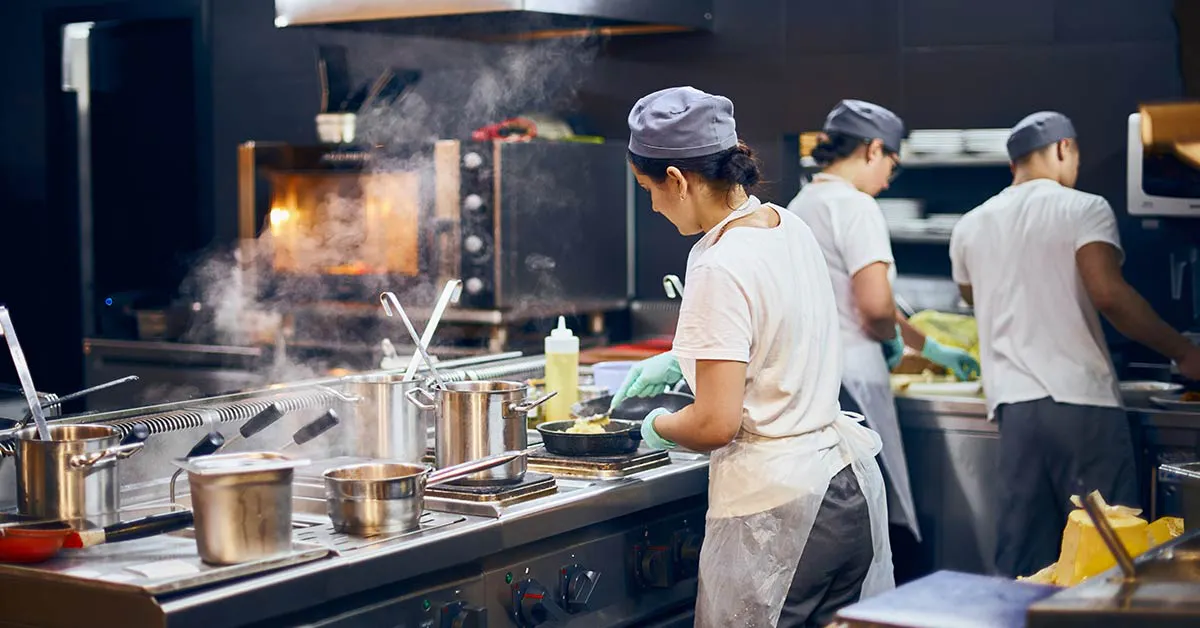
It's 12:15 on a Saturday. A chicken sandwich order just came in from DoorDash, two counter customers are waiting, and your online ordering page just fired three more tickets. Your thermal printer is spitting paper faster than anyone can sort it. Tickets stack up, slide off the rail, and reach the line out of sequence.
Nearly 75% of restaurant traffic now happens off-premises, according to the National Restaurant Association, so most of your orders arrive through the delivery and online channels a paper ticket can't tell apart. Moments like this are exactly why kitchens move to a display system.
A kitchen display system (KDS) replaces that paper chaos with a screen mounted in your kitchen that receives order data electronically from the POS and shows every ticket to the right cook at the right station. This piece explains exactly how a KDS works, why multi-channel orders break traditional ticketing, and what to look for before you buy one.
Key insights
- A KDS is only as useful as the POS behind it. If the POS doesn’t consolidate every order channel before sending tickets to the screen, your kitchen is still working with incomplete information no matter how good the display is
- Treating a DoorDash order and a counter order with the same timing logic will cost you in cold food, late deliveries, and lower platform ratings. Timing configuration is where the real ROI of a KDS actually lives
- For ghost kitchens and multi-brand operators, channel-aware routing and brand-labeled station assignment aren’t optional. One kitchen running two menus without labeled, routed tickets will generate cross-brand errors during any busy service
- The right question when evaluating a restaurant KDS system isn’t “how big is the screen.” It’s “how does this system behave when three channels fire at once during a 50-order lunch rush”
What a KDS does in a restaurant kitchen
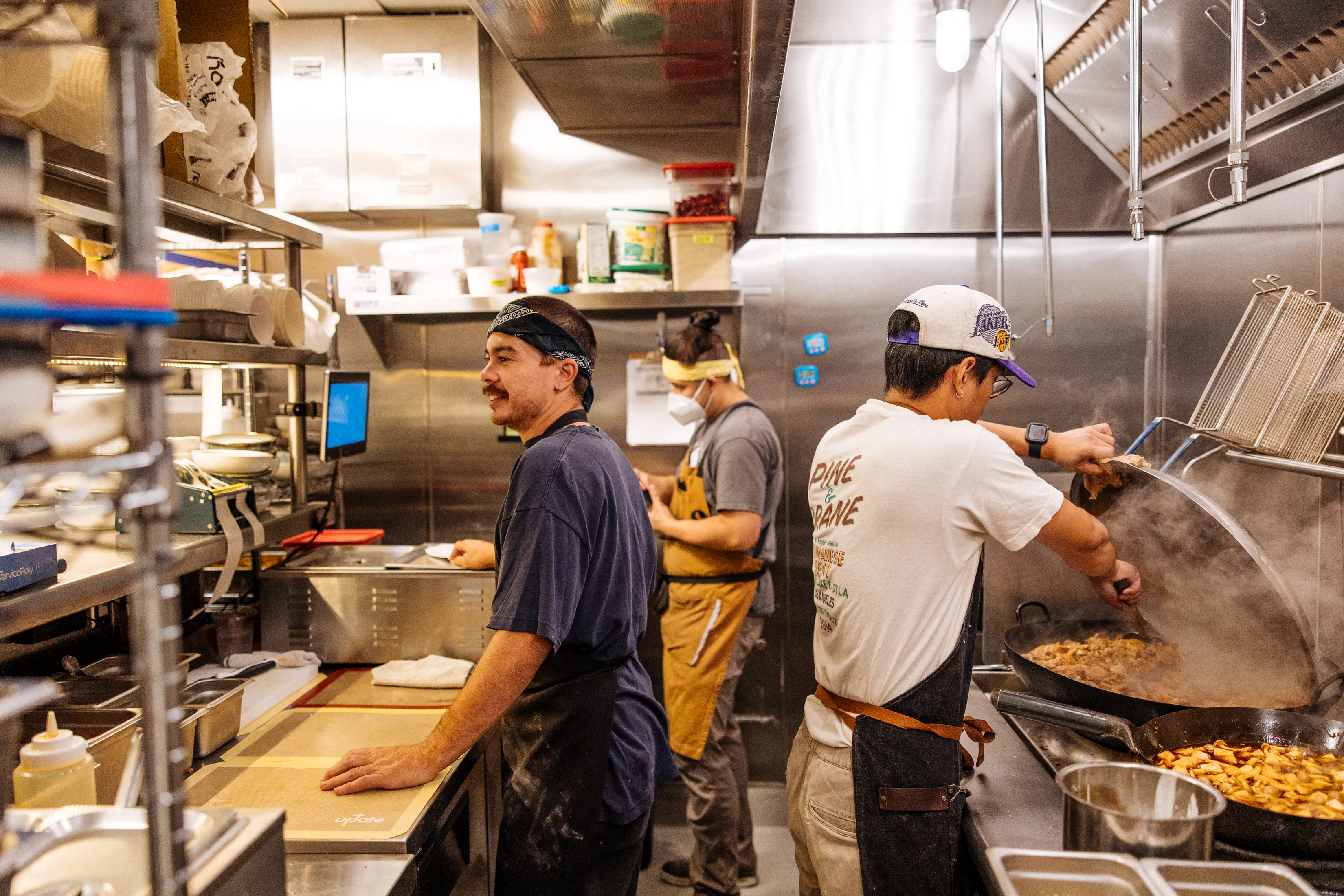
A kitchen display system is a screen mounted in your kitchen — at the grill station, the fryer, cold prep, or the expo pass — that receives order data from the POS and displays it for your kitchen staff to act on. That’s the simple version.
In the fuller version, a KDS replaces printed chits, handwritten tickets, and verbal calls across the line. Those methods work fine at low volume. They fall apart the moment you’re running 15 tickets at once from three different order channels.
The basic workflow looks like this:
- An order fires from the POS, whether it came from your counter, DoorDash, Uber Eats, or your own online ordering page
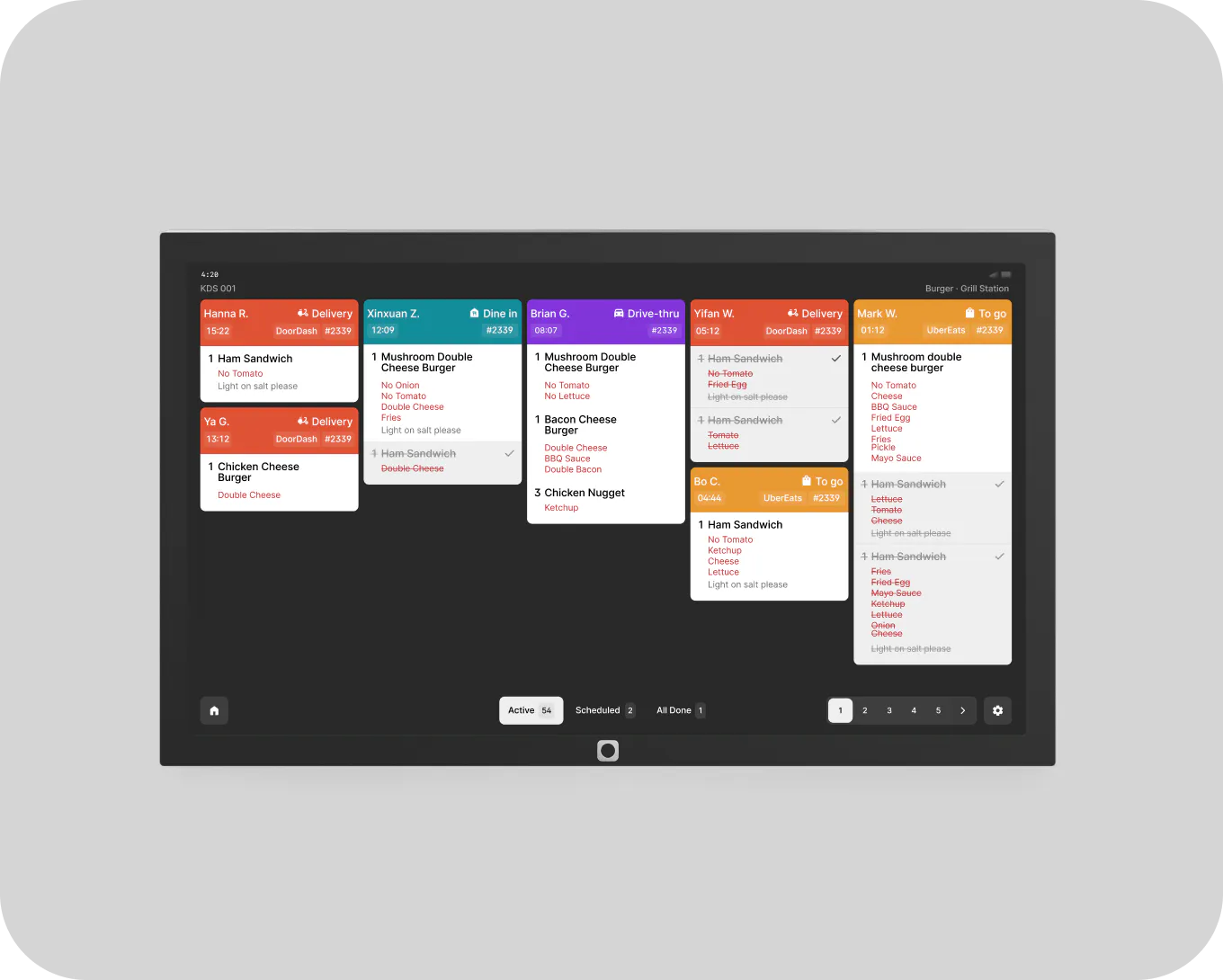
- The ticket appears on the KDS screen with the item name, quantity, order modifiers (for example, “no green onions” or “extra whipped cream on the side”), order source, and elapsed time
- The cook prepares the item
- Staff bump the ticket when the item is complete
- The expo or front of house gets a real-time alert that the order is ready
Color-coded timers are one of the most practical features on any KDS screen. Tickets move from green to yellow to red as time passes. Your whole kitchen shares the same urgency signal without a manager calling it out. That one feature reduces the need for constant verbal check-ins during a rush.
What shows on a ticket matters too. A well-set-up KDS ticket displays item name, quantity, order modifiers, order source badge, and elapsed time; all readable at a glance from the cook’s position, not buried in a submenu.
This applies whether you run a single-location fast casual spot, a QSR, a family diner, a ghost kitchen, or a multi-brand virtual operation. Anywhere orders come from more than one place, a KDS earns its spot on the wall.
Picture a KDS in a family restaurant working a weekend breakfast rush: pancakes, omelets, and hashbrowns firing off the grill while lunch and takeout orders stack up behind them. A KDS keeps those entrees and sides sorted by station and by ticket age so nothing slides.
Why multi-channel orders break traditional kitchen ticketing
Here’s the reality for your kitchen right now: you’re probably taking orders from a counter POS, DoorDash, Uber Eats, and your own online ordering page, often at the exact same time.
A printed ticket for a chicken sandwich looks identical whether it came from the counter or a third-party delivery app. There’s no source tag, no urgency context, no delivery window on that chit. Your cook has no way of knowing which one needs to be done in 90 seconds and which one has a 14-minute driver window.
The paper problem worsens at volume. A Saturday lunch rush with 15 tickets in 5 minutes across three platforms will overwhelm a single thermal printer. Tickets pile up, fall on the floor, and get read out of order. A cook working from a paper stack defaults to first-in-first-out, which is reasonable but wrong. Delivery food sometimes fires before a customer standing at your counter. That customer leaves unhappy. That delivery order sits under a heat lamp.
Ghost kitchens amplify this problem. Without a dine-in context, every order is delivery or takeout. With no visual separation by channel, your kitchen has no way to sequence by pickup window. A single kitchen running two virtual brands may receive a burger ticket and a grilled chicken salad ticket from different menus in the same undifferentiated queue. Nothing tells them apart.
The real cost isn’t the chaos itself. It’s the downstream effect: cold food, delivery-platform rating drops, re-fires, and comped tickets. Those costs add up fast.
How a KDS routes orders from every channel to the right station
This is where a KDS earns its value. Not just by displaying tickets, but by routing them through order-routing rules you set up once and rely on every shift.
The core mechanic
When your POS receives an order from any channel, it sends that order to the KDS with metadata attached: a channel tag (DoorDash, in-house, online ordering), the items ordered, order modifiers, and fulfillment type (delivery, pickup, counter). The KDS then applies pre-set station-assignment rules to split that order by item type and send each part to the correct station screen.
A concrete example
A DoorDash order comes in for a chicken sandwich (hold onions) with a side salad. The KDS fires the sandwich ticket to the grill station and the salad ticket to cold prep at the same time, without anyone sorting it by hand. The grill cook sees “chicken sandwich, no onions, DoorDash.” The cold prep cook sees “side salad, DoorDash.” Both know the channel. Neither has to ask.
Now take a larger ticket: a BLT and a burger with steak fries, plus a grilled chicken salad, a side of cole slaw, baked beans, and a cup of chili. The KDS splits it automatically: sandwiches and burger to the grill, fries to the fryer, salad and slaw to cold prep, beans and chili to the hot-hold station; every ticket tagged with its channel. No one has to read the whole order and parcel it out by hand.
Order-source labeling shows on every ticket as a badge or color band. Kitchen staff see the channel at a glance without reading a receipt. That visibility matters when a counter order and a DoorDash order for the same burger are both in the queue. Your team needs to know which one has a customer standing at the window.
Order modifiers are non-negotiable. “No green onions,” “extra patty,” “whipped cream on the side” for a dessert, “a Coke instead of a Sprite”; these need to be readable at a glance at the station, not buried below a scroll line. A modifier that’s hard to see is a modifier that gets missed.
Otter’s KDS consolidates orders from every channel into one system. Station-assignment rules and ticket layouts are configurable to your kitchen’s setup. A two-station independent kitchen looks different from a four-station QSR line, and you can customize routing logic and ticket layouts to match how your kitchen actually runs.
A fryer station that’s blind to a DoorDash order for hot items will produce late food. Late food means cold delivery, driver wait time, and possible order cancellations. Order-routing logic is not a nice-to-have. It’s the mechanism that keeps your queue from becoming a guessing game.
Want to see how Otter routes orders from every channel to the right kitchen station? Book a demo.
Managing timing conflicts between delivery, counter, and pickup orders
A DoorDash order placed 18 minutes out has a very different urgency window from a customer standing at your counter who will pick up in 90 seconds. If your KDS treats both the same way, you’re going to produce cold food or make someone wait.
What happens without timing logic: the kitchen fires all orders in arrival order. Delivery food sits under a heat lamp getting cold while the kitchen finishes a counter ticket. Or the reverse: a delivery order fires early, the driver isn’t there yet, and the food sits. Neither outcome is good.
Fire-time logic solves this. A KDS fed by a smart POS can delay firing a delivery order until the prep window lines up with the estimated driver arrival. Food finishes hot. The driver picks it up and goes. No heat-lamp waiting.
Prep-time offsets by fulfillment type give the system the numbers it needs to sequence correctly:
- Counter pickup might carry a 4-minute lead time
- Delivery might carry a 10-14 minute lead based on estimated driver arrival
- The KDS uses those offsets to sort the queue by when orders need to be ready, not just when they arrived
Priority bumping gives your staff a manual override. When a driver shows up early or a customer is running late, someone can move an urgent order to the top of the KDS queue without disrupting other tickets.
Otter’s KDS supports prioritization by fulfillment type, order channel, and urgency, with a manual bump available when real-world timing doesn’t match the estimate.
The cost of getting this wrong is concrete. On a 50-order lunch rush, a 3-minute sequencing error across 10 delivery orders means 10 tickets of cold food, 10 unhappy customers, and possible rating hits on the delivery platforms you depend on. Some platforms lower the ranking of restaurants with a pattern of late deliveries, which affects your visibility and your revenue.
What happens when a channel or internet connection goes offline
This is the question most vendors don’t answer clearly in a sales demo. Ask it anyway.
The silent-failure risk: some KDS setups stop receiving orders when a channel integration drops. No alert fires, no fallback activates. Tickets simply stop appearing. Your kitchen keeps cooking what it has, and orders from one channel disappear without anyone knowing.
What to look for: does your system show a visible, audible alert when a channel goes offline? Or does it fail silently?
A KDS that depends on a middleware layer connecting multiple third-party tablets to a separate POS has more failure points than one built into a single POS. Every extra connection between a channel and the KDS screen is a link that can break.
Otter consolidates all channels into an all-in-one POS. The KDS receives orders from a single source rather than from several independent integrations, which reduces the number of links that can fail.
Before you buy, ask these specific questions:
- Does the KDS alert the kitchen when a channel goes offline?
- Does the POS store orders locally if the connection drops?
- Do queued orders sync when reconnected, or are they lost?
Your staff also need a protocol. They need to know what the failure signal looks like and what the fallback is; usually reverting to a backup tablet or phone-based order check until the connection restores. A system that fails silently with no staff protocol is a liability during a dinner rush.
How many KDS screens you need and where to put them
Start with station count, not screen count. Identify your distinct cook stations: grill, fryer, cold prep, sandwich assembly, drinks. Each active station benefits from its own dedicated screen.
The expo screen is the most overlooked piece. A separate KDS display at the pass or expo point shows all active tickets for an assembly check before handoff to the customer or the delivery bag. In small kitchens, the main KDS screen often doubles as the only quality checkpoint. That’s a problem. The expo screen closes the loop.
By kitchen size:
- One-to-two station kitchens (most independents): one main KDS screen is the starting point. A second screen at expo is a strong next step
- Ghost kitchen and virtual brand setups: one kitchen running two brands may need brand-labeled screen sections or extra screens to prevent cross-brand ticket confusion during station assignment
- QSR scale: high-volume kitchens often run three to five screens — one per station plus expo — to reduce cognitive load per cook and keep any single screen from becoming a bottleneck
Otter’s KDS hardware comes in platform-mounted and ceiling-mounted setups, both with a 21.5” tall display, designed to fit different kitchen layouts.
Placement principles:
- Mount at eye level for standing staff
- Away from steam and direct heat
- Visible from the cook’s position without turning away from the line
A screen that's hard to see is a screen nobody uses. Placement should not be an afterthought.
What to ask before you buy a restaurant KDS system
You’re spending real money on hardware and ongoing fees. These questions will tell you more than any demo walkthrough:
- Does the KDS receive all your order channels on its own, or does it need a middleware workaround? Every extra layer is a potential failure point
- Who sets up the order-routing and station-assignment rules. You, or a technician? Setup complexity matters when you have no dedicated IT staff
- How does the screen behave at maximum ticket load? Ask for a demo during a simulated rush with 15+ tickets at once, not just a single-order walkthrough
- What is the fallback if the internet drops? The honest answer should include a specific behavior, not just “we have redundancy”
- How are order modifiers displayed? A “no onions, add extra patty, plain bun” change must be readable at a glance from across the station, not buried below a scroll line
- Does the system support 86ing? Marking a menu item as unavailable so it stops appearing in incoming orders from all channels is a basic operational need
- What does training look like? Most modern KDS interfaces have a learning curve of one to three shifts. Multi-station routing and manual priority overrides may take a few more shifts to feel natural
- What is the total cost including hardware, setup, and ongoing fees? And does the vendor offer support if the system goes down during a dinner rush
The screen is the last thing that matters in a KDS decision
The value of a KDS is not the screen. It’s the order-routing logic, channel visibility, fire-time intelligence, and prep-time sequencing behind it that reduce errors and speed up throughput.
An undifferentiated KDS (one that shows all orders in arrival order with no channel tags, no timing offsets, and no priority logic) is only marginally better than a thermal printer. You’ve removed paper, but you haven’t solved the problem.
The real ROI shows up in fewer comped tickets, fewer re-fires, faster table turns, and higher delivery-platform ratings. For ghost kitchens and multi-brand operators, channel-aware order routing and station assignment are not optional. One kitchen running two virtual brands without labeled, routed tickets will generate cross-brand errors on a regular basis. For fast-casual and QSR operators, fire-time and prep-time logic directly affect your standing on delivery platforms.
Consider this: saving 30 seconds per ticket across 100 orders a day adds up to about 50 minutes of recaptured kitchen time per shift.
The buying decision is not just about the screen. It’s about the POS and order ecosystem behind it. The screen shows what the POS sends. If you’re weighing options, start by comparing how each POS handles delivery orders, then choose the system, not just the hardware. Otter POS consolidates every channel into one system, so your KDS always has the full picture.
Ready to stop juggling paper tickets and disconnected tablets? See how Otter handles your whole kitchen.
Frequently asked questions about restaurant KDS systems
What is a KDS in a restaurant?
KDS stands for kitchen display system. Instead of printing paper chits, it shows incoming orders on a screen at each cook station and updates them live as the kitchen works. Staff can read item details and modifiers, watch how long a ticket has been open through color changes, and clear an order with a single tap once it’s done. This keeps the front of house in the loop on where every order stands.
How does a restaurant KDS connect to the POS?
The POS is the source. When an order lands at the counter, on your website, or through DoorDash or Uber Eats, the POS captures it and passes it to the KDS along with the items, modifiers, and channel. How dependable that handoff is comes down to how the two systems are built. When the POS and KDS are one platform, there are fewer places for the connection to fail than when a separate KDS is bolted onto a separate POS through middleware.
Can a KDS screen show orders from DoorDash, Uber Eats, and in-house at the same time?
Only if the POS pulls those channels together first. A KDS can display exactly what the POS hands it and nothing more. When the POS ingests DoorDash and Uber Eats orders and tags each by source, every ticket shows up in one queue with a channel label. If third-party orders never reach the POS, they’ll never appear on the screen either.
How many KDS screens does a small independent restaurant need?
One screen is enough to start for a kitchen with one or two stations. The most valuable addition after that is a screen at the expo or pass, which gives one person a full view of each order without crowding a cook’s station. Busier fast-casual and QSR kitchens tend to run a screen per station plus an expo screen.
What happens to KDS orders if the internet goes down?
That depends entirely on the build. Weaker setups go dark quietly, with tickets no longer arriving and nothing to warn you. Stronger ones flash a clear alert and hold incoming orders until service comes back. It’s worth pinning a vendor down on two things before buying: whether the kitchen is warned when a channel drops, and whether orders are stored locally and synced once the connection returns.
What is the difference between a KDS and a kitchen printer?
A printer hands you a static slip of paper and forgets about it: once it prints, the system has no idea whether that order is untouched, in progress, or plated. A KDS keeps the order live on screen, ages it in real time, flags its source and priority, and registers the moment a cook clears it, so the POS and expo always know the true status of every ticket.
Can a KDS handle orders for multiple virtual brands from the same kitchen?
Yes, with the right setup. Routing rules send each order to the correct station by brand and item type, and the screen can carry a brand label or use separate sections so cooks always know which concept a ticket belongs to. Skip that configuration and two brands blur into one shared queue, which is where cross-brand mistakes creep in on a busy night.
How long does it take kitchen staff to learn a KDS system?
Most teams are comfortable inside one to three shifts. The interfaces are built for speed, thanks to big text, color for urgency, one touch to clear a ticket, so the basics of reading, bumping, and flagging a bad ticket come quickly. The finer points, like multi-station routing and manual priority overrides, tend to settle in over a few more shifts.
See every order on one screen with Otter KDS