Table of contents
- What a KDS actually does in your kitchen
- How a KDS works: from order placed to ticket bumped
- How much does a KDS cost: a line-item breakdown
- Hidden KDS costs you probably won't hear about on a sales call
- What drives the price up — or down
- Does a KDS pay for itself? Running the math
- What to ask a KDS vendor before you sign
- Match your screen count to your kitchen, not the cheapest hardware
- Frequently asked questions about KDS systems
It's 6:45 PM on a Friday. Tickets are stacking up, a modifier got missed on the burger at table 12, and you're already comping a dish before the rush even peaks. The printer is jammed, and somewhere in that pile of paper is an order that should have gone out eight minutes ago.
Kitchen errors and miscommunication are among the top drivers of food waste and unnecessary comps in independent restaurants.
Paper ticket systems sit at the center of that problem. A kitchen display system (KDS) is built to fix exactly this. But before you buy one, you need to know what it actually costs. All of it, not just the hardware sticker price.
Here is a transparent, line-item breakdown for 1-, 2-, and 3-screen setups, a worked break-even example you can run against your own numbers, and a checklist of hidden costs that almost never come up in a vendor sales call.
Key insights
- The real cost of a KDS is not the hardware sticker price. It’s the total first-year spend: hardware plus per-screen software fees plus mounting plus support tier. Operators who budget for hardware alone are routinely surprised by $1,000 or more in year-one costs they did not model
- A KDS can break even in under five months for a fast-casual operator running 100 covers per day with a modest error rate, but only if you track your actual comp and void costs before shopping, so you have a real baseline to work from
- Hidden costs bite hardest after purchase: PoE switch requirements, support-tier hour gaps at peak service, and POS system per-screen add-on fees are almost never surfaced in vendor sales conversations; ask about each one explicitly or budget conservatively
- The screen count matters more than the cheapest hardware: one well-configured screen outperforms two poorly-routed ones, and every additional screen carries recurring monthly software costs that compound to $500 or more per year per screen
What a KDS actually does in your kitchen
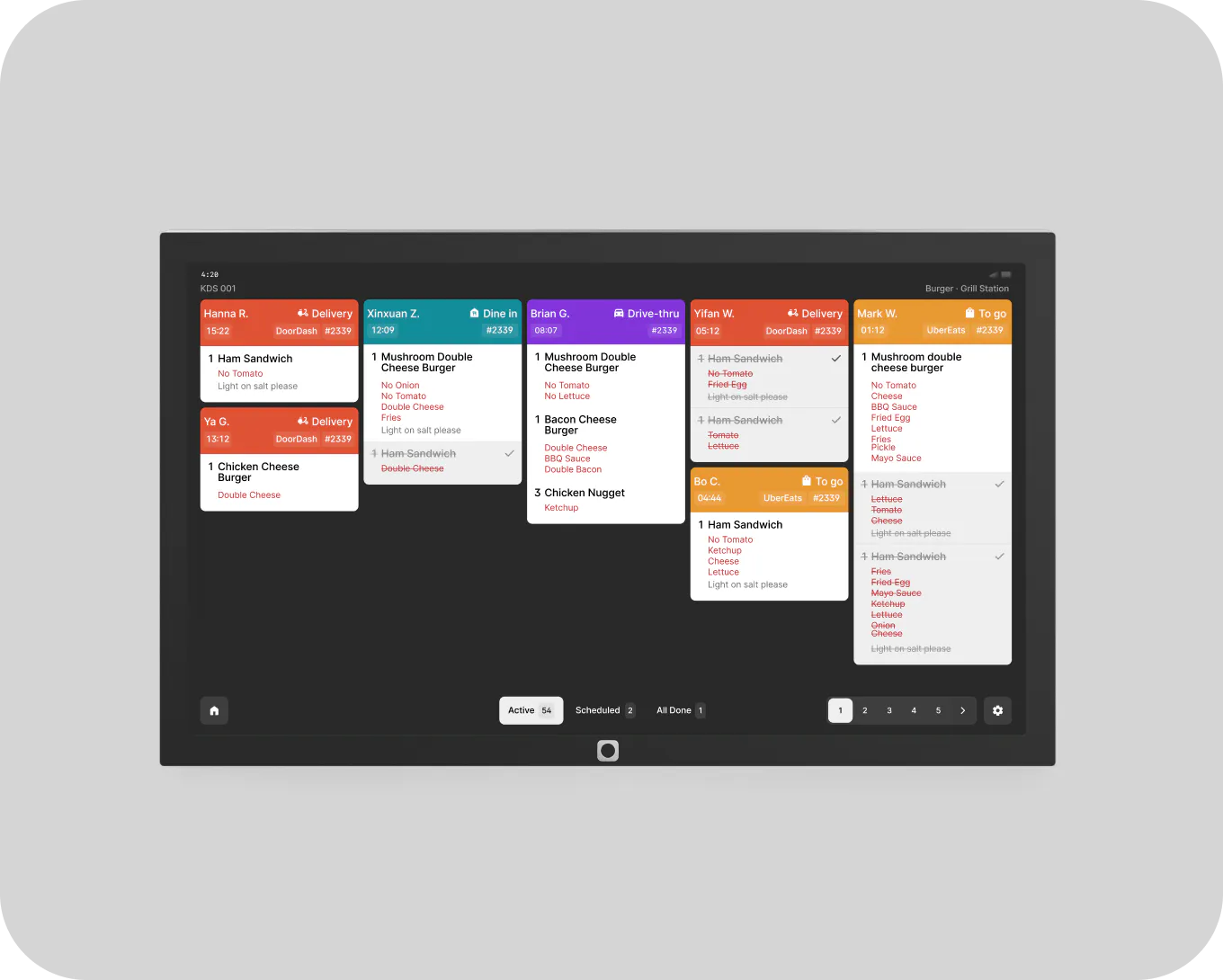
In most commercial kitchens, a KDS is a screen, or set of screens, mounted in the back of house that receives real-time order updates from every active order channel: dine-in, online ordering, and third-party delivery. No paper, no printer, no relay through a runner.
Paper tickets feel free until you tally the real cost: illegible handwriting, lost tickets, missed modifiers, a reprinted order that still arrives wrong, and the comp that follows. That "free" system has a price. You just pay it in voids, food waste, and one-star reviews.
A KDS is also an order management tool for your back of house. It routes tickets to the right station, uses color-coded alerts to signal urgency as time elapses, and gives your front of house a shared source of truth without anyone shouting across the line. The payoff is measurable: tighter order accuracy, faster order fulfillment, and a smoother guest experience across every service.
How a KDS works: from order placed to ticket bumped
Here is the flow from the moment a guest orders to the moment food hits the pass:
- Order placed at a point of sale (POS) system terminal, kiosk, online ordering page, or third-party delivery app
- Order appears instantly on the KDS screen in the kitchen
- Station routing sends the ticket to the right prep station: grill, cold prep, fry, or expo
- Color changes as prep time elapses: green when fresh, yellow as the target window approaches, red when overdue
- Cook bumps the ticket when the item is ready, via touchscreen or bump bar
- Front of house sees the status update without calling back to the kitchen, which trims wait times at the pass
The color-coding is where the real operational value lives. Your line knows exactly which tickets need attention without anyone breaking stride to check a clock.
In a fast-casual or multi-station kitchen, the expo screen is the linchpin. Your expeditor sees all in-progress tickets simultaneously so no plate ships before every component is ready. That single view eliminates the most common source of incomplete orders leaving the pass.
On bump bar versus touchscreen: a bump bar is a physical button panel, faster in high-volume kitchens where cooks have greasy hands and no time to tap a screen. Touchscreen bumping works well in lower-volume or cleaner environments. Both accomplish the same thing. The choice is operational, not technical.
Otter KDS receives orders from every channel and consolidates them into one display, which means you are not managing a separate tablet for each delivery platform alongside your main screen. That multi-channel consolidation is one of the most practical features to confirm before you buy any system.
How much does a KDS cost: a line-item breakdown
There is no single sticker price. Total cost equals hardware plus software subscription plus mounting plus installation plus ongoing support. Operators who shop on hardware price alone are surprised, often by more than $1,000 in year-one costs they never modeled. For a side-by-side look at options, see our roundup of the best kitchen display systems.
Here is what each line item looks like:
Cost item | Typical range |
|---|---|
Hardware per screen | $200–$800+ |
Monthly software fee | $20–$80 per screen/month |
Mounting hardware (VESA, pole, ceiling bracket) | $30–$150 per screen |
Cabling and installation | $0 DIY to $200+ professional run |
Support tier (24/7 vs. business hours) | Included to $30+/month |
Three realistic configurations
1-screen setup — ghost kitchen or QSR under 80 covers/day
- Hardware: ~$400
- Software: ~$40/month × 12 = $480/year
- Mounting and installation: ~$100
- Year-one total: ~$980
2-screen setup — fast-casual with grill and cold station, 100–150 covers/day
- Hardware: ~$800
- Software: ~$40/screen/month × 2 × 12 = $960/year
- Mounting and installation: ~$200
- Year-one total: ~$1,960
3-screen setup — fast-casual with expo/assembler, 150+ covers/day
- Hardware: ~$1,200
- Software: ~$40/screen/month × 3 × 12 = $1,440/year
- Mounting and installation: ~$300
- Year-one total: ~$2,940
The single most common budget surprise: confirm whether KDS software is bundled into your POS plan or billed separately per screen. A 3-screen kitchen at $40/screen/month adds $1,440/year that may not appear anywhere in the initial quote.
Otter KDS comes in two hardware configurations, platform-mounted and ceiling-mounted, both with a 21.5” display, cables, and charger included. It runs on a kitchen-grade Android touchscreen and works best paired with Otter POS.
Want to see exactly what Otter KDS costs for your kitchen? Book a quick demo. No commitment, real numbers.
What drives the price up — or down
- Number of screens — each additional display adds hardware cost plus monthly per-screen software fees; start with one and expand only when a real bottleneck appears
- Screen size and durability — a commercial-grade display survives a kitchen environment for 3–5 years; a consumer tablet typically lasts 12–18 months under the same conditions
- Wired vs. wireless — wired Ethernet eliminates connectivity risk; wireless installs faster but adds outage exposure
- Software tier and feature depth — basic ticket display is the lowest-cost tier; multi-channel consolidation, urgency-based color routing, and station-level routing logic cost more but measurably reduce ticket times and error rates
- Number of order channels — a single POS feed is the simplest configuration; pulling third-party delivery platforms into one screen requires multi-channel support, and not every KDS vendor does this without per-integration fees
If you run multiple virtual brands from one kitchen, confirm that any KDS you evaluate handles multi-brand station routing without additional per-brand fees. This is a common gap in lower-cost systems.
Does a KDS pay for itself? Running the math
The question is not whether a KDS is good in theory. It is whether your specific volume justifies the spend.
Here is a worked example for a realistic fast-casual operator:
- Volume: 100 covers/day, 6 days/week
- Current error rate: 3 comped or voided tickets/week at a $12 average comp value
- Weekly comp cost: $36
- Monthly comp cost: ~$156 in recoverable revenue from voids and comps
Now layer in labor savings. Two line cooks each spend 4 minutes per shift re-reading or reprinting a lost paper ticket. That is 16 minutes/day, roughly $3–$4/day at $14/hour.
- Monthly labor recovery: ~$90–$120
Simple break-even formula:
(Hardware cost + first-year software cost) ÷ (monthly comp savings + monthly labor savings) = break-even in months
Worked example:
- $600 hardware + $480 first-year software = $1,080 year-one cost
- $156 comp savings + $100 labor savings = $256/month
- Break-even: ~4.2 months
For ghost kitchens and multi-brand operations, error costs multiply per brand at higher ticket volume. The KDS pays back faster in these configurations.
Before you talk to any vendor: track your actual comps and voids for two weeks. It gives you a real baseline on your kitchen performance and makes every vendor conversation sharper. You will know immediately whether a system's cost is justified for your kitchen.
What to ask a KDS vendor before you sign
- Is KDS software included in my POS plan, or billed separately per screen?
- What is the replacement and warranty policy if a screen fails during a rush?
- Does the system work offline? Is there local order caching or a wired failover option?
- What support hours are covered on my plan, and what happens if my screen fails at 7 PM Saturday?
- Can the system handle multi-channel consolidation — POS, online ordering, and third-party delivery — on a single screen?
- For ghost kitchen or multi-location operators: can I manage multiple brand menus from a single dashboard?
- What mounting options are included versus purchased separately? Are cables and chargers in the hardware price?
- Can I see a demo using my actual menu, including routing logic, modifier display, and station assignments?
That last one matters more than you might expect. A system that handles your menu correctly in a real-world simulation before you commit is worth far more than a polished slide deck.
Match your screen count to your kitchen, not the cheapest hardware
Under-buy screens and you create bottlenecks. Over-buy and you create complexity, and recurring monthly costs, that neither your staff nor your budget can sustain.
1-screen setup: Right for QSR, ghost kitchens, food trucks, and small fast-casual operations under ~80 covers/day. One screen at the cook line handles all tickets and order management for the shift.
2-screen setup: Right for fast-casual or QSR with clearly distinct prep areas, hot vs. cold, or grill vs. assembly. Route hot items to screen 1, cold/assembly to screen 2. Reduces cross-station confusion at 100–150 covers/day.
3-screen setup with expo: Right for fast-casual operations with a dedicated assembler managing the pass. Grill screen, cold/prep screen, and expo/assembler screen. Otter's assembler view is built for this configuration, giving the expeditor a simultaneous view of all in-progress tickets.
Practical rule: Start with one screen. Run it for 30 days. Add a second only when line cooks are consistently turning to look at each other's stations.
Each additional screen is not just hardware. It is hardware plus monthly software fee plus mounting plus potential cabling. Model the full number before you order.
The KDS that pays for itself fastest is the one matched to your real kitchen workflow, not the most feature-rich option or the cheapest hardware on the shelf. Set the screen count first, then let volume drive the rest.
Ready to stop guessing at ticket times and start running a tighter kitchen? See how Otter KDS fits your operation.
Frequently asked questions about KDS systems
How much does a KDS cost for a small restaurant?
A single-screen kitchen typically lands between $440 and $1,320 in year one once you add hardware, per-screen software, mounting, and support. Hardware on its own runs roughly $200–$600, with software billed monthly on top. Every screen you add multiplies both figures.
Is KDS software usually included in a POS subscription?
Sometimes. Certain point of sale providers fold KDS software into their base plan, while others bill it per screen each month. Confirm which model applies before you sign — at $40 per screen monthly, a three-screen kitchen can owe an extra $1,440 a year that never appeared in the original quote.
What is the difference between a KDS and a kitchen printer?
Kitchen printers push out a paper ticket for every order; a KDS shows those orders on digital screens, tracks their order statuses, and flags urgency with color as prep time runs. The screen approach cuts paper waste and the errors that come with smudged handwriting, dropped tickets, and missed special requests.
How many KDS screens does a fast-casual restaurant need?
Most operators begin with one and grow into a second once hot and cold prep clearly separate, then a third expo screen when an assembler owns the pass. Run a single screen for about a month first, and add only where a real bottleneck shows up. Each screen brings its own hardware and recurring monthly software cost.
Does a KDS work if the internet goes down?
That depends entirely on the platform. Some cache restaurant orders locally and keep running through an outage; others lean fully on the cloud and go dark. Ask specifically about offline mode and local order caching before committing.
How long does it take for a KDS to pay for itself?
At 100 covers a day with a handful of weekly comps, recovered errors and labor often add up to a few hundred dollars a month — enough to clear a roughly $1,080 year-one outlay in about four to five months. Busier kitchens and higher error rates reach break-even sooner.
Can a KDS display orders from multiple channels on one screen?
Yes, on platforms that support multi-channel consolidation. It is one of the first capabilities to verify, since without it you are back to juggling a separate tablet per delivery app and a fragmented view of incoming orders.
What does PoE mean for a KDS installation?
PoE, or Power over Ethernet, sends both data and power to each screen down a single cable, so you do not need an outlet at every mount. It streamlines cabling but calls for a PoE-capable network switch, an added piece of network hardware to budget for.

Book a demo for real KDS pricing