
Table of contents
- What a restaurant POS system actually does
- Before your staff log in: the setup decisions that make or break daily use
- The staff login and order setup flow
- How to take an order and send it to the kitchen correctly
- Processing every type of payment staff will encounter
- When something goes wrong: error recovery without calling the owner
- How to train new staff on your POS without losing a service
- End-of-day closeout: what to check before anyone goes home
- A configured POS and a trained staff are the same investment
- Frequently asked questions about using a restaurant POS system
Picture this: it's your new hire's first Friday night. The line is out the door, the POS terminal is glowing on the counter, and nobody showed them how to use it. They freeze. The line grows. You lose sales, you lose guests, and you spend the rest of the night fixing mistakes.
According to the National Restaurant Association's Restaurant Technology Landscape Report 2024, 76% of restaurant operators say technology gives them a competitive edge. But that edge only materializes when staff know how to run the system. The training gap is where the advantage disappears.
This walkthrough covers everything from owner setup decisions to end-of-day closeout: what to configure before anyone logs in, how to walk staff through every workflow they'll actually encounter, and how to handle the moments that break service when you're not on the floor.
Key insights
- Owner setup decisions (modifier trees, permission tiers, KDS station routing) control how smoothly staff can execute a shift. Most POS friction during service traces back to configuration gaps made before anyone logged in, not to staff mistakes.
- Day-one staff need exactly three skills: PIN login, order entry with modifiers confirmed, and basic card or cash payment. Everything else can be introduced across the first week without putting a live service at risk.
- Offline mode is a non-negotiable operational requirement for any restaurant that can't afford a service interruption. Verify that your POS terminal, KDS, and printer all operate independently of the internet before your next peak shift.
- End-of-day reports are where revenue becomes actionable, but only if every ticket is closed and the cash drawer is reconciled before staff leave. Five minutes at closeout surfaces more information than a month of guesswork.
What a restaurant POS system actually does
A restaurant POS system, or point-of-sale (pos) system, is the operational nerve center of your counter. It replaces the cash register and ties together order entry, payment processing, kitchen communication, and sales data in one place.
Here's the hardware stack in plain terms:
- POS terminal: the touchscreen where staff input orders and process payments
- Card reader: handles tap, dip, and swipe payments, including mobile wallet payments like Apple Pay and Google Pay
- Receipt printer: prints guest receipts and, in some setups, kitchen tickets
- Cash drawer: opens automatically when a cash transaction is processed
- Customer-facing display: shows the order and total to the guest in real time as staff ring it in
- Kitchen display system (KDS) or kitchen printer: where the kitchen receives and tracks tickets
The distinction between cloud-based systems and legacy on-premise systems matters for you as an owner. A cloud-based POS means menu updates, pricing changes, and sales reports are accessible from anywhere: your phone, your laptop, wherever you are. You don't have to be standing at the back-office computer to know how the shift went. If you're managing more than one location or working off-site, that real-time data access is the difference between guessing and knowing.
Before your staff log in: the setup decisions that make or break daily use
Think of this as mise en place for your POS. A kitchen doesn't start service without prepped ingredients, and your POS shouldn't go live without a prepped configuration.
This section assumes you've already chosen a system and are ready to configure it. If you're still comparing options and weighing what a system costs, start with our guides to the best restaurant POS systems and how much a restaurant POS system costs.
Most POS friction during service (the manager overrides, the wrong items firing to the wrong station, orders taking twice as long as they should) traces back to four setup decisions that were skipped or rushed.
1. Menu structure and modifier trees
A modifier tree is the list of options attached to a menu item: size, add-ons, substitutions, allergen notes. If a bowl has 20 modifier options and none are marked as defaults, every order takes longer and mistake rates climb. Build your modifier tree around what staff say out loud during a transaction. If the most common order is “medium, no onion, extra sauce,” those should be accessible in one or two taps, not by scrolling through an unorganized list.
Tip: If a modifier isn't built into the menu before service, staff can't add it at the terminal without a manager. Build it in setup, not in the middle of a rush.
2. User permissions by staff role
Define who can void an item, apply a discount, or access the sales summary before anyone logs in. Without clear user permissions, staff interrupt service every time a task requires access they don't have. That's the most common complaint from independent operators and restaurant management staff, and it's entirely preventable.
Assign roles: cashier, shift lead, manager. Each role has a defined permission set. Cashiers process standard transactions. Managers can void, comp, and pull reports.
3. Station routing for the KDS
For fast-casual and QSR operations, map which menu categories fire to which KDS station. Hot items go to the grill station; cold items go to the prep station. When this isn't configured, the kitchen chases misrouted tickets and order times suffer.
4. Counter layout or order mode
Counter-service operations use order mode, not a floor plan. Set this up once and it anchors everything that follows. If you're running online ordering through your POS, confirm the channel is mapped correctly during setup so those tickets route to the KDS the same way in-person orders do.
Otter's multi-channel menu management lets you configure your menu once and sync it to every ordering channel: in-store terminal, kiosk, and online ordering. These setup decisions don't have to be repeated per channel.
Skip setup and go live, and staff will improvise. Every improvisation during service is a training gap that compounds.
The staff login and order setup flow
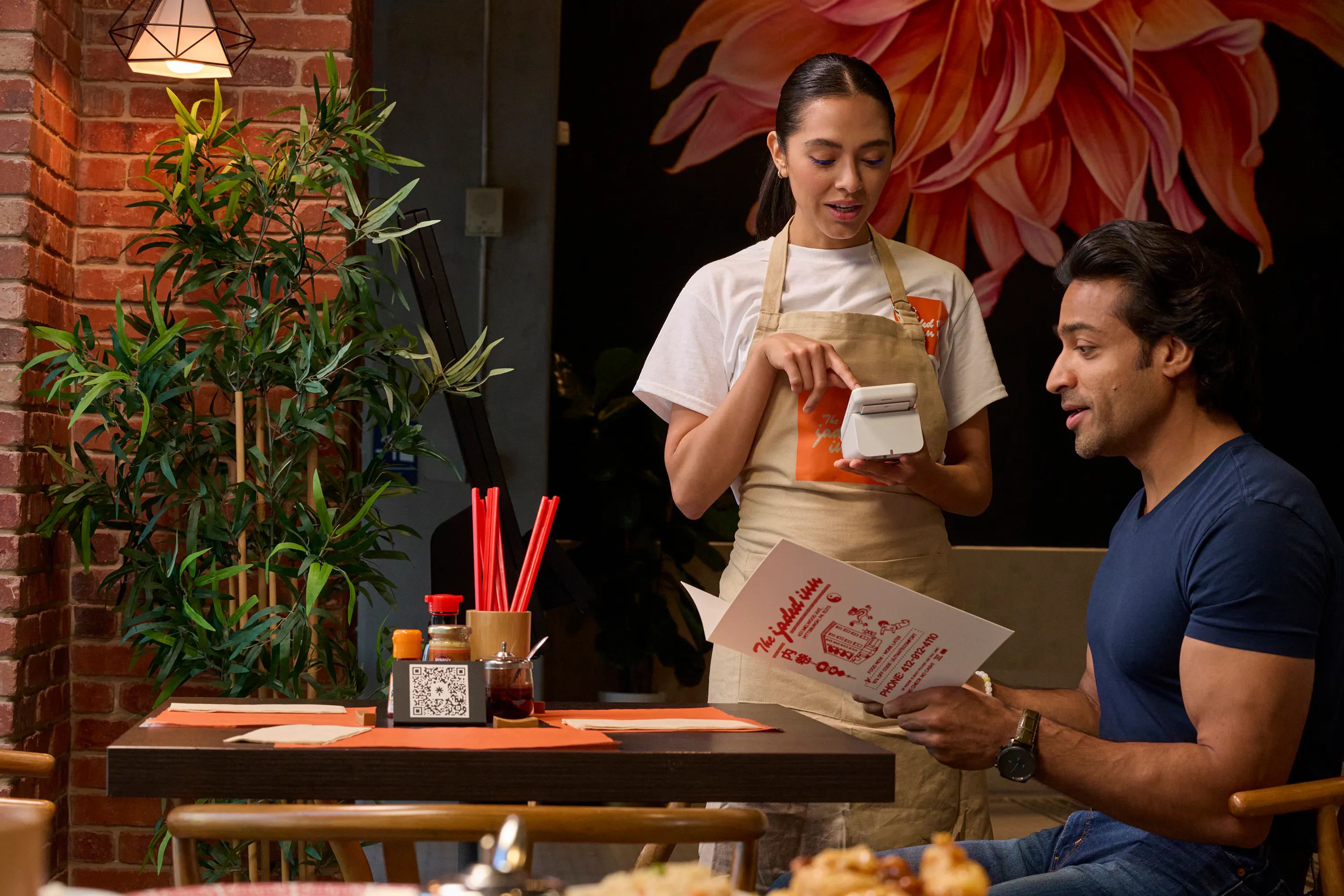
Every shift starts the same way. Staff log in with a unique PIN or employee ID, confirm their role and user permissions are active, and open their assigned station.
Unique PINs are more than security. The POS attributes every sale, void, and comp to a specific login. Shared PINs make shift reports meaningless and remove accountability. When two staff share a PIN, you can't trace who processed a suspicious void or which employee ran the highest ticket average.
For counter-service operations (fast-casual, QSR), staff work in order mode. Orders are tied to a ticket number, not a table. Make sure new staff in these formats know this so they're not looking for something that isn't there.
Before the first transaction, staff count the starting bank and enter it into the POS. This baseline is what end-of-day cash drawer reconciliation is measured against. Your closeout numbers won't mean anything without a starting figure.
How to take an order and send it to the kitchen correctly
The order entry flow has five steps:
- Select items from the menu screen
- Apply modifiers: size, add-ons, substitutions, allergen notes
- Confirm the order before firing
- Send the ticket to the kitchen
- Watch for the KDS confirmation
When an order fires to the kitchen display system, the ticket appears with all modifier details and the kitchen's time clock starts. The KDS is the source of truth. What's on the screen is what the kitchen makes.
The most common staff mistake is selecting items without confirming modifiers. One missed “no onion” means a remake, a delay, and a frustrated guest. Drill modifier confirmation during training, not during a real service.
For fast-casual and QSR operations, course firing lets you send drinks or cold items first and hold hot items until the kitchen is ready. This controls pacing without slowing the line.
For ghost kitchen and multi-location operators: online ordering tickets from third-party apps appear on the same screen as in-person orders. Staff should process them with the same workflow. Otter routes in-person and online ordering through the same terminal and KDS, so a delivery ticket isn't buried during a counter rush.
Processing every type of payment staff will encounter
New staff don't need a feature list. They need to know what to tap, say, and do in the specific scenarios they'll face tonight.
Scenario 1: standard card payment
Tap, dip, or swipe, including mobile wallet payments. Confirm the amount. The tip prompt appears on the card reader. Offer receipt options, including print, text, email, or none. At a fast-casual counter, speed matters. Keep the interaction under 30 seconds.
Scenario 2: cash payment
Enter the amount tendered. The point of sale system calculates change automatically and the cash drawer opens. Staff should always enter the tendered amount and never guess change manually. This protects both the guest and the drawer count.
Scenario 3: split check
Open the order, select the split function, divide by item or by percentage. Process each payment separately. Practice this before service. It's the most friction-prone payment scenario and the slowest workflow under real conditions.
Scenario 4: adding a tip after payment
Digital tip prompts on the card reader happen at the moment of transaction. A tip line on a printed receipt requires a post-authorization tip adjustment. Know which method your system uses before training staff on it.
Scenario 5: voids and refunds
A void cancels a transaction before it settles, typically the same day. A refund reverses a settled transaction and returns funds to the original payment method, which can take one to three business days. Most POS systems require manager-level user permissions for both. Make sure staff know who to call when they don't have access.
Scenario 6: declined card
Don't freeze. Re-tap, try manual entry, ask for a different card, or take cash. Keep the line moving. A neutral phrase works well: “It didn't go through, do you have another card or cash?” Resolve it in under 30 seconds.
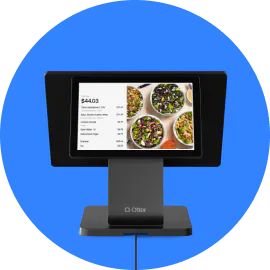
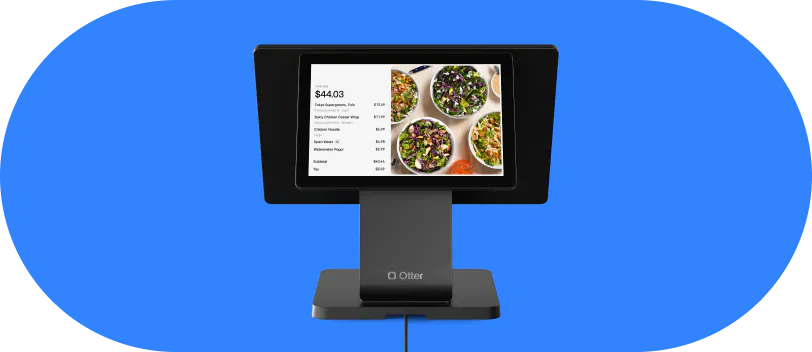
Otter processes payments natively on Otter POS, so there's no switching to a separate payment processor app or device mid-transaction.
When something goes wrong: error recovery without calling the owner
You're not always on the floor. Staff need a clear decision tree for the moments that break service.
Wrong item sent to the kitchen after the KDS picks it up
Walk through the void or modify workflow. If the KDS has already acknowledged the ticket, a void may require manager-level user permissions. Staff who know their access level don't freeze. They escalate to the right person immediately.
Declined card in the middle of a rush
Retry, switch method, or take payments in cash. The goal is resolution in under 30 seconds. Don't apologize excessively. It slows the line more than the declined card does.
Wi-Fi drops mid-service
This is where offline mode becomes a real operational requirement. Otter's POS terminal and Bluetooth printer all operate in offline mode: transactions keep processing and orders still fire to the kitchen without an active internet connection. Data syncs automatically when connectivity restores. Not every POS system covers all three components in offline mode, so verify yours does before your next peak shift.
“We actually lost internet here and we were still getting our tickets. Otter has a backup, we run off cellular data and we still got our tickets. So I love that.”
Nicole Kuti, co-owner, Telly's Charburgers (Santa Clarita, CA)
Duplicate order from a third-party delivery app
Before voiding either ticket, check the order timestamp and ticket number. Fulfill the one with the earlier timestamp, void the duplicate, and log it.
POS terminal freezes
Follow a defined restart procedure. Daily restarts at the end of service prevent most mid-shift crashes. Make it a standard step on the closing checklist.
Give staff a simple reference they can use without calling you:
- Kitchen error: void or modify
- Payment error: retry or switch method
- System error: restart or switch to offline protocol
Print it. Put it near the terminal. Don't bury it in an onboarding doc no one opens twice.
How to train new staff on your POS without losing a service
Industry coverage of the 2026 National Restaurant Association highlights that staff training is one of the biggest hurdles restaurants face when adopting new POS and kitchen technology. The reason it feels overwhelming is that most training tries to cover everything at once. It doesn’t have to.
Tier 1: day one (must-have before first solo shift)
- Unique PIN login and role confirmation
- Basic order entry with modifiers confirmed before firing
- Standard card and cash payment
- How to void before the KDS picks up a ticket
That's it. A new hire who can't run a basic payment confidently is a liability during service.
Tier 2: week one
- Split checks and split bills
- Post-tip adjustments
- End-of-day closeout steps
- How to run a basic shift report
Tier 3: week two and beyond (shift leads and experienced staff)
- Discounts, gift cards and comps
- Refund processing
- Pulling 7- or 30-day sales summaries
- Adjusting menu items and inventory management
- Managing user permissions and role assignments
Tip: use a sandbox or training mode if your POS supports it. Run a simulated order-to-payment flow before going live so staff make mistakes without consequences.
“What I really like is you have training mode. When we have people that come in and have to learn, we put it on training mode and they can live-time practice sending orders, going through all the steps, checking somebody out. But it doesn't charge them. It's just a training.”
Nicole Kuti, co-owner, Telly's Charburgers (Santa Clarita, CA)
Shadowing protocol: pair a new hire with an experienced staff member for the first two shifts. The new hire runs the transactions; the experienced staff member supervises and corrects in real time.
Otter's free personalized onboarding is built to set you and your staff up correctly from the start, not handed a manual and left to figure it out.

End-of-day closeout: what to check before anyone goes home
Five minutes at closeout is worth more than an hour of guessing at the end of the month. Run this checklist every night.
Step 1: run the shift report
Total daily sales by payment type (cash vs. card), number of transactions, average ticket size. This is your baseline for whether the shift performed as expected.
Step 2: cash drawer reconciliation
Count the physical drawer. Subtract the starting bank. Compare to the POS cash sales figure. Any discrepancy, over or short, is noted before staff leave, not discovered three days later.
Step 3: check for open tickets
Any order that wasn't closed out will skew your sales data and may mean a guest was never charged. Find them and close them before anyone walks out.
Step 4: review voids and comps by employee
A pattern of voids during a specific staff member's shift can signal a training gap or something more serious. This is the practical payoff of requiring unique PINs: you can see exactly what happened and who was logged in.
Step 5: restart the terminal and KDS
Daily restarts reduce the risk of mid-service freezes the following day. Make it a standard step, not optional.
Because Otter is a cloud-based POS, you can review shift reports remotely: from home, from another location, from wherever you are. You don't have to be on-site to know how the night went.
A configured POS and a trained staff are the same investment
The POS doesn't run itself. But when it's configured correctly before service and your staff know the handful of workflows that actually matter, it runs the floor without constant manager intervention.
The upstream setup decisions, modifier trees, user permissions, station routing, are just as important as the training itself. You can't train around a poorly configured system. A staff member who's been trained well on a badly set-up POS will still be interrupting service for manager overrides all night.
The goal isn't a staff that can use every feature. It's a staff that can run a complete service without needing you on the floor, and bring you data you can actually act on when the night is done.
Ready to run a full service without being on the floor? See what Otter can do for your operation.
Frequently asked questions about using a restaurant POS system
How long does it take to train a new employee on a restaurant POS system?
Plan on one to two hands-on shifts for the essentials: logging in, ringing items with modifiers, and taking standard card and cash payments. The trickier tasks, such as splitting checks, processing refunds, and reading a shift report, tend to click during the first full week on the floor. Trainees learn faster when you set a clear day-one skill list instead of demonstrating every feature in one sitting.
What happens to my POS system if the internet goes down during service?
A cloud-based POS with a true offline mode keeps ringing sales and pushing orders to the kitchen even with no connection, then reconciles everything once the network is back. The catch is coverage: some systems only keep the terminal running while the KDS or printer goes dark. Test all three components together before you have to rely on them during a rush.
Can different staff members have different user permissions on a restaurant POS?
Yes, and role-based permissions are one of the highest-leverage things you can set before opening day. A common structure gives cashiers standard transactions only, while shift leads and managers can void, comp, discount, and pull reports. When those tiers aren't defined in advance, ordinary tasks stall because someone has to track down a manager to unlock them.
What is the difference between a void and a refund on a POS?
A void stops a charge before it clears with the processor, so the money never actually moves, usually available the same business day. A refund unwinds a payment that has already settled and sends the funds back to the guest's card, which can take a few business days to appear. Because both touch settled or pending money, most systems gate them behind manager permissions, which is another reason to map access levels during setup.
How do I process a split check on a restaurant POS?
Pull up the open order, choose the split option, then decide whether to split bills by item or divide the total evenly, and ring each guest's portion as its own payment. It is the slowest and most error-prone payment path for new hires, so rehearse it in training mode before a real table asks for it. A few reps in a sandbox is the difference between a smooth split and a backed-up line.
What should I review in my end-of-day POS report?
Start with the numbers that tell you how the shift performed: sales by payment type, transaction count, and average ticket. Then close the loop operationally by counting the drawer against the POS cash figure, clearing any tickets that were left open, and scanning voids and comps by employee. Catching a discrepancy the same night is far easier than reconstructing it days later.
Can a restaurant POS handle in-person and online ordering at the same time?
Yes. A modern setup pulls counter orders, kiosk orders, and third-party delivery into one screen so staff aren't juggling separate tablets mid-rush, and those online orders route to the KDS exactly like walk-up tickets. That consolidation is a big reason delivery orders stop slipping through the cracks during peak hours.
What is the most common mistake new staff make on a restaurant POS?
Firing an order to the kitchen before confirming the modifiers. Once the ticket lands on the KDS and the line acknowledges it, fixing it usually means a manager-level void plus a remake, and that costs you time you don't have during service. The cheapest fix is a pre-shift habit: read the modifiers back before hitting send.

Get started with Otter POS