Table of contents
- What is a restaurant POS system?
- How does a restaurant POS system work?
- What hardware does a restaurant POS system need?
- Restaurant POS software features to evaluate
- What are the benefits of a restaurant POS system?
- Cloud-based vs. on-premises restaurant POS systems
- How to Choose a Restaurant POS System
- Restaurant POS systems vs. retail POS systems and cash registers
- How much does a restaurant POS system cost?
- How to choose a restaurant POS system
- Five questions to ask every POS vendor before signing
- Choose a restaurant POS that supports your daily service
- Frequently asked questions about restaurant POS systems
Search for "POS system," and you may find retail-focused answers about barcode scanners and SKU counts. Those features do not explain how a system handles kitchen tickets, menu modifiers, or delivery orders. According to the National Restaurant Association’s 2026 State of the Restaurant Industry findings, nearly 3 in 10 operators believe their restaurants lag behind their peers in technology use. Choosing a POS starts with understanding what your restaurant needs during service.
This primer walks you through that decision. By the end, you’ll know what a restaurant POS system is, how orders move from entry to kitchen to payment, which costs to compare, and the five questions to ask before signing.
Key insights
- A restaurant POS needs more than a menu loaded into a checkout screen. Look for modifier logic, kitchen station routing, and workflows for dine-in, pickup, and delivery. Some providers serve both retail and restaurants, so evaluate their restaurant-specific software.
- Processing fees can be a major part of your POS costs. At $40,000 per month in card sales, a 0.3 percentage-point rate difference equals $1,440 per year, before differences in fixed transaction fees. Compare total costs, including software and hardware.
- Offline capabilities need to be verified for each device and function. Ask what your terminal, KDS, printer, and card reader can do when the internet drops, what remains unavailable, and how data recovers. Offline card payments may have limits or delayed authorization.
- Support availability matters when service is live. What happens when something breaks at 7 p.m. on a Saturday and the line is out the door? Confirm support hours, how you reach a person, and the process for urgent issues before signing.
What is a restaurant POS system?
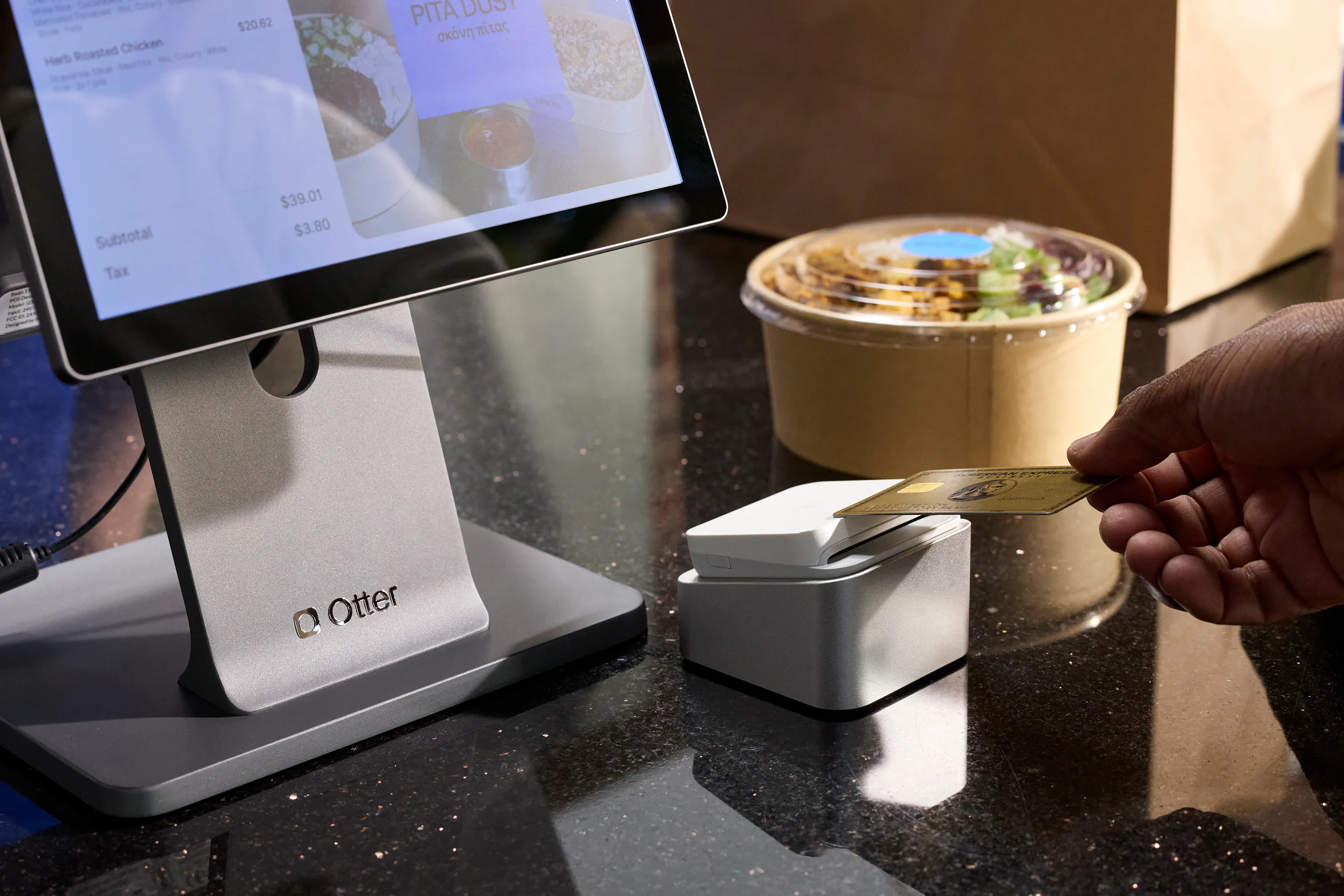
A restaurant POS system is the combination of software and hardware your restaurant uses to take orders, accept payments, send preparation instructions to the kitchen, and track sales. POS stands for point of sale.
The terminal or tablet is where staff interact with the system. The card reader handles supported electronic payments. The software connects your menu, order tickets, transaction records, and reports so staff can follow an order through service.
Depending on the provider and package, a POS may also connect online ordering, delivery apps, customer profiles, loyalty programs, employee permissions, and multiple locations. Some functions are built into the POS; others require an integration or separate subscription.
Start by distinguishing what is included in your package from what you need to connect separately.
How does a restaurant POS system work?
An order usually moves through five stages. The sequence depends on your service model: a counter-service guest may pay before preparation, while a dine-in guest may settle the check after the meal.
1. Capture the order
A staff member enters an order at a terminal or handheld device, or the guest orders through a website, kiosk, or connected delivery app. The POS records items, quantities, modifiers, and the service mode.
Tip: Test your most complex menu item during a demo, including required choices, substitutions, and additional charges.
2. Send instructions to the kitchen
The system sends preparation instructions to a kitchen printer or display. Routing rules determine which items appear at each station, such as sandwich prep, the hot line, or the fryer.
Tip: Order items from multiple stations and check that the kitchen can tell which items belong to the same order.
3. Prepare and hand off the order
The kitchen prepares the food, and staff hand it to a guest, take it to a table, or package it for a driver. Order status updates and guest notifications depend on the software and connected services.
Tip: Change an order after the ticket has been sent. Check that the kitchen receives a clear revision.
4. Accept payment
The POS records payment through supported methods such as cash, chip cards, contactless cards, or mobile wallets. Split payments, open checks, tips, refunds, and other payment workflows vary by provider.
Tip: Ask to see a declined payment, a partial refund, and a split check so you understand how staff handle exceptions.
5. Record and review the sale
The transaction becomes part of your reporting. Depending on the system, you can review sales by item, hour, location, or ordering channel, along with discounts, taxes, and payment methods.
Tip: Find the test transaction in a report and confirm that its payment and adjustments are recorded correctly.
Otter’s restaurant POS system connects restaurant ordering and payment workflows. Confirm the package and integrations needed to bring your in-store, online, and third-party orders into the setup you choose.
What hardware does a restaurant POS system need?
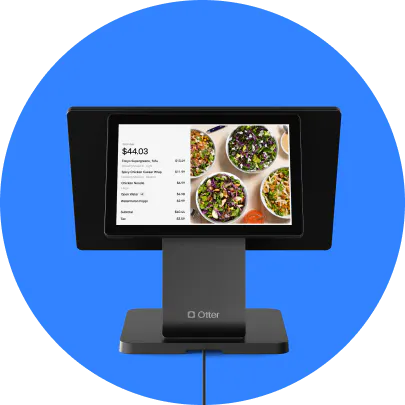
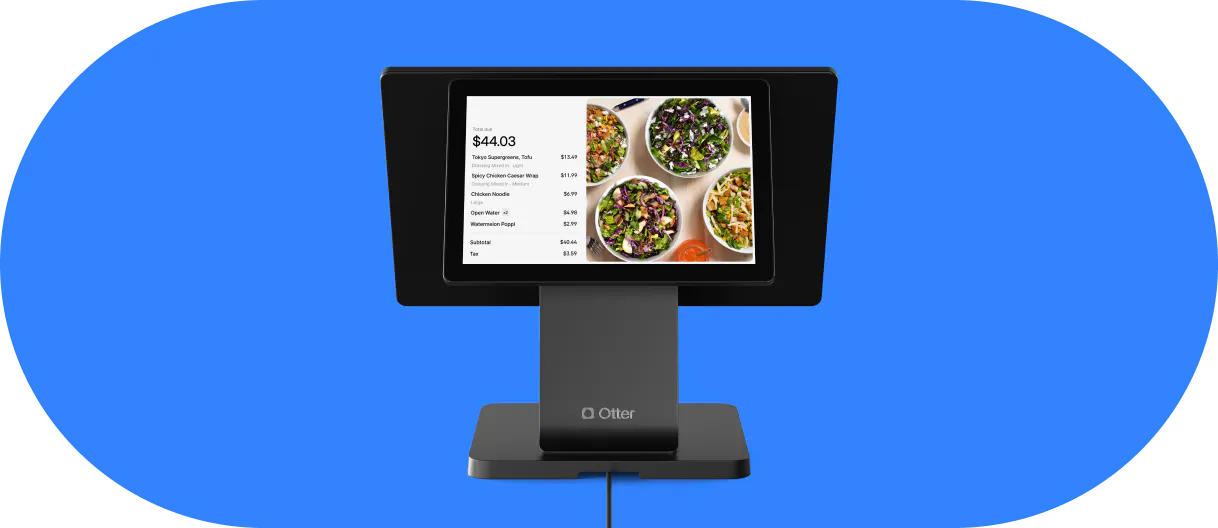
Choose equipment around your service flow. A small counter-service restaurant may need one terminal and kitchen printer, while a larger operation may need several stations, handheld devices, and kitchen displays.
Component | What it does | What to check |
|---|---|---|
POS terminal or tablet | Runs the ordering interface | Screen size, durability, connections, and software compatibility |
Card reader | Accepts supported card and wallet payments | Chip, contactless, mobile wallet, and offline payment support |
Kitchen printer | Prints preparation instructions | Station routing, connection type, and backup procedures |
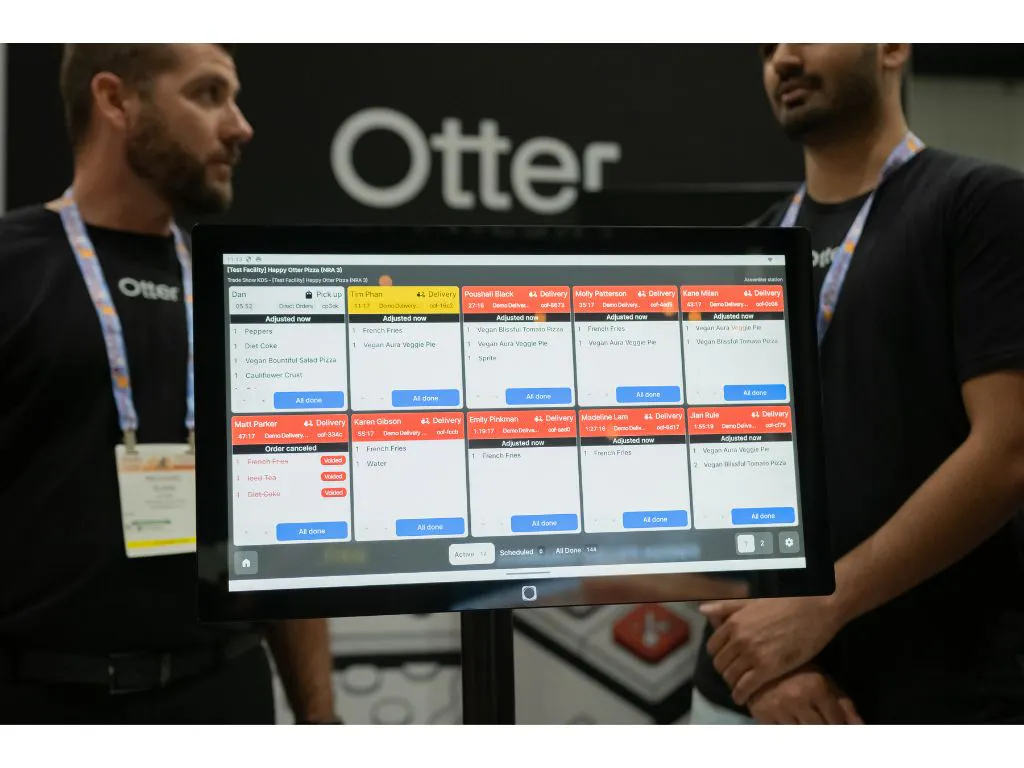
Kitchen display system | Shows tickets and preparation status | Routing, screen layout, and connection requirements |
Receipt printer | Provides guest receipts | Whether you need printed receipts, digital receipts, or both |
Cash drawer | Holds cash | Access permissions and reconciliation procedures |
Customer-facing display | Shows order details and payment prompts | Visibility, accessibility, and supported guest actions |
Handheld device | Supports mobile ordering or payment | Battery life, network coverage, and service workflow |
Self-service kiosk | Lets guests enter their own orders | Menu setup, payment support, and kitchen routing |
A kitchen display system should show modifiers and special requests clearly. Ask whether staff can organize tickets by station and see changes after an order has been sent.
Printers and other devices may connect through a wired network, Wi-Fi, or Bluetooth. The right choice depends on the equipment and your layout. Walk through placement, coverage, installation, and the backup process with your provider.
Review the provider’s hardware bundle and pricing to see which components and onboarding services are included. The Otter POS product overview is another place to explore its restaurant setup.
Before buying, confirm who owns the equipment, which existing devices you can reuse, and whether it will work if you change software providers.

Restaurant POS software features to evaluate
A feature list is only useful if the functions work with your menu and staff. Ask your provider to demonstrate these workflows rather than checking boxes on a comparison chart.
Menu management and modifiers
Your POS should let you organize items, set prices, manage availability, and build the choices that guests need to make. Required modifiers, substitutions, extras, and combos should appear as clear instructions for the kitchen.
For restaurants with multiple ordering channels, ask where menus are managed, whether prices can differ by channel, and how quickly changes sync. This guide to restaurant menu management explains the work involved in keeping menus consistent.
Order modes and kitchen routing
Dine-in, pickup, and delivery orders need recognizable labels and an appropriate handoff process. A kitchen should be able to identify the service mode and route items to the right stations.
If you use DoorDash or Uber Eats, verify that the integration supports your menu and order flow. Test modifiers, cancellations, and unavailable items across channels.
Payments, refunds, voids, and discounts
Check how staff handle common exceptions:
- Remove an item before payment without rebuilding the entire order.
- Refund one item or part of a payment.
- Apply authorized discounts or comps.
- Split a check across supported payment methods.
Ask which actions require manager approval and whether the system records who made each adjustment. Available payment workflows depend on the product, processor, and configuration.
Reporting and operational visibility
Useful reports may include sales by item, hour, location, and channel, along with average order value, refunds, discounts, and staff activity. Confirm which reports you can access remotely and which you can export.
Reports help you review performance over time. Live alerts serve a different purpose: they notify you when something needs attention during service. Ask which alerts are included and what triggers them.
Inventory and food cost data
POS sales data can help you understand how much you sell and when. Ingredient-level inventory requires more detail, such as recipes, quantities, purchasing records, and waste.
Distinguish item availability from ingredient tracking. Confirm whether food cost calculations and purchasing tools are native features or integrations. For a dedicated solution, explore food inventory software options.
Customer profiles and loyalty
Customer profiles can connect purchase history with a guest account. Loyalty programs may let guests earn points or redeem rewards, but enrollment, redemption, and data collection differ between providers.
Card-linked loyalty connects eligible purchases to a participating guest’s payment card. Ask how guests enroll, how staff apply rewards, and how consent and privacy are handled. A loyalty feature gives you a tool for encouraging repeat visits; results depend on the offer and guest experience.
Multi-location and brand management
For multiple locations, evaluate how you manage shared menus, local differences, reporting, and staff access. A single login is useful only if you can also control who can change settings or view each location.
Restaurants running virtual brands should test separate menus, brand labels, and reporting within a shared kitchen. Ask what changes when you add a location or brand, including device requirements, training, and subscription costs.
Check your other software connections too. This guide to restaurant POS integrations can help you identify the systems that need to work together.
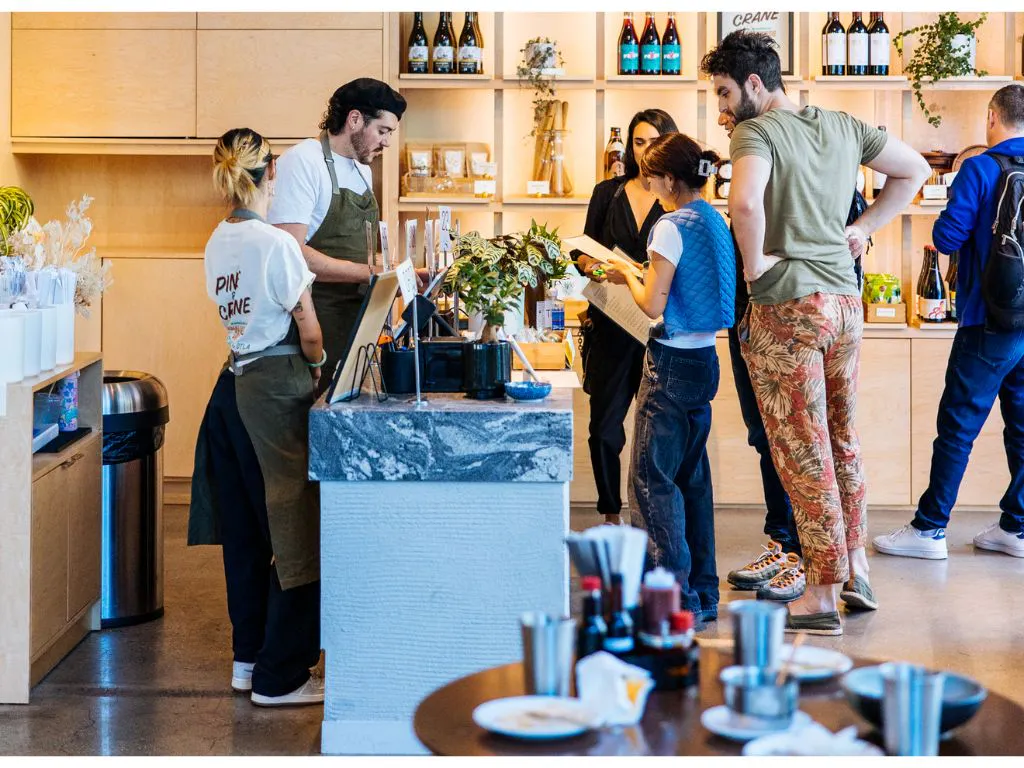
What are the benefits of a restaurant POS system?
The benefits depend on setup, training, and consistent use. A POS can support clearer communication and more useful records, but the technology needs to match the restaurant’s daily work.
Clearer communication between the counter and kitchen
Digital tickets can reduce the need to interpret handwriting or repeat an order verbally. Modifiers and preparation instructions can travel with the order instead of relying on a separate conversation.
Taqueria La Estrella’s restaurants and food truck in the Bay Area illustrate the need to coordinate ordering across different service environments. Otter can work alongside restaurant POS systems to connect that order-management work.
Less repetitive work across ordering channels
Connecting channels can reduce the need to enter the same order in more than one system. The benefit depends on which platforms are supported and how the integration handles menu and order changes.
Cinemark’s use of Otter Order Manager with a custom POS integration is an example of connecting an existing system with order management. It does not mean every restaurant needs to replace its POS to consolidate orders.
More control over multiple concepts
A shared kitchen may need to manage several brands and delivery platforms at once. Clear labels, separate menus, and consistent reporting can help staff recognize which concept an order belongs to.
Lip Eats in Phoenix uses Otter to coordinate orders across brands and platforms in a shared kitchen. That illustrates order coordination; inventory purchasing and replenishment still require their own workflow.
A more manageable transition
Moving systems involves menu setup, equipment installation, payment configuration, and staff training. Personalized onboarding can help a restaurant translate its existing practices into the new software.
Gus Frousakis, owner of Jim’s Burgers in Bell, California, described that transition: “They did the best they could to take what we had and bring it into their software.”
Evaluate the change through practical results: fewer order errors, less manual work, and more reliable information. A POS can support those outcomes, but it does not automatically make a restaurant profitable.
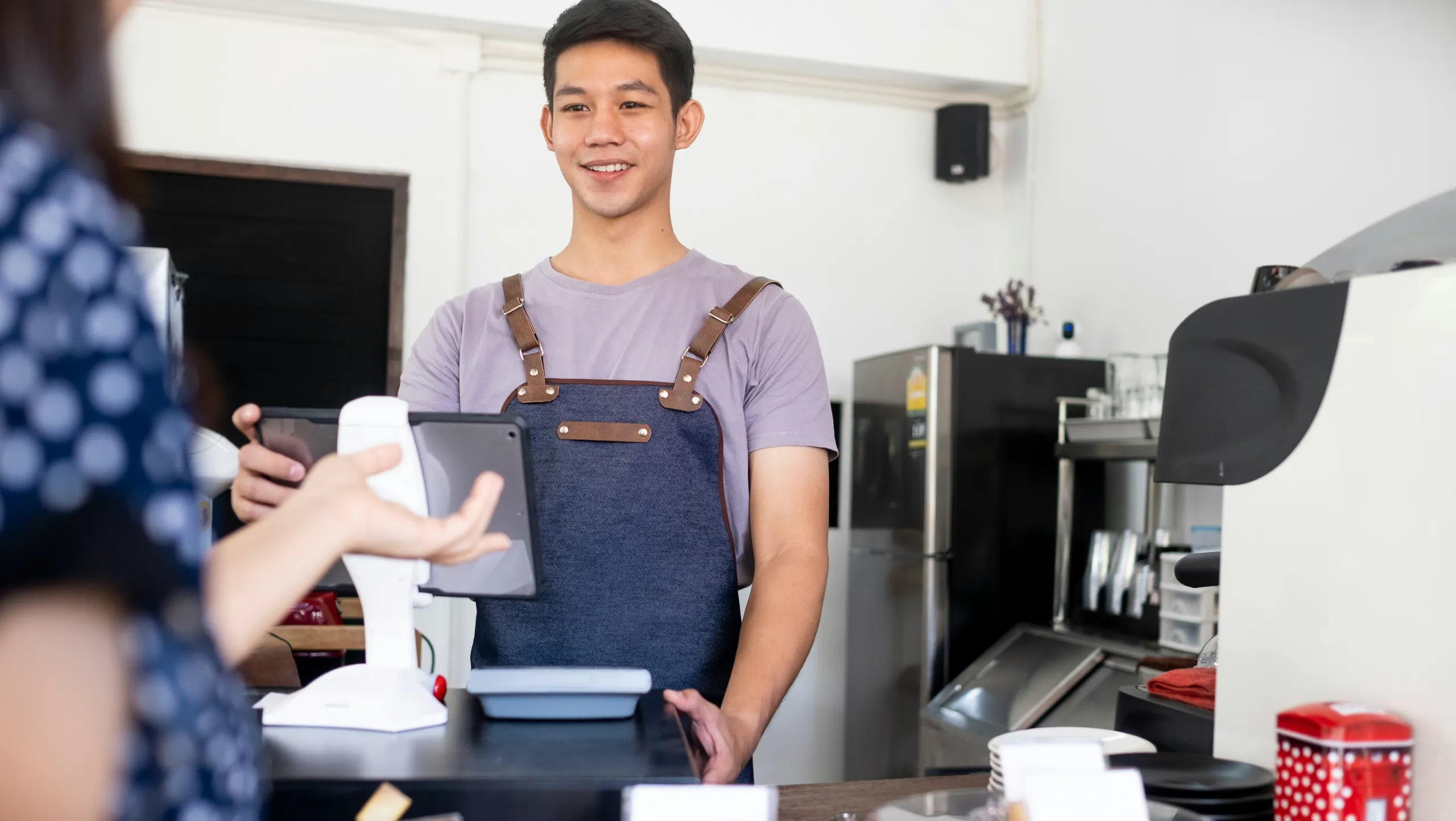
Cloud-based vs. on-premises restaurant POS systems
How to Choose a Restaurant POS System
A cloud-based POS stores and synchronizes data using remote servers. An on-premises system relies more heavily on equipment and data storage at your restaurant. Some systems combine local functions with cloud services.
What to consider | Cloud-based POS | On-premises POS |
|---|---|---|
Data access | Typically offers remote access for authorized users | Remote access depends on the setup |
Updates | Often managed by the provider | May require local technical support |
Infrastructure | Uses hosted services | May require local servers and maintenance |
Connectivity | Internet supports synchronization and connected services | Local functions may run locally, but online services still need connectivity |
Costs | Often includes recurring subscriptions | May include more upfront infrastructure and maintenance |
Continuity | Depends on offline capabilities and recovery procedures | Depends on local equipment, backups, and connected services |
For more context, read how a point of sale works from order entry through reporting. You can also compare restaurant POS options when evaluating which setup fits your operation.
What offline mode really means
Cloud-based does not mean every function stops when the internet goes down. It also does not mean every function continues normally.
Ask separately about order entry, card payments, kitchen displays, printers, online orders, and reporting. Offline card transactions may have limits, delayed authorization, or additional merchant risk. A printer’s ability to work locally does not prove that connected delivery orders will continue arriving.
Get a written explanation of what works offline, what is unavailable, and how transactions and tickets recover when connectivity returns. Test the process with the devices you plan to use.
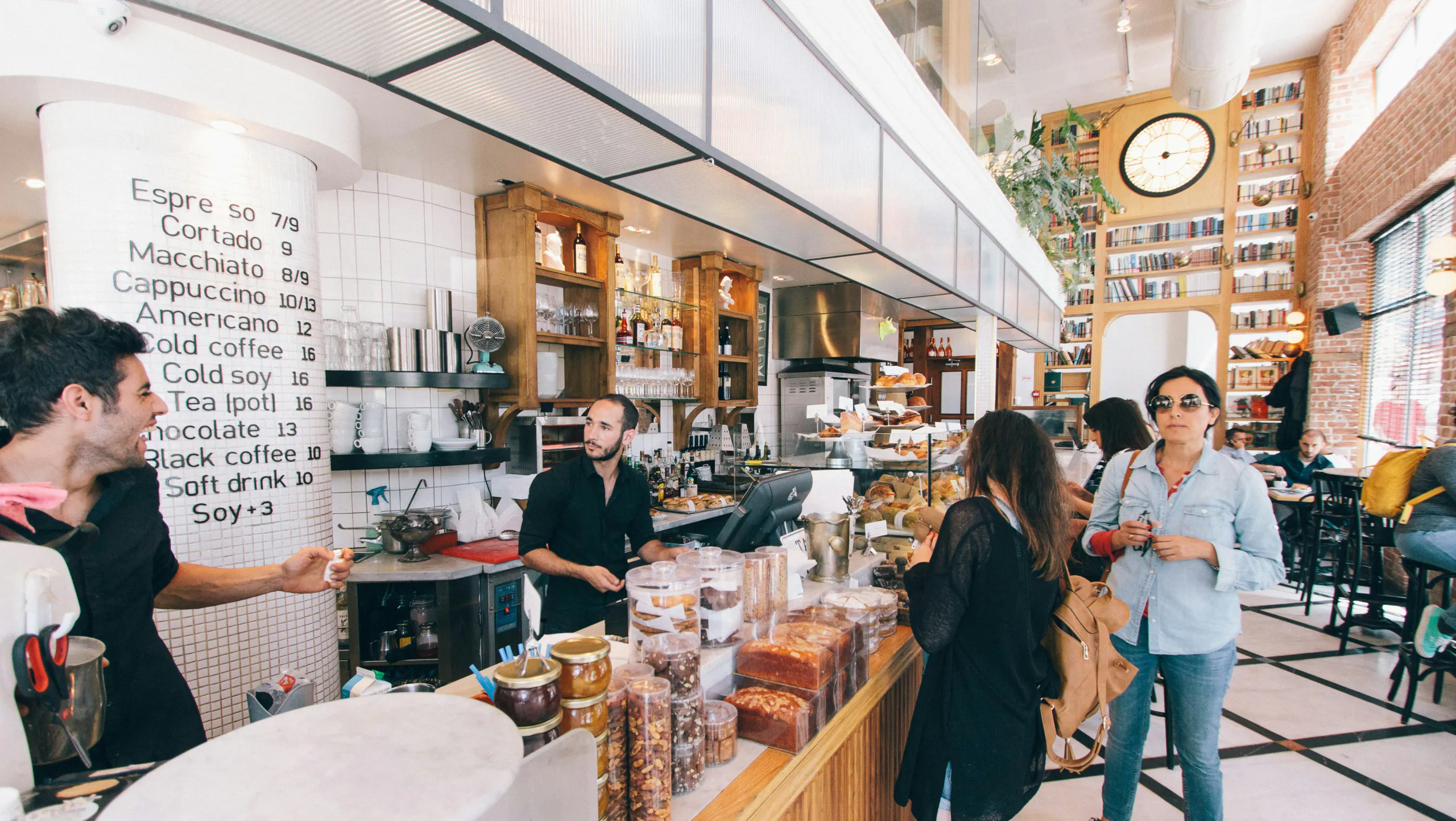
Restaurant POS systems vs. retail POS systems and cash registers
A cash register records transactions and helps staff manage cash. A restaurant POS connects those transactions with ordering, kitchen communication, and reporting.
Retail systems often focus on product lookup, stock, and checkout. Some providers also offer restaurant software or modules, so evaluate the actual product rather than assuming every system with a retail background lacks restaurant functions.
For a restaurant, test whether the system supports:
- Required modifiers, substitutions, and additional charges.
- Kitchen routing and clear preparation tickets.
- Dine-in, pickup, and delivery workflows.
- Check adjustments, refunds, and the payment flows your staff use.
- The integrations needed for your ordering channels.
The label on the product matters less than whether it can handle your menu and service without unnecessary manual steps.
How much does a restaurant POS system cost?
Compare the complete cost of operating the system. A low software fee can come with higher processing costs, equipment charges, or paid add-ons.
Hardware and installation
You may buy, rent, or lease terminals, card readers, printers, and displays. The number of devices and your installation needs affect the quote.
Ask about warranties, replacement equipment, shipping, installation, ownership, and what happens to leased hardware when the contract ends.
Software subscriptions
Software may be priced per location, terminal, user, or package. A base plan may include only some of the features you need.
Get an itemized list of included functions and paid services, such as loyalty, online ordering, kiosks, advanced reporting, or additional locations.
Payment processing
Processing fees may include a percentage of each transaction, a fixed transaction fee, and other charges. Rates and terms can differ by payment method and transaction type.
For example, a 0.3 percentage-point difference on $40,000 in monthly card sales equals $120 per month, or $1,440 per year, before any differences in fixed transaction fees. This is an illustrative calculation, not a provider quote.
Ask about minimums, online versus in-person rates, refunds, and whether you can choose your processor.
Support, integrations, and contract terms
Confirm whether the quote includes:
- Setup, menu configuration, and staff training.
- Integrations and additional devices.
- Support during your operating hours.
- Any compliance or service charges.
- Chargeback and refund-related fees.
- Cancellation, early termination, or renewal terms.
Use the same 12- or 24-month period to compare providers. Include both one-time and recurring expenses, and use realistic card volume and transaction counts. This guide to restaurant POS system costs explains what to include in the comparison.
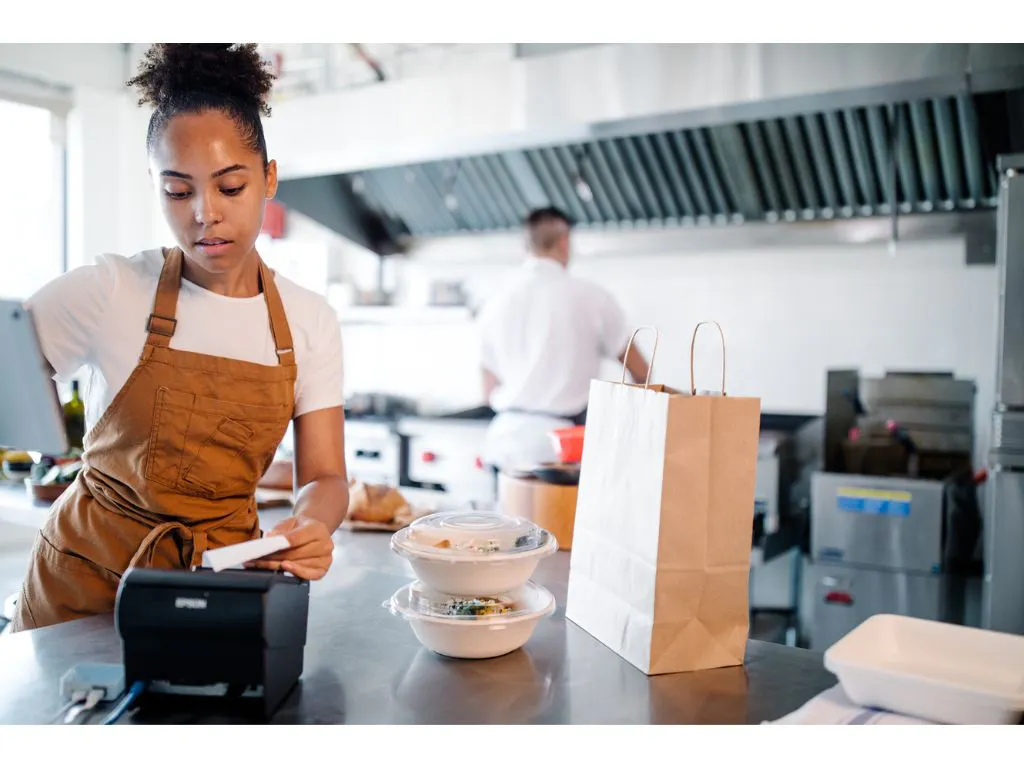
How to choose a restaurant POS system
Start with your service model. A food truck may prioritize mobility and reliable connectivity. A full-service restaurant may need table and check-management workflows. A delivery-heavy operation may need strong integration and kitchen-routing support.
1. Define your requirements
List the tasks your staff performs during a shift and identify where the current process creates extra work. Separate launch requirements from features you might add later.
Tip: Ask front-of-house and kitchen staff which problems they most need the new system to solve.
2. Run a complete demo
Use your own menu to test an order from entry to preparation, payment, and reporting. Include modifiers, multiple stations, discounts, and exceptions.
Tip: Let an employee use the system after a short introduction. You will learn more about usability than from a polished sales walkthrough alone.
3. Evaluate support, training, and growth
Confirm support hours, contact methods, onboarding, and the process for replacing failed equipment. Ask for a reference from a restaurant with a similar concept and volume.
Tip: Review what changes when you add a location, ordering channel, or device, including costs and training.
4. Review the full quote and contract
Compare the complete cost, renewal terms, hardware obligations, and data export options. Make sure the features shown in the demo are part of the package in the quote.
Tip: Get commitments in writing so the implementation team and your staff can work from the same expectations.
Five questions to ask every POS vendor before signing
1. What works when the internet goes down?
Ask about the terminal, card reader, kitchen display, printer, and online channels separately.
Tip: Request a written offline procedure and a recovery demonstration.
2. Can I reuse my hardware and export my data?
Confirm equipment compatibility, ownership, exit fees, export formats, and any charges for accessing your records.
Tip: Ask to see a sample export before committing.
3. What will processing cost at my actual volume?
Request a quote using your monthly card sales, transaction counts, and mix of in-person and online payments.
Tip: Compare percentage fees, fixed fees, and recurring charges together.
4. How do online and delivery orders reach the kitchen?
Determine whether each connection is native, requires an integration, or involves manual entry.
Tip: Watch a live order arrive from a connected channel and check its modifiers and station routing.
5. What happens when I need support during service?
Confirm whether urgent issues reach a person, how you contact support, and what happens outside standard business hours.
Tip: Distinguish the urgent support process from the routine ticket queue.
Choose a restaurant POS that supports your daily service
The right POS should fit how your restaurant takes orders, prepares food, and collects payment. Focus on three decisions: whether it supports your service, what it costs in full, and how you will handle problems.
Use your menu in the demo, compare a complete quote, and confirm support and offline limitations in writing. Those steps give your team a clearer starting point for implementation and training.

Book a demo with Otter
It’s time to enhance your operations with Otter’s all-in-one restaurant platform. Book time with our sales team to learn more.
Frequently asked questions about restaurant POS systems
What does POS stand for in a restaurant?
POS stands for point of sale. A restaurant POS combines software and hardware to take orders, communicate with the kitchen, accept payments, and record transactions.
What is the difference between a POS system and a cash register?
A cash register records sales and helps staff manage cash. A restaurant POS can connect ordering, kitchen tickets, supported payment methods, and reporting. The exact functions depend on the system and package.
What hardware does a restaurant POS system include?
Common components include a terminal or tablet, a card reader, and a kitchen printer or display. A restaurant may also use a receipt printer, cash drawer, customer-facing display, handheld device, or kiosk. Your service model determines what you need.
Do I need internet to run a restaurant POS system?
Cloud-based systems use the internet to synchronize data and connect online services. Some functions may work offline, but you should verify order entry, payments, displays, and printers separately. Include any self-checkout POS devices in that check.
Can a POS system handle online and delivery orders?
Some systems connect online and third-party orders with your in-store workflow. Others need integrations or manual entry. When comparing restaurant POS systems, test a live order from each channel you use.
Does a restaurant POS system track inventory?
It may track item sales and availability, but ingredient-level inventory often requires recipes, purchasing records, and a separate feature or integration. Ask whether the system calculates usage from recipes, records waste, and supports the purchasing process you need.
Can a restaurant POS support customer loyalty?
Some systems include loyalty or connect with a separate loyalty provider. Check enrollment, reward redemption, customer identification, and data permissions. Confirm whether those features are part of your quoted package.
What is the difference between cloud-based and on-premises POS systems?
Cloud-based systems use remote servers and often support remote reporting and provider-managed updates. On-premises systems rely more heavily on local equipment and maintenance. If kiosks are part of your setup, this guide to using a restaurant kiosk machine can help you evaluate their workflow too.
Can I use a retail POS system in a restaurant?
You can consider a retail provider if the specific product supports your restaurant’s requirements. Test modifiers, kitchen routing, service modes, and check adjustments before deciding. A payment terminal alone will not cover those workflows.
How much does a restaurant POS system cost per month?
Your monthly cost depends on subscriptions, processing volume, equipment arrangements, and additional services. Include upfront expenses when comparing the total over 12 or 24 months. An itemized quote is more useful than a software fee alone.
Can one POS support multiple locations or virtual brands?
Some systems support shared menus, reporting, and access controls across locations or brands. Verify how local menu differences, brand labels, kitchen routing, and permissions work. Ask about the additional cost of each location, brand, or device.

Discover a POS built for your restaurant